> ## Documentation Index
> Fetch the complete documentation index at: https://wiki.latch.bio/llms.txt
> Use this file to discover all available pages before exploring further.
# Private Registries
When executing Nextflow workflows, processes may use container images hosted in private registries that the Latch cloud cannot access.
## Granting Permissions
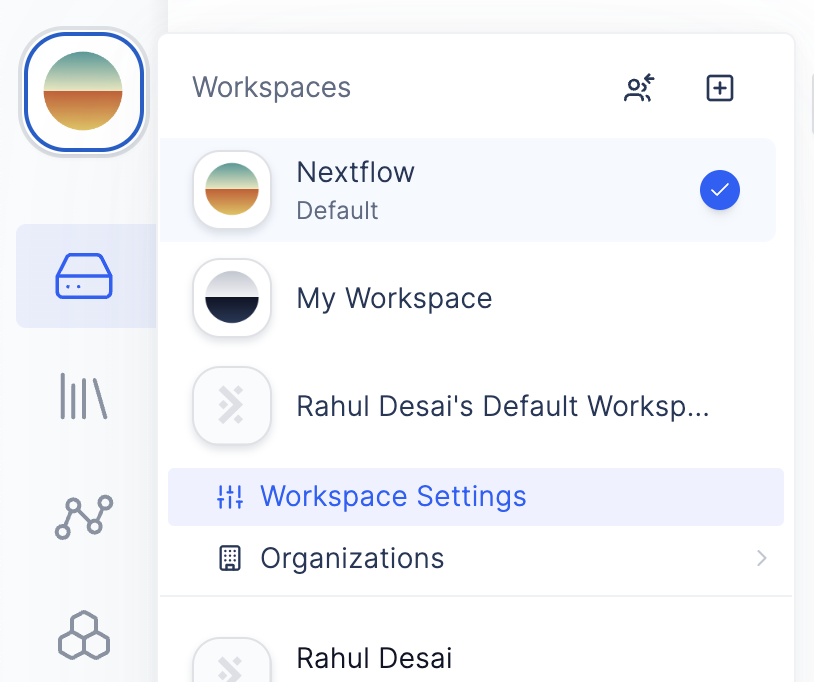
To grant Latch workflows access to your private registries, navigate to the Latch Console and head to Workspace Settings.
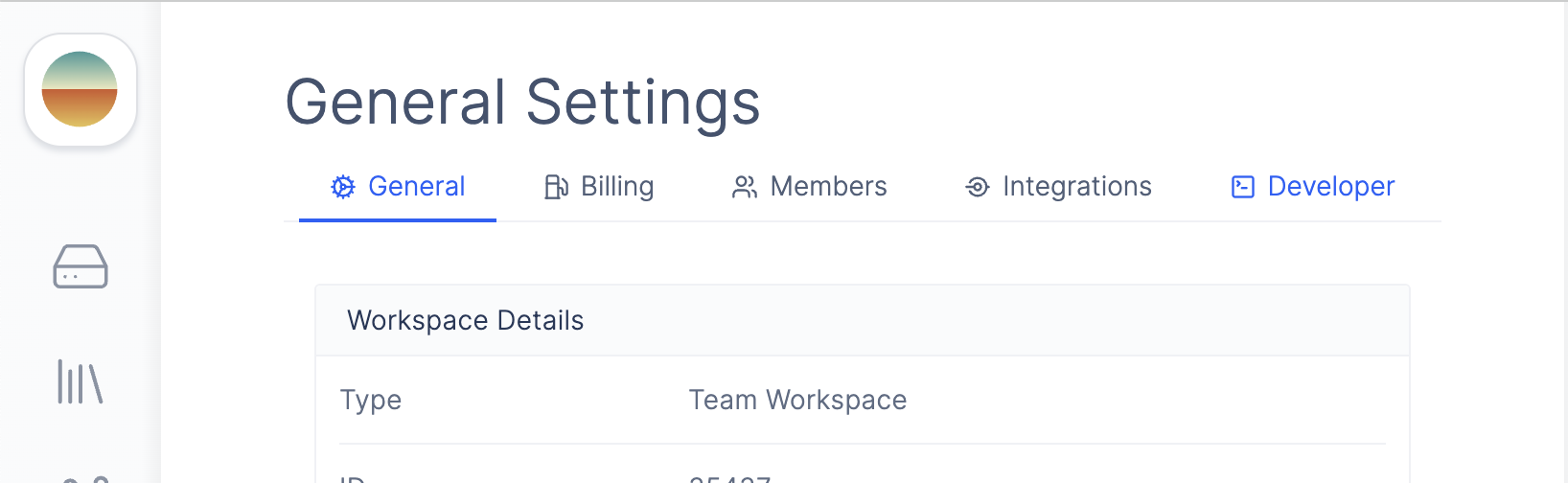
 From there, navigate to Developer Settings
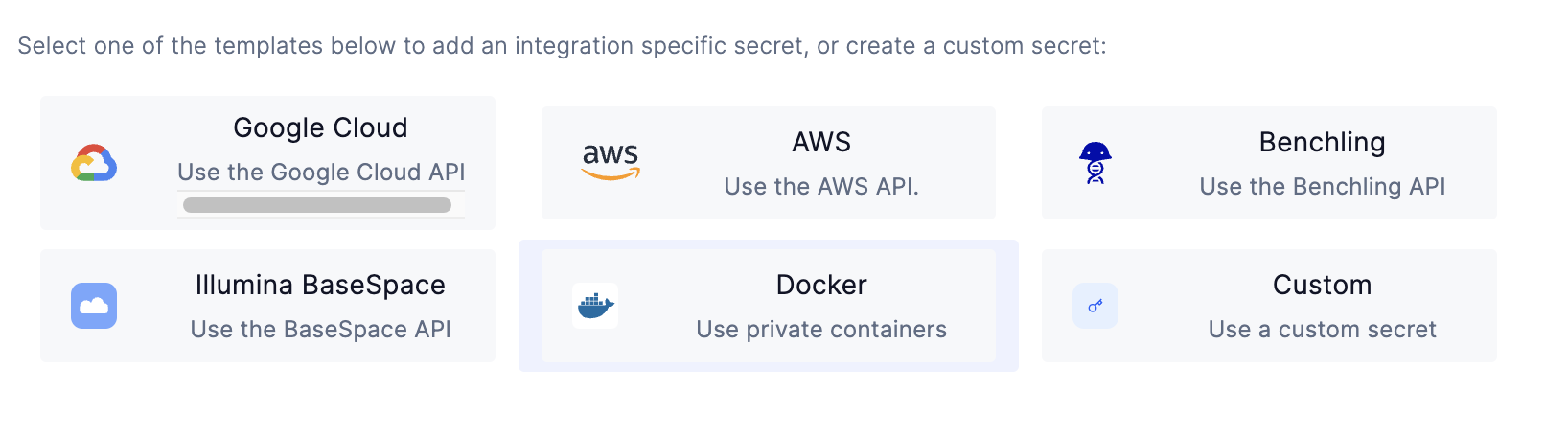
 From there, scroll down and select the `Docker` widget
 Then, enter the username, password, and registry URL for the private registry you wish to grant access to.
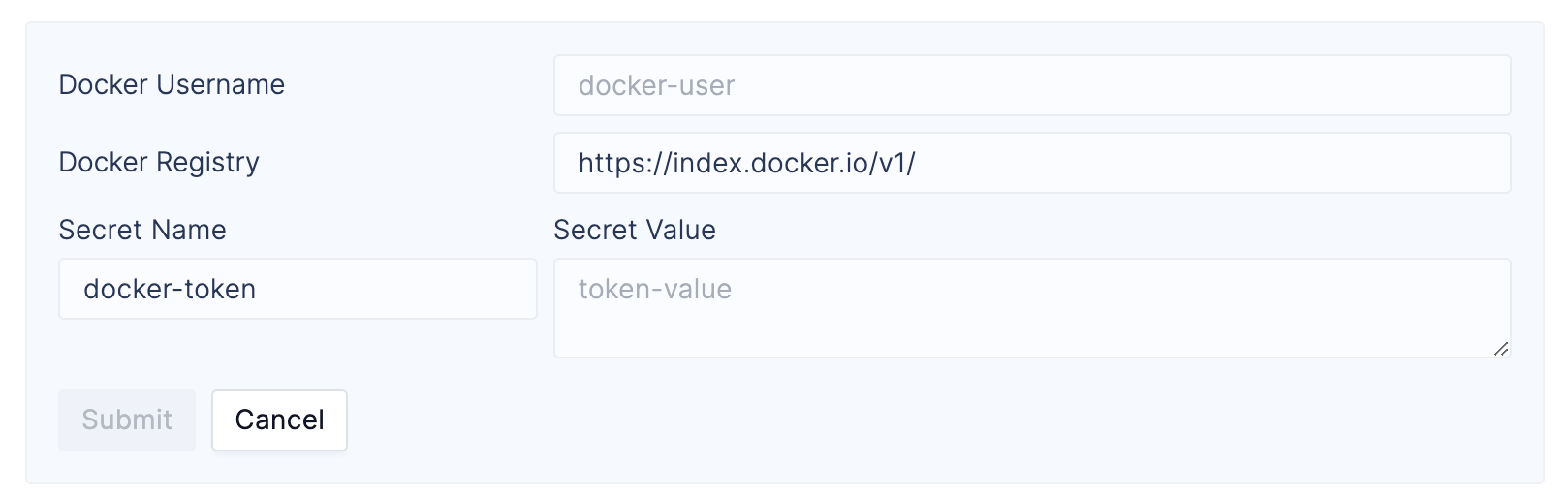 You should now be able to run workflows that use images from your private registry.