> ## Documentation Index
> Fetch the complete documentation index at: https://wiki.latch.bio/llms.txt
> Use this file to discover all available pages before exploring further.
# CSV Parameter Import
> Every workflow in Latch allows you to import a CSV containing values for its parameters. This is another way to import data when doing bulk runs of a workflow.
The goal of this feature is intended to streamline bringing in your experiment
data when running workflows into Latch and we would love to hear from you on
ways this could be improved. And to be completely honest the best way to use
the CSV import is to write a script that will automatically generate a CSV
based on your data.
## Preparing Your CSV
* Each row of the CVS will be imported as one run of the workflow and each column for that row will be imported to its corresponding parameter.
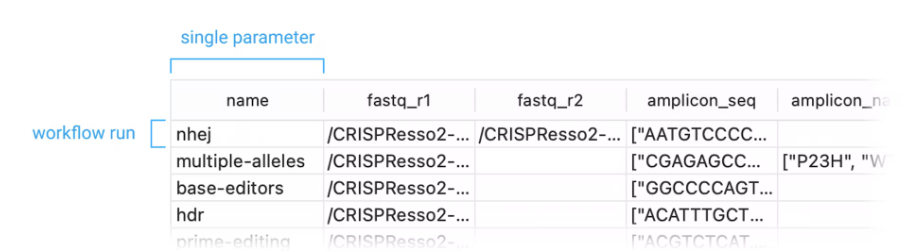 * Each parameter has a column name that the importer can use automatically map them (we don't expose these anywhere yet but we're working on it), but CSV columns can also be mapped manually to a parameter.
* Each parameter has specific formatting requirements to be properly imported. (I'm gonna work on the documentation for all of the formatting standards because this can be a pain to get right.)
* If you're exporting it from a spreadsheet application you're using here are some guides:
* [Excel](https://support.microsoft.com/en-us/office/import-or-export-text-txt-or-csv-files-5250ac4c-663c-47ce-937b-339e391393ba)
* [Numbers](https://support.apple.com/guide/numbers/export-to-excel-or-another-file-format-tan3b922d4ad/mac)
* [Google Sheets](https://support.airtable.com/hc/en-us/articles/203423579-How-to-export-a-spreadsheet-from-another-source)
### Adding File Paths to your CSV
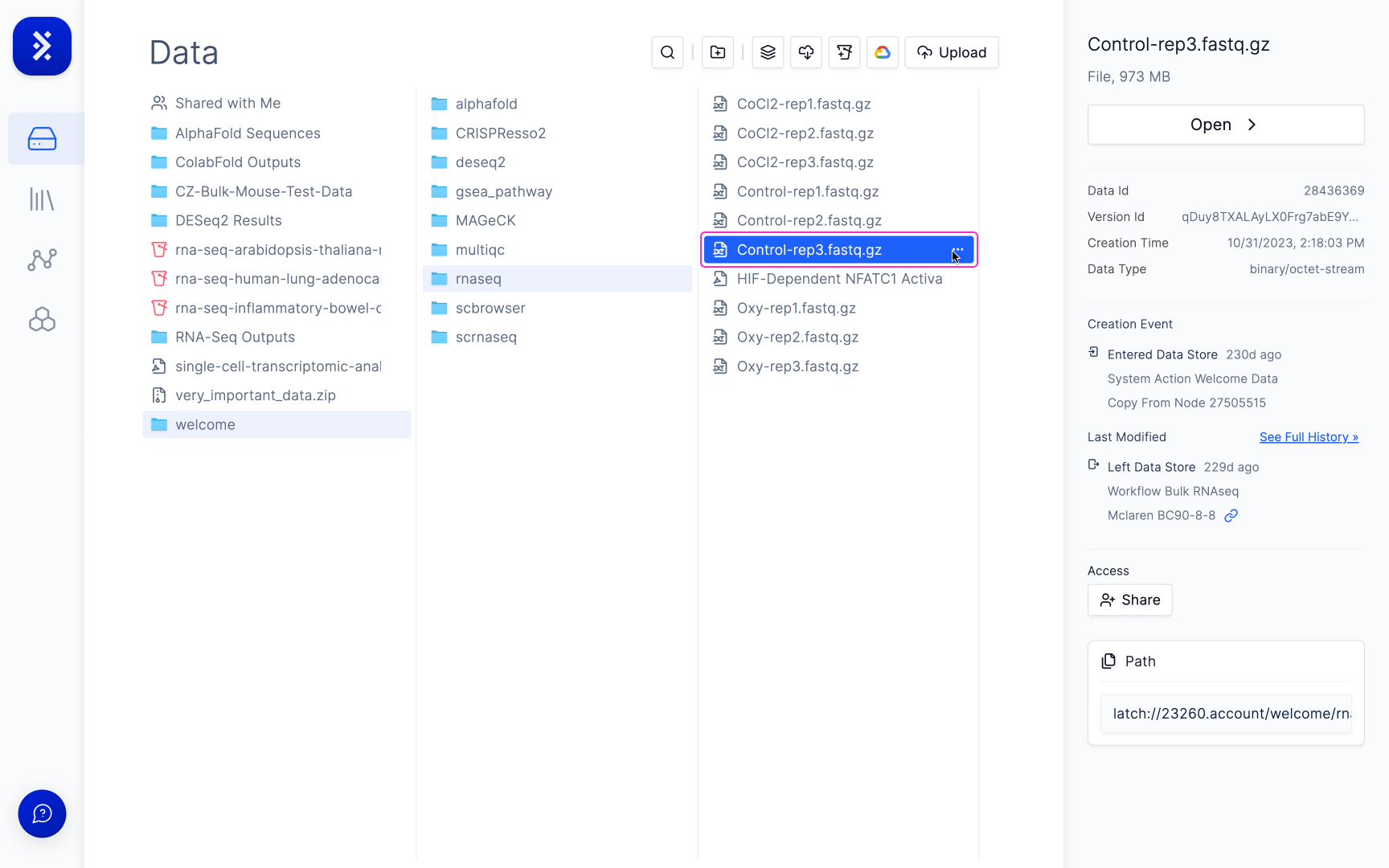
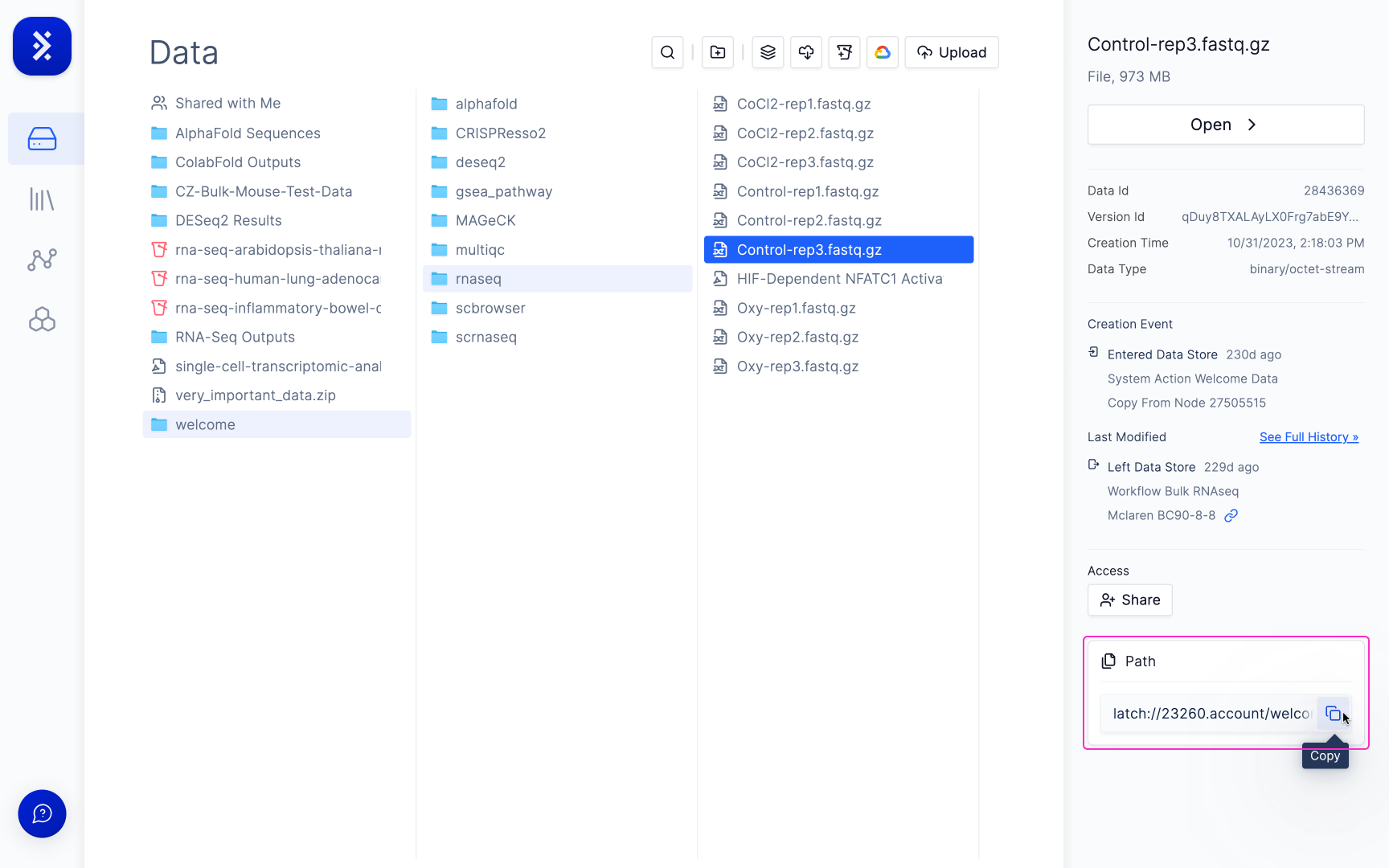
If one of the columns in your CSV requires a file path, you have to ensure that the file path matches that on Latch.
* Each parameter has a column name that the importer can use automatically map them (we don't expose these anywhere yet but we're working on it), but CSV columns can also be mapped manually to a parameter.
* Each parameter has specific formatting requirements to be properly imported. (I'm gonna work on the documentation for all of the formatting standards because this can be a pain to get right.)
* If you're exporting it from a spreadsheet application you're using here are some guides:
* [Excel](https://support.microsoft.com/en-us/office/import-or-export-text-txt-or-csv-files-5250ac4c-663c-47ce-937b-339e391393ba)
* [Numbers](https://support.apple.com/guide/numbers/export-to-excel-or-another-file-format-tan3b922d4ad/mac)
* [Google Sheets](https://support.airtable.com/hc/en-us/articles/203423579-How-to-export-a-spreadsheet-from-another-source)
### Adding File Paths to your CSV
If one of the columns in your CSV requires a file path, you have to ensure that the file path matches that on Latch.
 ## Using CSV Import
CSV Import is not available for Bulk RNAseq, which instead has the option of using Salmon’s selective alignment method and sample conditions for differential expression analysis.
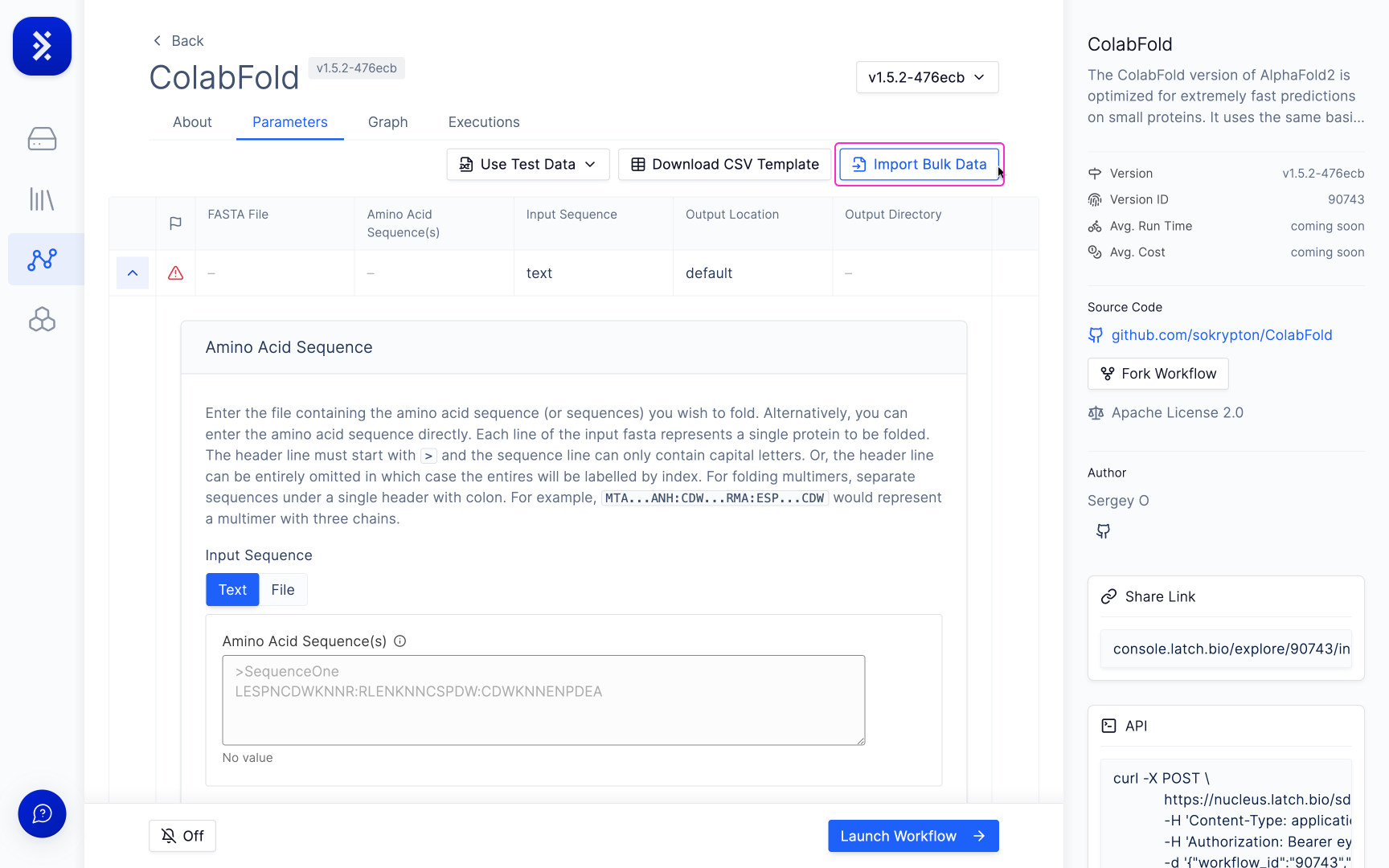
Some Workflows also have a CSV template you can use to import your data.
## Using CSV Import
CSV Import is not available for Bulk RNAseq, which instead has the option of using Salmon’s selective alignment method and sample conditions for differential expression analysis.
Some Workflows also have a CSV template you can use to import your data.
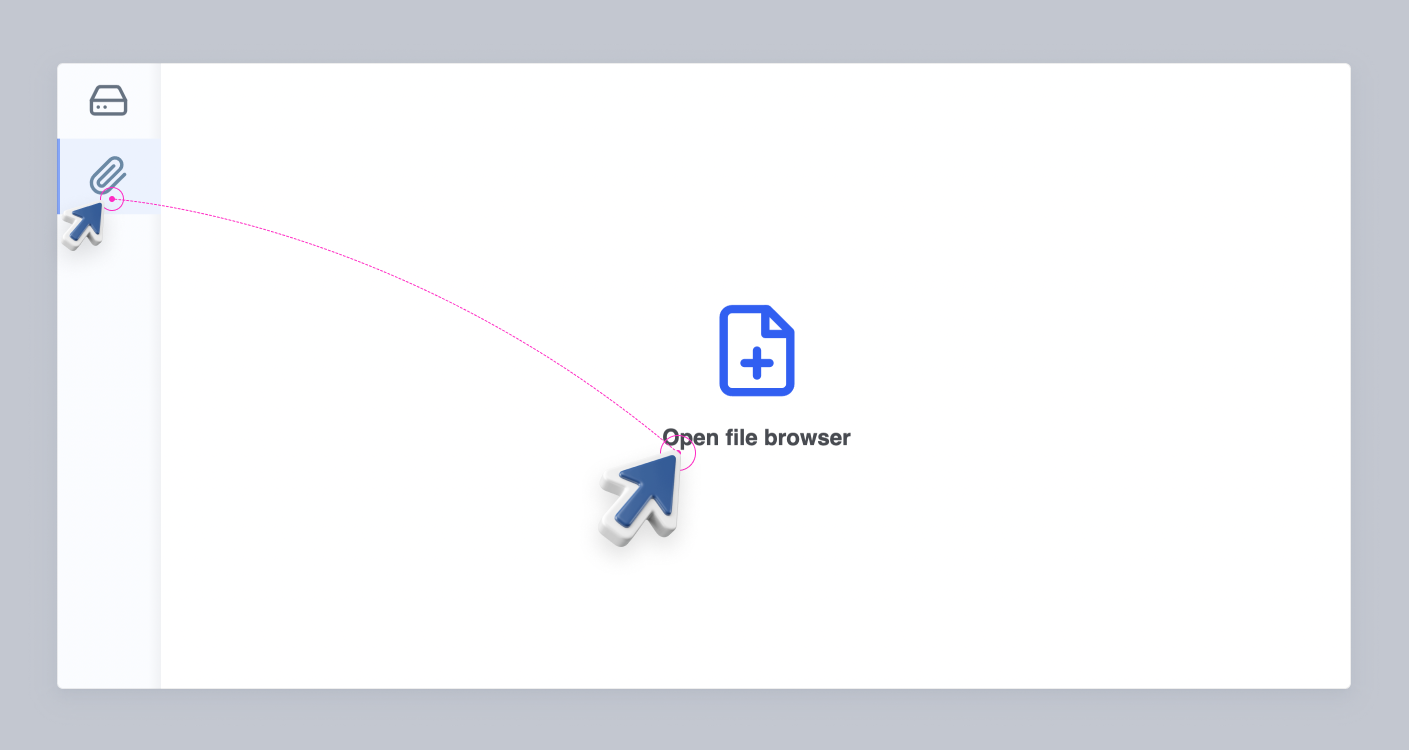
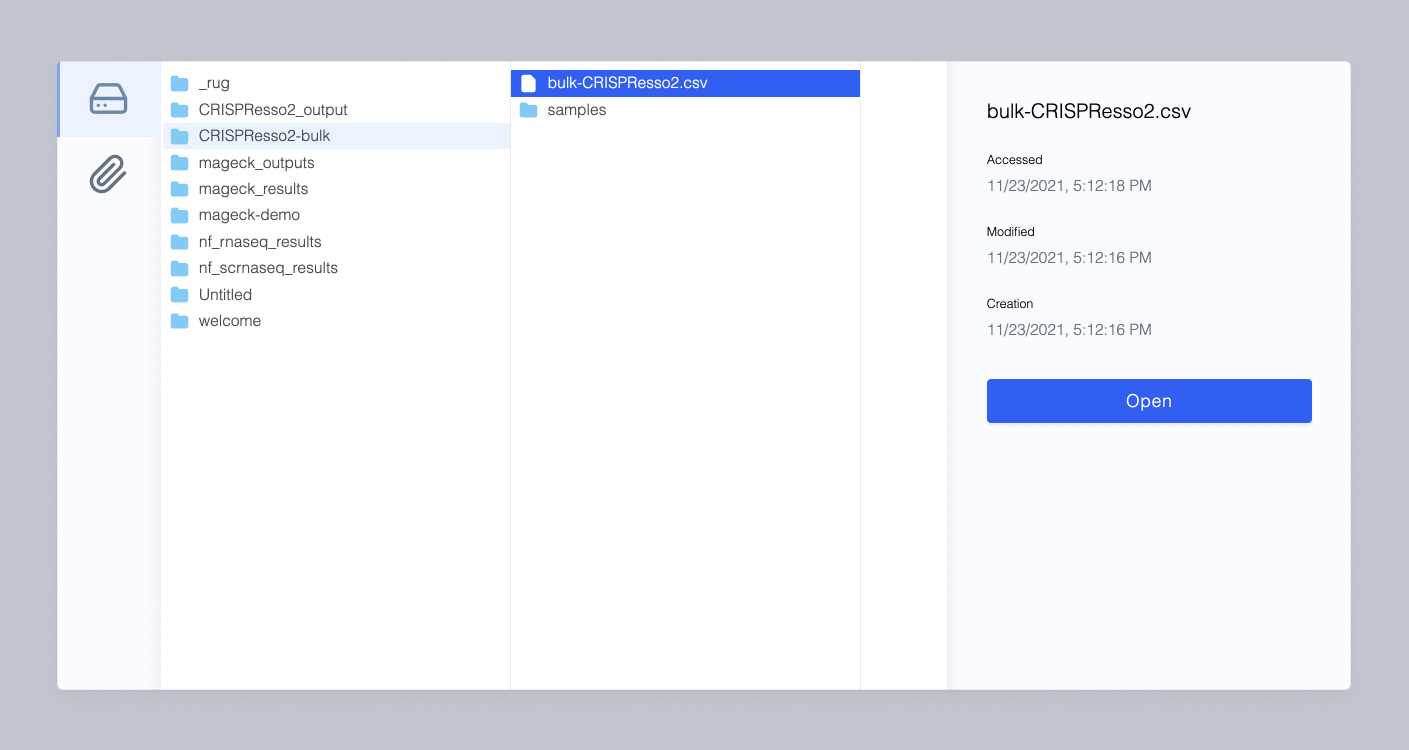 or select from your computer
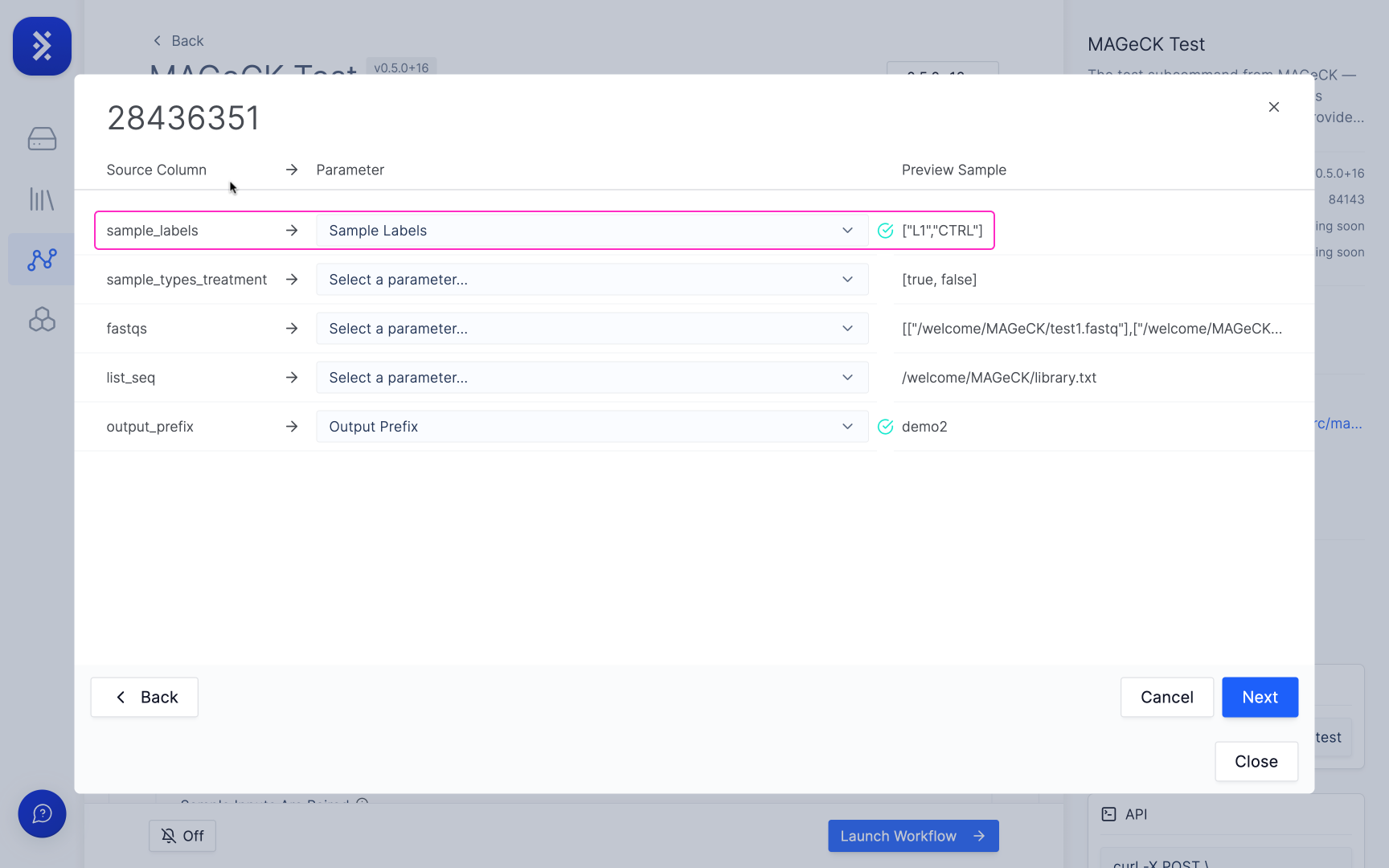
 When a column is matched to a parameter it will either show:
1. A green check mark which means all of values in that column have passed the validation and are formatted correctly for that parameter.
When a column is matched to a parameter it will either show:
1. A green check mark which means all of values in that column have passed the validation and are formatted correctly for that parameter.
 — or —
2. A red warning triangle which means that some of the data in the matched column is formatted incorrectly for that parameter.
— or —
2. A red warning triangle which means that some of the data in the matched column is formatted incorrectly for that parameter.
 Any errors can be fixed in the next step.
If the importer is unable to automatically match a column it won't display any icon. You can manually map it to a parameter by clicking the input and selecting its corresponding parameter.
Any errors can be fixed in the next step.
If the importer is unable to automatically match a column it won't display any icon. You can manually map it to a parameter by clicking the input and selecting its corresponding parameter.
 Any cells with errors will be marked with a red warning triangle which you can hover over to view details on the formatting error. You click into the cell to edit and fix any errors before importing.
