> ## Documentation Index
> Fetch the complete documentation index at: https://wiki.latch.bio/llms.txt
> Use this file to discover all available pages before exploring further.
# Pod Templates
> Pod Templates provide an easy way to take a snapshot of a Pod’s dependencies and files, and save it as a template that is reusable in future Pods for your organization.
## Create a Template
Find the [Applications page here.](https://console.latch.bio/apps)
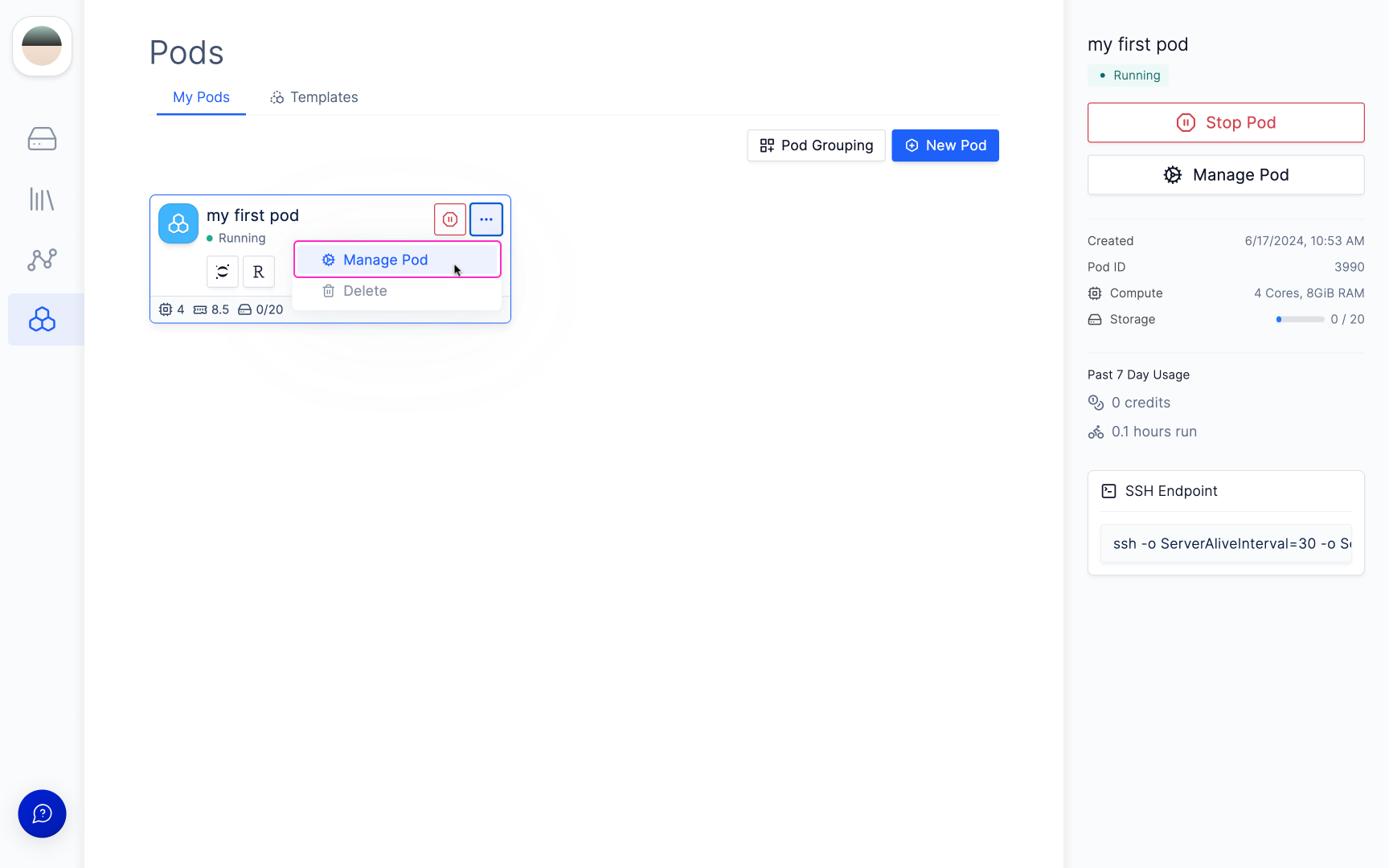
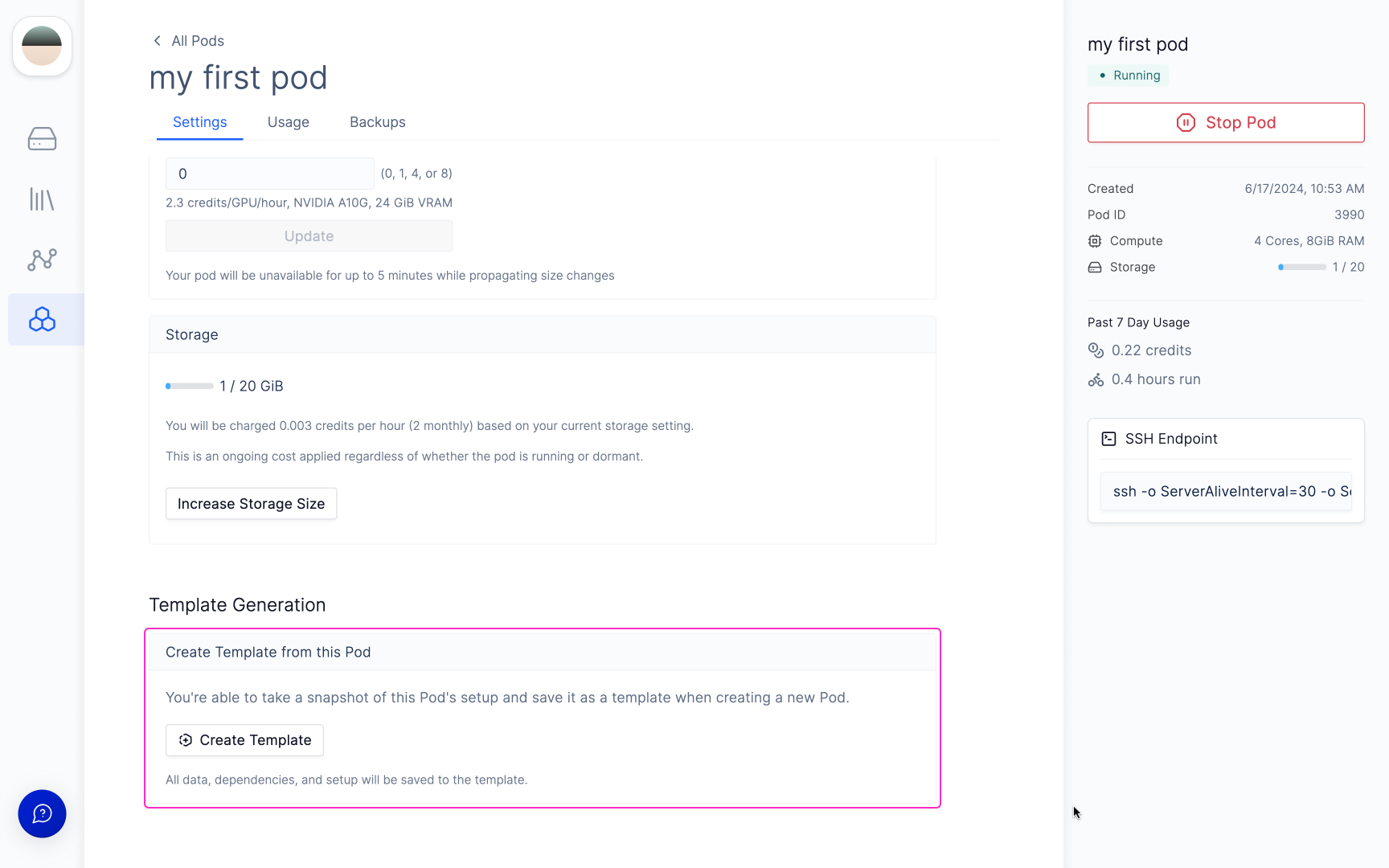 Selecting **New** will generate a template from the current setup, dependencies, and data on your Pod right now whereas **Select From Backup** allows you to select a previous backup snapshot.
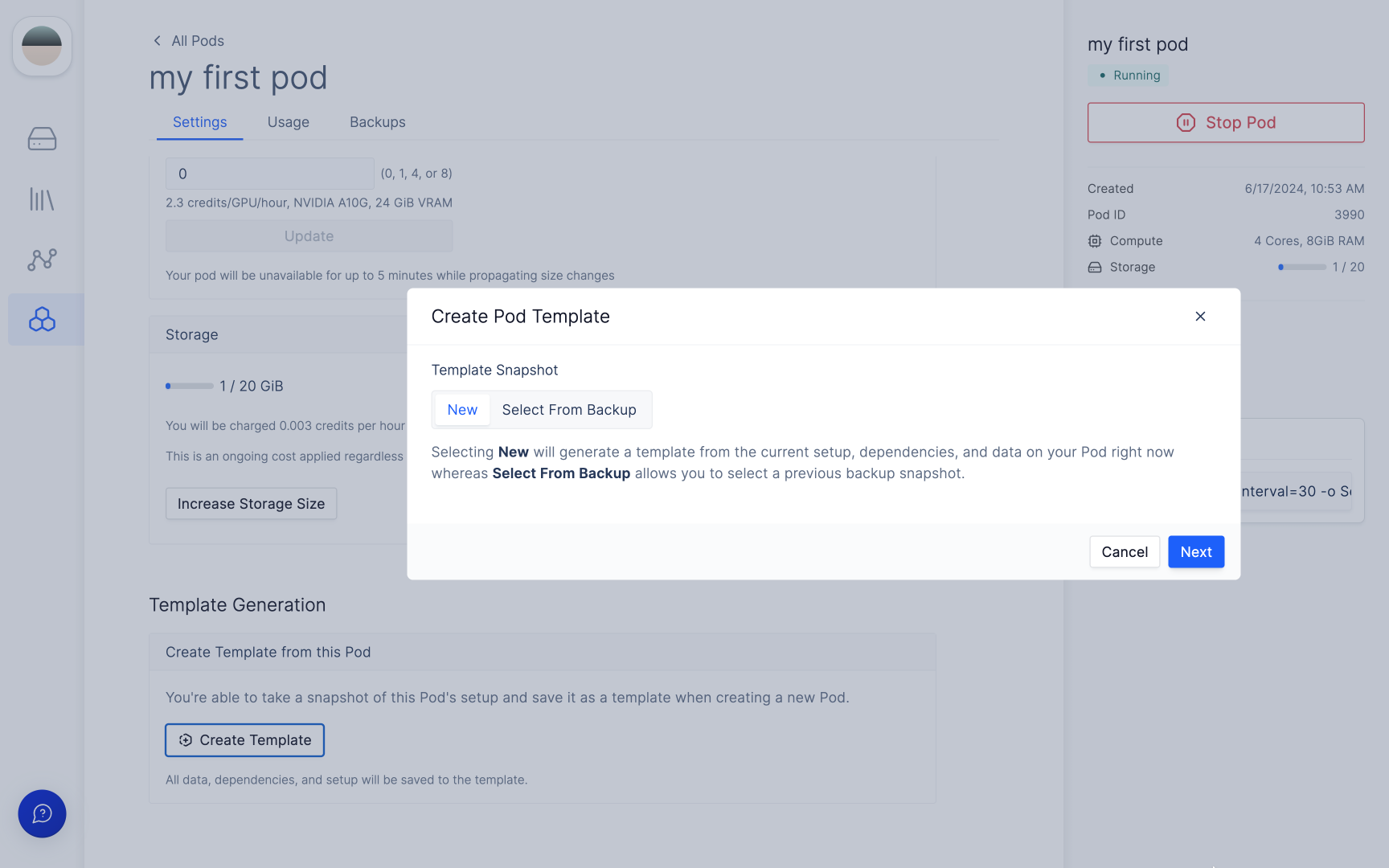 Find the [My Templates page here.](https://console.latch.bio/apps/templates)
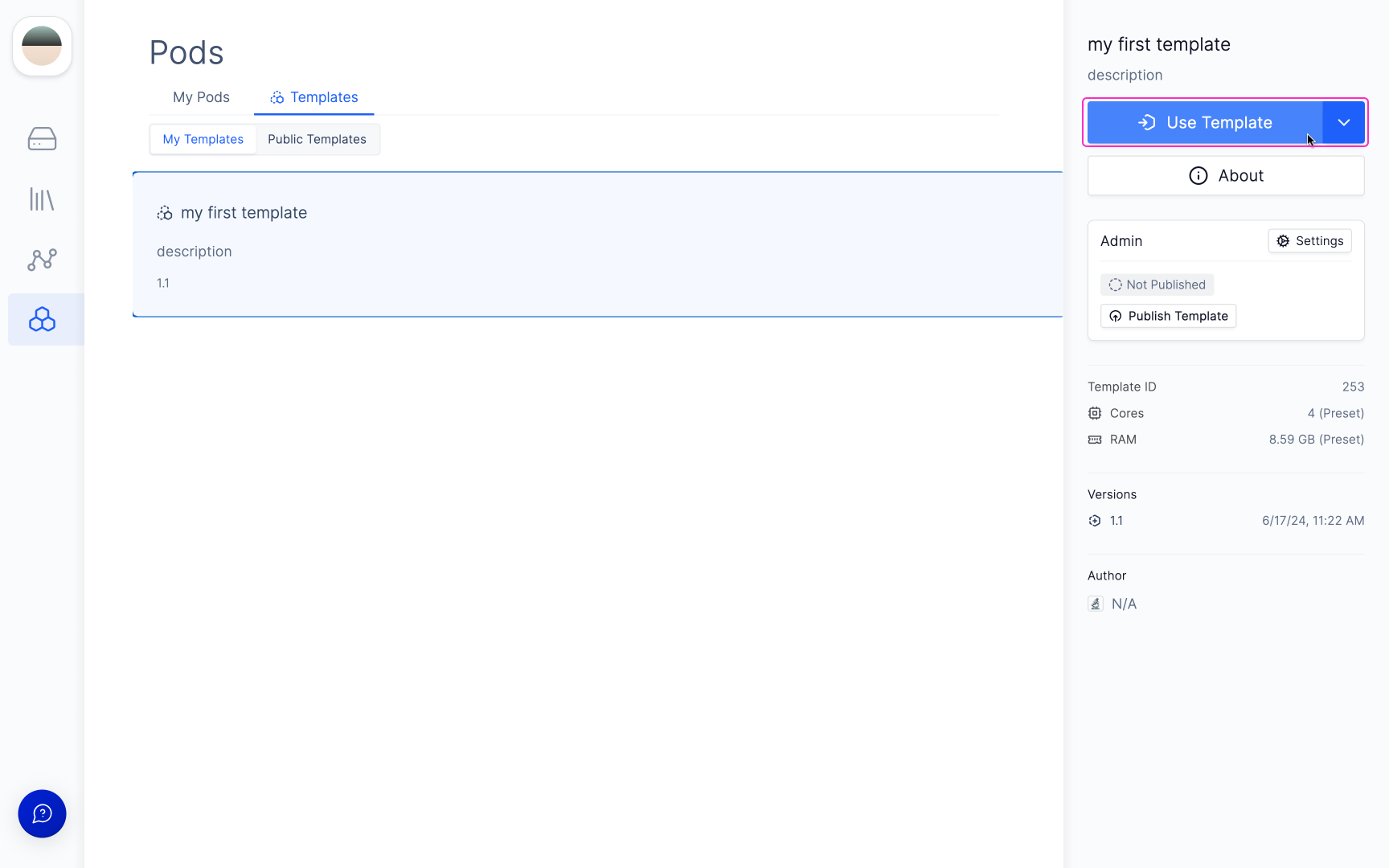 ## Update a Template
To update a template, follow step 1 to 4 of the section above. You will be prompted to update an existing template.
## Update a Template
To update a template, follow step 1 to 4 of the section above. You will be prompted to update an existing template.
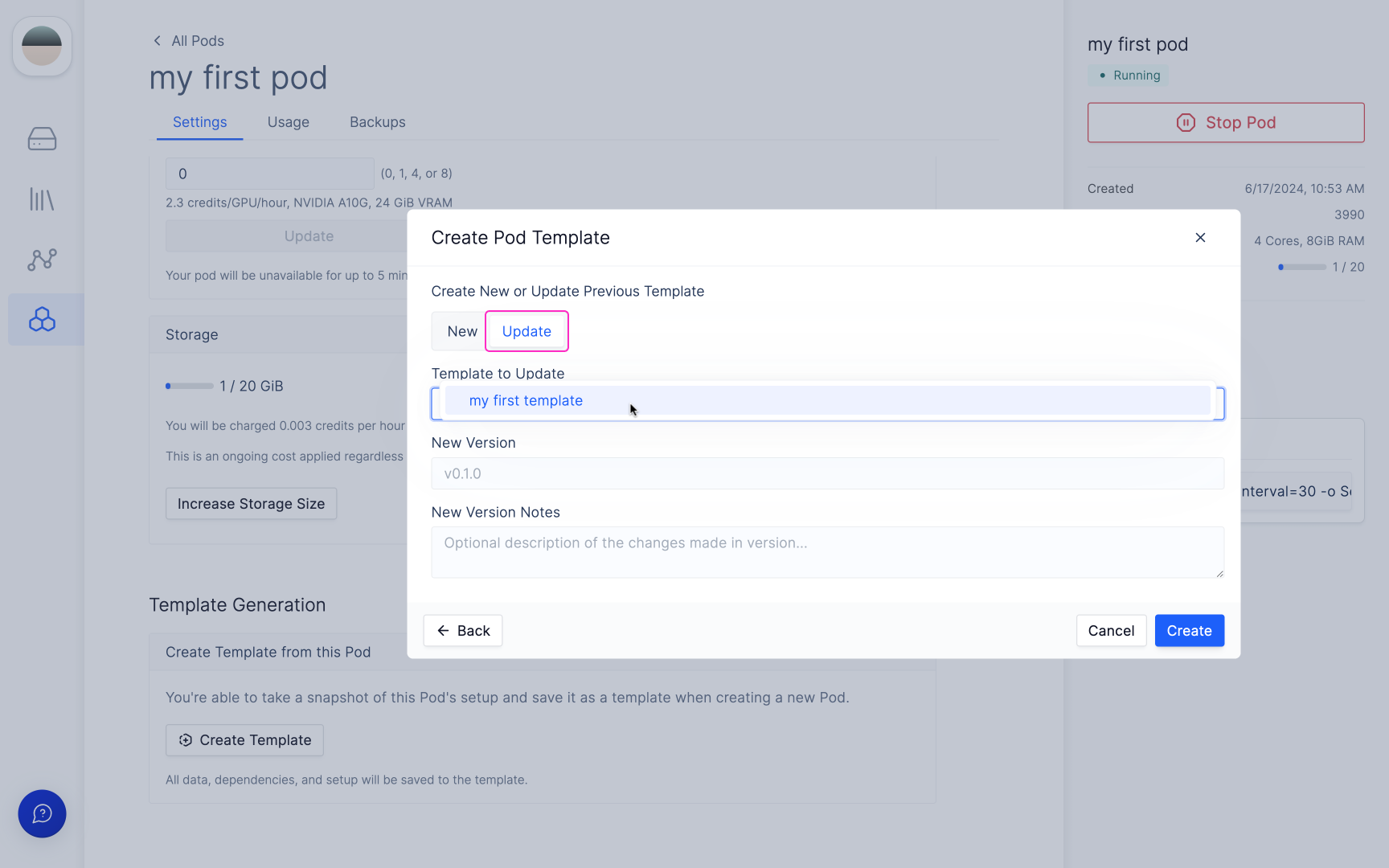 Select **Update** and assign a new version to the template to publish it.
## Using a Template in a Different workspace
Once a template has been created, it is also possible to use the templates in multiple workspaces that you are a part of.
Select **Update** and assign a new version to the template to publish it.
## Using a Template in a Different workspace
Once a template has been created, it is also possible to use the templates in multiple workspaces that you are a part of.
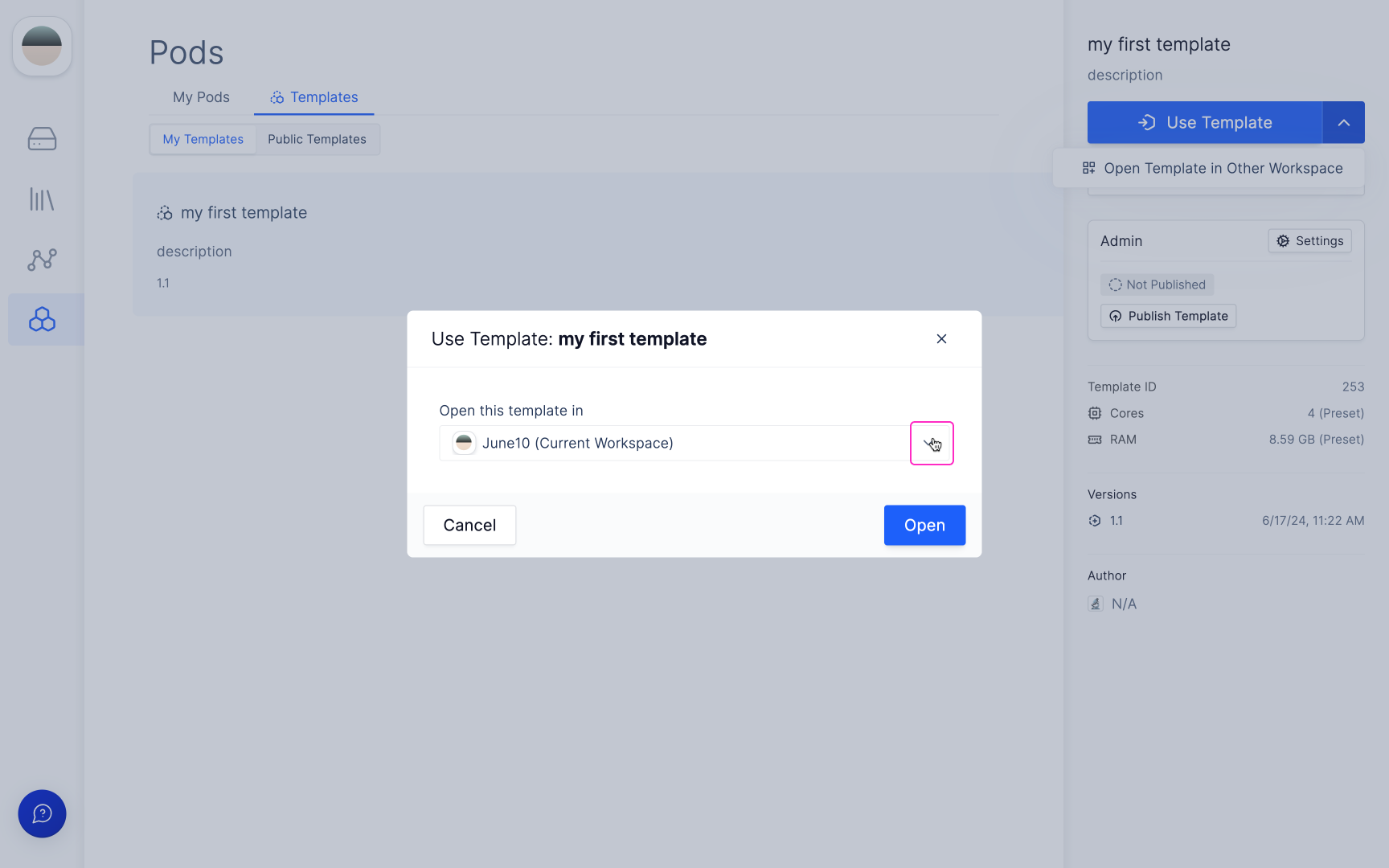
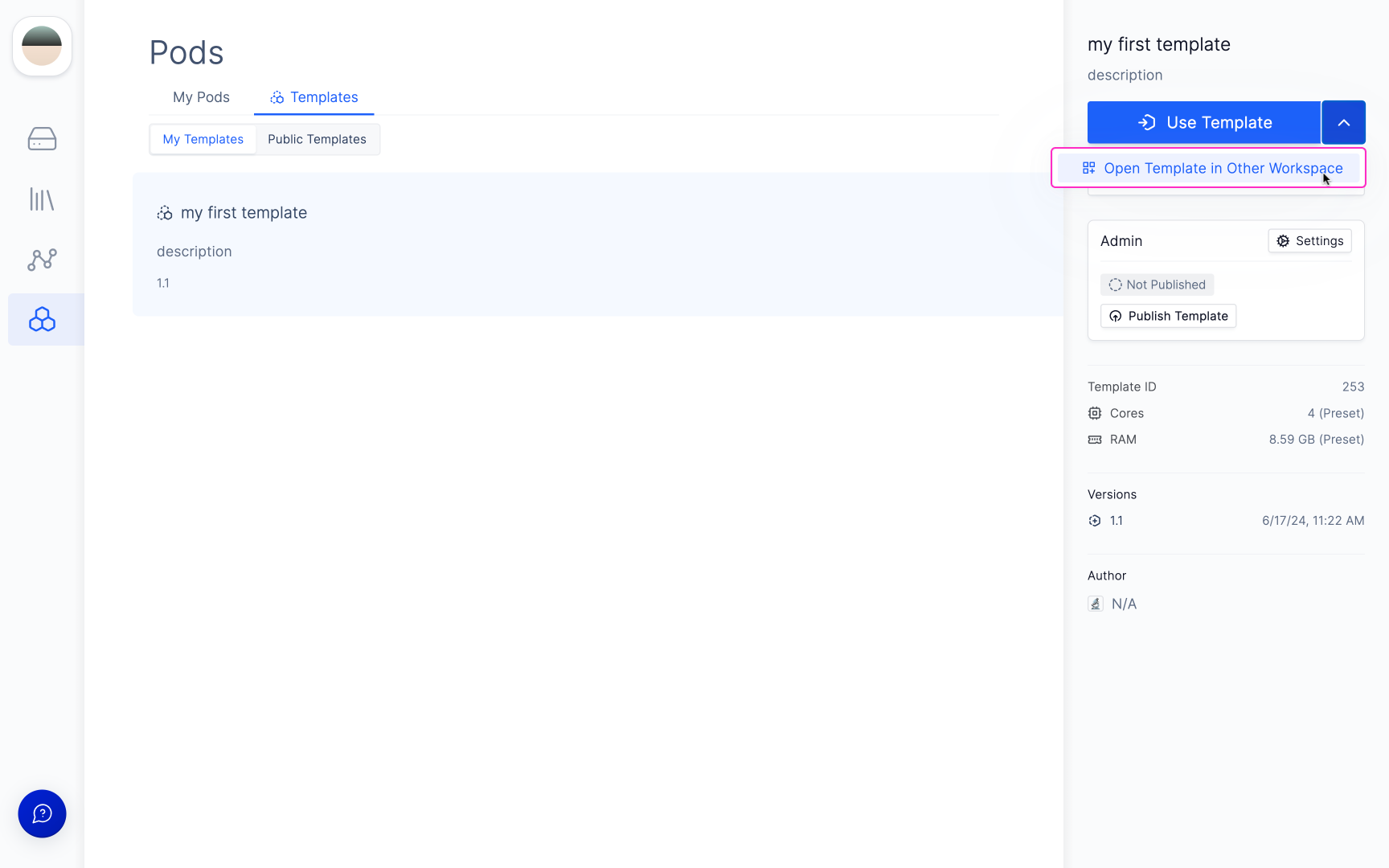 Select the toggle next to Use Template. You will be prompted to select the workspace you want to open the template in.