> ## Documentation Index
> Fetch the complete documentation index at: https://wiki.latch.bio/llms.txt
> Use this file to discover all available pages before exploring further.
# Set up SSH Access
> You may want to set up SSH access for Pod if you want to access Pod from your local terminal or open your favorite IDE, such as Visual Studio Code, inside a Pod.
Pods use public SSH keys to authorize which machine is allowed to connect to Pods.
```bash theme={null}
$ cat ~/.ssh/id_rsa.pub
```
If you receive an error message saying that **id\_rsa.pub** doesn’t exist, it means that your computer doesn’t have a public SSH key.
Generate one using ssh-keygen: `$ ssh-keygen`
Copy the key with: `$ pbcopy < ~/.ssh/id_rsa.pub`
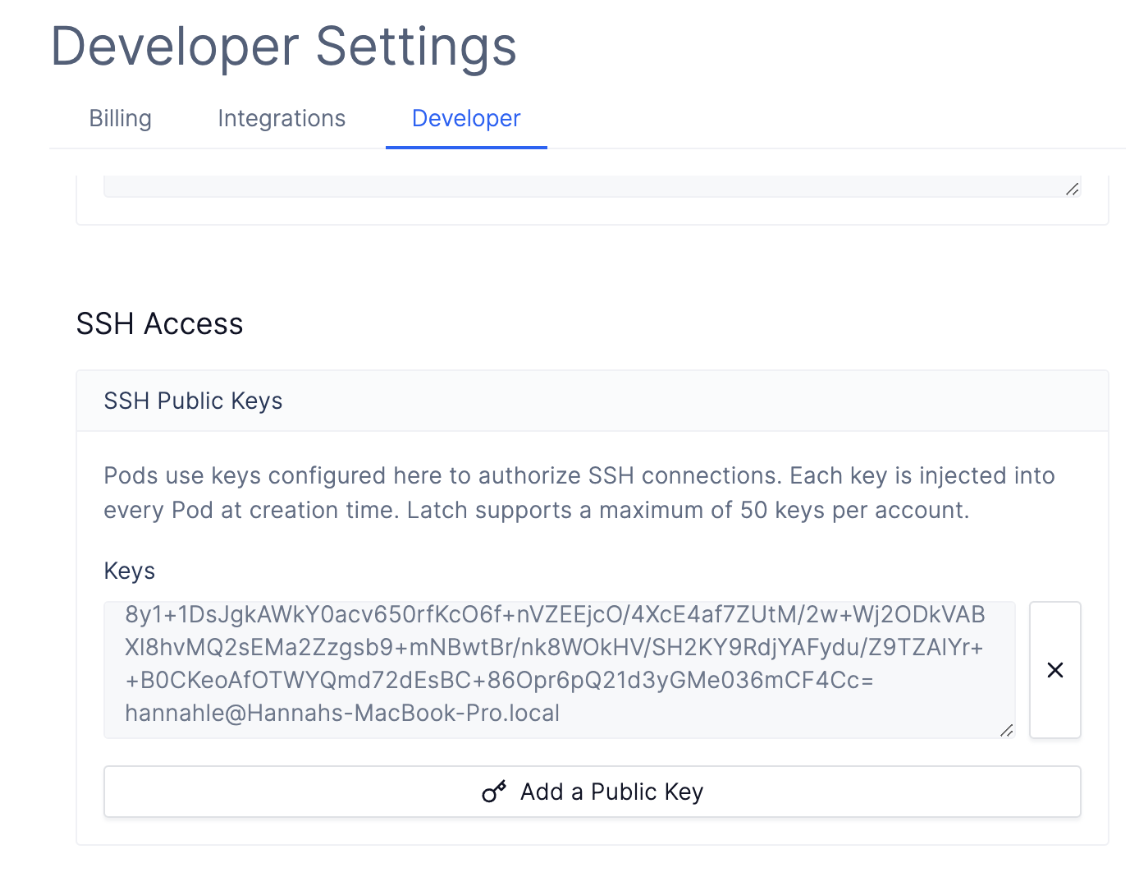
Find [the Developer Settings page here.](https://console.latch.bio/settings/developer)
Make sure that there is no extra line or space at the end of the SSH key.
Latch only authorizes access to users whose public SSH keys are added here. If
you have multiple developers on the team who want to access the same Pod, it
is recommended that you add their keys here. Latch supports up to 50 keys for
each Pod.
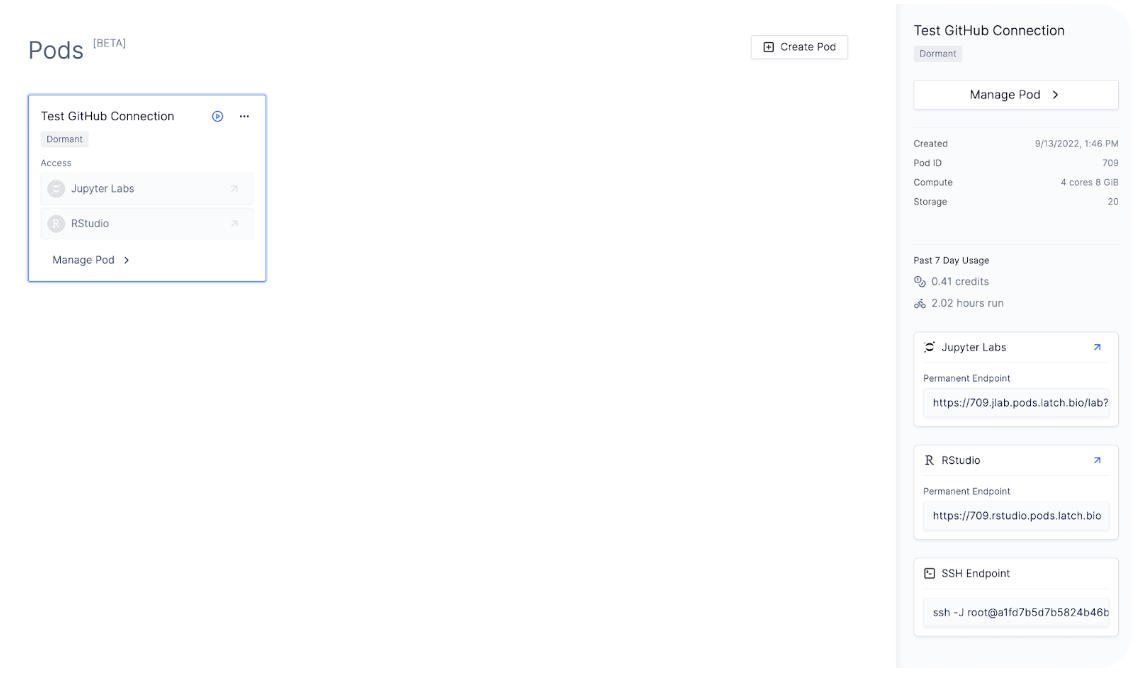
 You can only SSH into a Pod if it is running.
 ### Troubleshooting
Below are a few common errors when trying to connect to Pods via SSH access.
```bash theme={null}
kex_exchange_identification: Connection closed by remote host
```
* This means that an error cannot be established between your local computer and Pods.
* Try stopping and starting your Pod to refresh the connection.
You cannot SSH into a Pod when the status of Pod is **Dormant** or **Starting**. You can only establish a connection to the Pod when it is running.
* The error means that the SSH key Pod is authenticating is different from the SSH key on the computer you are trying to connect from. Hence, Pod rejects your connection.
* Double check at the SSH key you have on [Account Settings > Developer](https://console.latch.bio/settings/developer) is the same as the SSH key of the machine you’re trying to connect from.
* If the SSH keys are the same, but you are still unable to connect to Pod via SSH, this may mean that you added your SSH keys to the Developer Settings after the Pod was created. Manually restart your Pod to load in the SSH keys.
### Troubleshooting
Below are a few common errors when trying to connect to Pods via SSH access.
```bash theme={null}
kex_exchange_identification: Connection closed by remote host
```
* This means that an error cannot be established between your local computer and Pods.
* Try stopping and starting your Pod to refresh the connection.
You cannot SSH into a Pod when the status of Pod is **Dormant** or **Starting**. You can only establish a connection to the Pod when it is running.
* The error means that the SSH key Pod is authenticating is different from the SSH key on the computer you are trying to connect from. Hence, Pod rejects your connection.
* Double check at the SSH key you have on [Account Settings > Developer](https://console.latch.bio/settings/developer) is the same as the SSH key of the machine you’re trying to connect from.
* If the SSH keys are the same, but you are still unable to connect to Pod via SSH, this may mean that you added your SSH keys to the Developer Settings after the Pod was created. Manually restart your Pod to load in the SSH keys.