> ## Documentation Index
> Fetch the complete documentation index at: https://wiki.latch.bio/llms.txt
> Use this file to discover all available pages before exploring further.
# Accessing Latch Data in Pod using Latch Data FUSE
> Latch Pods provides direct access to all files stored on Latch Data.
## Overview
[Latch Pods](./pods.mdx) come with Latch Data FUSE (Filesystem in Userspace), a virtual filesystem inside of pods which allows you to directly interact with the data in your workspace and share data between pods easily.
You can create, read, write and delete files and directories in your [Latch Data](../data/overview.mdx) simply with your command line as you would with any other filesystem.
The Latch Data FUSE is available on every new pod by default, and its content can be inspected under the directory `/ldata`.
You can also create a link to `/ldata` in your home directory for easier access with the following command:
```bash theme={null}
ln -s /ldata /root
```
## Common Use Cases
### 1. Use Latch Data FUSE to view the content of S3 buckets on Latch
To access data in your organization's AWS S3 bucket inside a Pod, it is recommended that you:
1. **Mount your AWS S3 buckets on [Latch Data](https://console.latch.bio)**: To mount your S3 buckets on Latch Data, please visit our guide [here](../data/mount-s3-bucket).
2. **Mount Latch Data inside your Latch Pod**: Launch Latch Pod which will automatically mount Latch Data FUSE.
### 2. Copy Data from Pod to Latch Data
To copy data from your Pod to Latch Data, you can use the following command:
```bash theme={null}
cp -r local_folder /ldata/s3_folder
```
Uploaded data will appear inside of your Latch Data on the console.
Latch Data FUSE write speed is much slower than using `latch cp local_folder latch:///s3_folder`. If you are trying to copy large amount of data to Latch Data, see [below](#2-use-latch-cp-for-swift-file-copy-between-local-and-s3-buckets-on-latch-data)
### 3. Accessing Latch Data from JupyterLab or RStudio
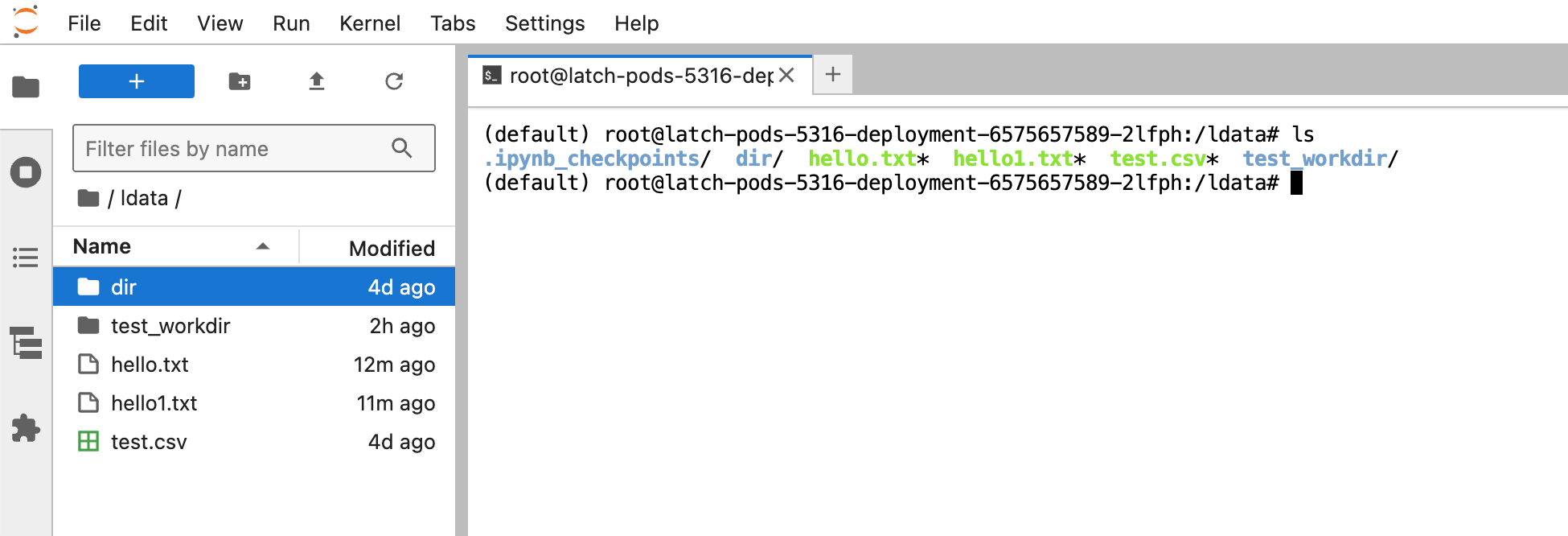
Latch Data FUSE is accessible from JupyterLab and RStudio. You can access your data in Latch Data from JupyterLab or RStudio by navigating to `/ldata` in the file browser.
 ### 4. Accessing Latch Data using Python Script
You can also access Latch Data from Python scripts using the `os` module. For example, to list all files in a directory and to read a file in Latch Data, you can use the following code snippet:
```python theme={null}
import os
# List all files in a directory
files = os.listdir('/ldata')
print(files)
# Read a file
with open('/ldata/file.txt', 'r') as f:
print(f.read())
```
## Best Practices
### 1. Copy frequently used folders to a local directory inside Pods
Latch Data FUSE only displays a mirror of the file system on Latch Data, and does not download every file and folder by default.
Folder child metadata is downloaded when upon attempting to access the folder programmatically or by double-clicking within the RStudio/JupyterLab interface.
Initial access to a folder might incur brief delays due to metadata downloading.
After this, the folder's contents are cached, ensuring instantaneous access for subsequent reads.
When a Pod shuts down, all cache is purged. For large folders that need to be accessed frequently,
it is advisable to copy the folder from `/ldata` to a local scratch directory inside your Pod.
To efficiently copy large folders from `/ldata` to a local directory, see the next section on `latch cp`.
### 2. Use `latch cp` for swift file copy between local and S3 buckets on Latch Data
For efficient file transfers between local directories within Pods and S3 buckets mounted on Latch Data,
it is recommended to use `latch cp` command to ensure optimal copying speed.
After S3 buckets are mounted to Latch Data, `latch cp` can be used for copying
files and directories to any Latch location, including mounted S3 buckets.
For a comprehensive guide on how to copy data between Latch Data and Pods, please visit the documentation [here](../pods/data-transfer).
If you `latch cp` a local directory that has the same folder name as a folder inside your S3 bucket on Latch Data, `latch cp` will overwrite that folder in your Latch Data. If this behavior is undesirable, it is recommended that you change the name of your local directory to not overlap with an existing folder in your S3 bucket.
## Known Limitations and Workarounds
* Some operations in Latch Data FUSE are slow. For example, the following commands are known to be slow:
```bash theme={null}
touch /ldata/new.txt
cp /root/big_folder /ldata/big_folder
mv /root/big_folder /ldata/big_folder
rm -rf /ldata/big_folder
```
**Workaround**:
Use [**latch touch**](/workflows/sdk/cli/commands),
[**latch cp**](/workflows/sdk/cli/commands#latch-cp-\-\),
[**latch mv**](/workflows/sdk/cli/commands#latch-mv-\-\),
[**latch rmr**](/workflows/sdk/cli/commands#latch-rmr-remote_path),
[**latch mkdirp**](/workflows/sdk/cli/commands#latch-mkdirp-remote_directory)
instead if you want to write to Latch Data. Since FUSE is a mirror of Latch Data, all new content written directly to Latch Data will be synced and reflected in `/ldata`.
* `rsync` is not currently supported. The following command will throw an error:
```bash theme={null}
rsync -av /root/scratch /ldata/big_folder
```
**Workaround**: `latch cp` is currently the most effective alternative. However, it's important to note that `latch cp` copies entire directories between local and remote paths every time, instead of transferring only the differences.
* Latch Data FUSE doesn't always refresh when a new file or folder is uploaded to Latch Data via `latch cp` or via the interface on console.latch.bio/data.
**Workaround**: To get the most up-to-date content for `/ldata`, you can: (1) write a fake new file to `/ldata` (e.g. `touch /ldata/new.txt`), which will trigger a refresh; (2) restart your Pod, which will restart the mount for FUSE; or (3) restart the Ldata FUSE mount with:
```bash theme={null}
systemctl restart latch-ldata-fuse.service
```
## Troubleshooting
* If you don't see Latch Data mounted at `/ldata` or there's no data in that directory try re-mounting the filesystem with
```bash theme={null}
systemctl restart latch-ldata-fuse.service
```
## Planned Improvements
1. Support `latch rsync` to only copy the content differences between local directories and remote Latch directories.
2. Make reading and writing faster for Latch Data FUSE
3. Fix inconsistent refresh behavior of Latch Data FUSE
### 4. Accessing Latch Data using Python Script
You can also access Latch Data from Python scripts using the `os` module. For example, to list all files in a directory and to read a file in Latch Data, you can use the following code snippet:
```python theme={null}
import os
# List all files in a directory
files = os.listdir('/ldata')
print(files)
# Read a file
with open('/ldata/file.txt', 'r') as f:
print(f.read())
```
## Best Practices
### 1. Copy frequently used folders to a local directory inside Pods
Latch Data FUSE only displays a mirror of the file system on Latch Data, and does not download every file and folder by default.
Folder child metadata is downloaded when upon attempting to access the folder programmatically or by double-clicking within the RStudio/JupyterLab interface.
Initial access to a folder might incur brief delays due to metadata downloading.
After this, the folder's contents are cached, ensuring instantaneous access for subsequent reads.
When a Pod shuts down, all cache is purged. For large folders that need to be accessed frequently,
it is advisable to copy the folder from `/ldata` to a local scratch directory inside your Pod.
To efficiently copy large folders from `/ldata` to a local directory, see the next section on `latch cp`.
### 2. Use `latch cp` for swift file copy between local and S3 buckets on Latch Data
For efficient file transfers between local directories within Pods and S3 buckets mounted on Latch Data,
it is recommended to use `latch cp` command to ensure optimal copying speed.
After S3 buckets are mounted to Latch Data, `latch cp` can be used for copying
files and directories to any Latch location, including mounted S3 buckets.
For a comprehensive guide on how to copy data between Latch Data and Pods, please visit the documentation [here](../pods/data-transfer).
If you `latch cp` a local directory that has the same folder name as a folder inside your S3 bucket on Latch Data, `latch cp` will overwrite that folder in your Latch Data. If this behavior is undesirable, it is recommended that you change the name of your local directory to not overlap with an existing folder in your S3 bucket.
## Known Limitations and Workarounds
* Some operations in Latch Data FUSE are slow. For example, the following commands are known to be slow:
```bash theme={null}
touch /ldata/new.txt
cp /root/big_folder /ldata/big_folder
mv /root/big_folder /ldata/big_folder
rm -rf /ldata/big_folder
```
**Workaround**:
Use [**latch touch**](/workflows/sdk/cli/commands),
[**latch cp**](/workflows/sdk/cli/commands#latch-cp-\-\),
[**latch mv**](/workflows/sdk/cli/commands#latch-mv-\-\),
[**latch rmr**](/workflows/sdk/cli/commands#latch-rmr-remote_path),
[**latch mkdirp**](/workflows/sdk/cli/commands#latch-mkdirp-remote_directory)
instead if you want to write to Latch Data. Since FUSE is a mirror of Latch Data, all new content written directly to Latch Data will be synced and reflected in `/ldata`.
* `rsync` is not currently supported. The following command will throw an error:
```bash theme={null}
rsync -av /root/scratch /ldata/big_folder
```
**Workaround**: `latch cp` is currently the most effective alternative. However, it's important to note that `latch cp` copies entire directories between local and remote paths every time, instead of transferring only the differences.
* Latch Data FUSE doesn't always refresh when a new file or folder is uploaded to Latch Data via `latch cp` or via the interface on console.latch.bio/data.
**Workaround**: To get the most up-to-date content for `/ldata`, you can: (1) write a fake new file to `/ldata` (e.g. `touch /ldata/new.txt`), which will trigger a refresh; (2) restart your Pod, which will restart the mount for FUSE; or (3) restart the Ldata FUSE mount with:
```bash theme={null}
systemctl restart latch-ldata-fuse.service
```
## Troubleshooting
* If you don't see Latch Data mounted at `/ldata` or there's no data in that directory try re-mounting the filesystem with
```bash theme={null}
systemctl restart latch-ldata-fuse.service
```
## Planned Improvements
1. Support `latch rsync` to only copy the content differences between local directories and remote Latch directories.
2. Make reading and writing faster for Latch Data FUSE
3. Fix inconsistent refresh behavior of Latch Data FUSE