> ## Documentation Index
> Fetch the complete documentation index at: https://wiki.latch.bio/llms.txt
> Use this file to discover all available pages before exploring further.
# Transferring Data with Pods
> When using Pods, you may want to transfer data between Pods and Latch Data, or between Pods and your local computer.
## How to transfer data between Latch Data and Pods
To transfer data between Latch Data and Pods, you can use the `latch cp` command.
```bash theme={null}
latch cp SOURCE_PATH DESTINATION_PATH
```
## From Latch Data to Pods
First, select the file on Latch Data that you want to copy. After selecting, you will see a file path displayed on the sidebar. Copy the path.
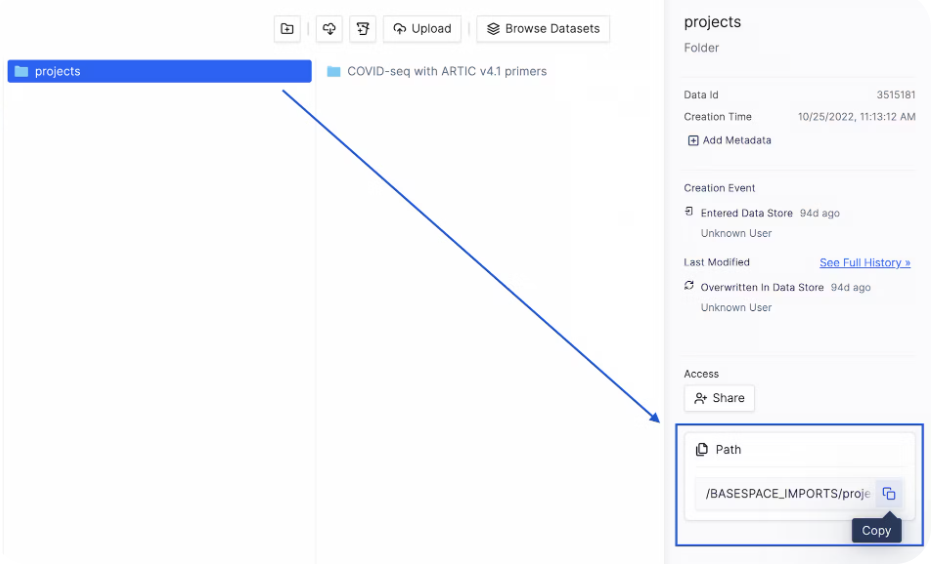 Navigate back to your Latch Pod and type the following in your Pod terminal:
```bash theme={null}
latch cp latch:///BASESPACE_IMPORTS/projects pod_projects
```
Navigate back to your Latch Pod and type the following in your Pod terminal:
```bash theme={null}
latch cp latch:///BASESPACE_IMPORTS/projects pod_projects
```
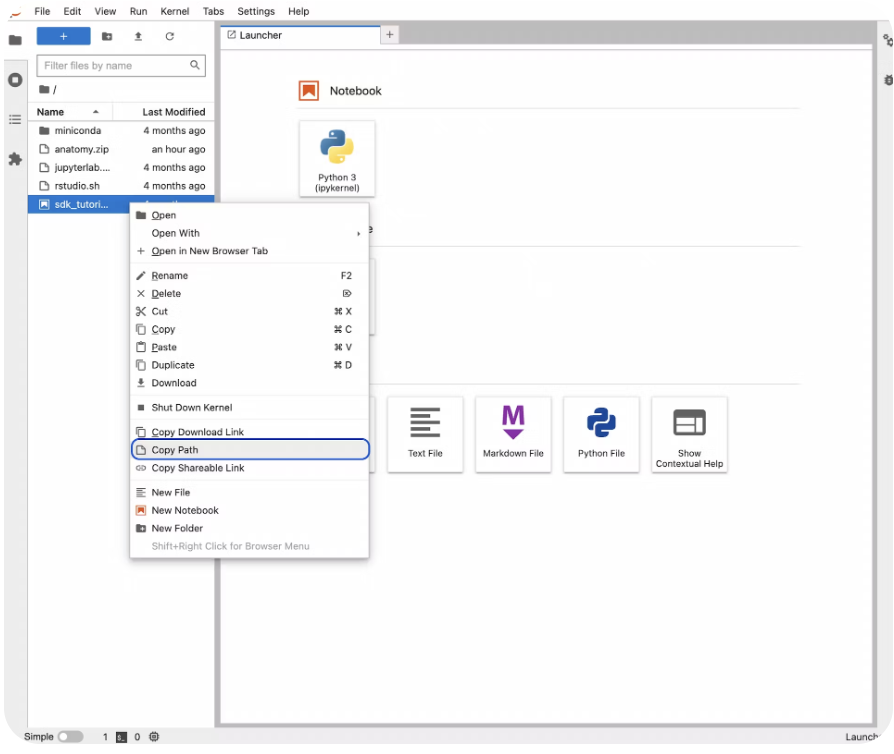 Here, we are copying the folder **projects** on Latch Data to a folder called **pod\_projects** inside Pod.
**Important**: When copying from Latch Data, make sure that you prefix the
file or folder path with **latch://**. The prefix tells the Latch CLI that the
source destination of the file is on Latch. Without the prefix, Latch will
assume that the source file is on your Pod, and you may get a “File not found”
error.
## From Pods to Latch Data
To transfer data from your Pod to Latch, you can type
```bash theme={null}
latch cp pod_projects latch:///BASESPACE_IMPORTS/projects
```
which will copy the **pod\_projects** folder on Pod to the **BASESPACE\_IMPORTS/projects** folder on Latch.
## How to transfer data between Pods and Your Local Computer
### Using the UI
**From Pod to Local Computer**
Using the Jupyter Lab or RStudio UI, only files can be directly exported from
Pod. If you have a folder, you have to first zip it before exporting.
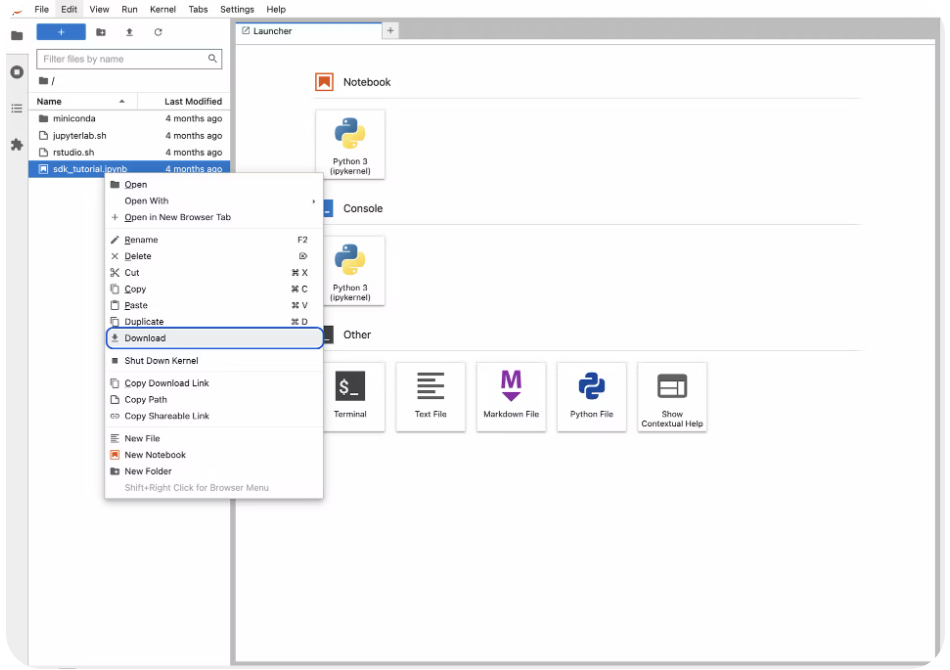
To download data in Jupyter Lab, simply right-click on the file or compressed folder you can to export, and click **Download**.
Here, we are copying the folder **projects** on Latch Data to a folder called **pod\_projects** inside Pod.
**Important**: When copying from Latch Data, make sure that you prefix the
file or folder path with **latch://**. The prefix tells the Latch CLI that the
source destination of the file is on Latch. Without the prefix, Latch will
assume that the source file is on your Pod, and you may get a “File not found”
error.
## From Pods to Latch Data
To transfer data from your Pod to Latch, you can type
```bash theme={null}
latch cp pod_projects latch:///BASESPACE_IMPORTS/projects
```
which will copy the **pod\_projects** folder on Pod to the **BASESPACE\_IMPORTS/projects** folder on Latch.
## How to transfer data between Pods and Your Local Computer
### Using the UI
**From Pod to Local Computer**
Using the Jupyter Lab or RStudio UI, only files can be directly exported from
Pod. If you have a folder, you have to first zip it before exporting.
To download data in Jupyter Lab, simply right-click on the file or compressed folder you can to export, and click **Download**.
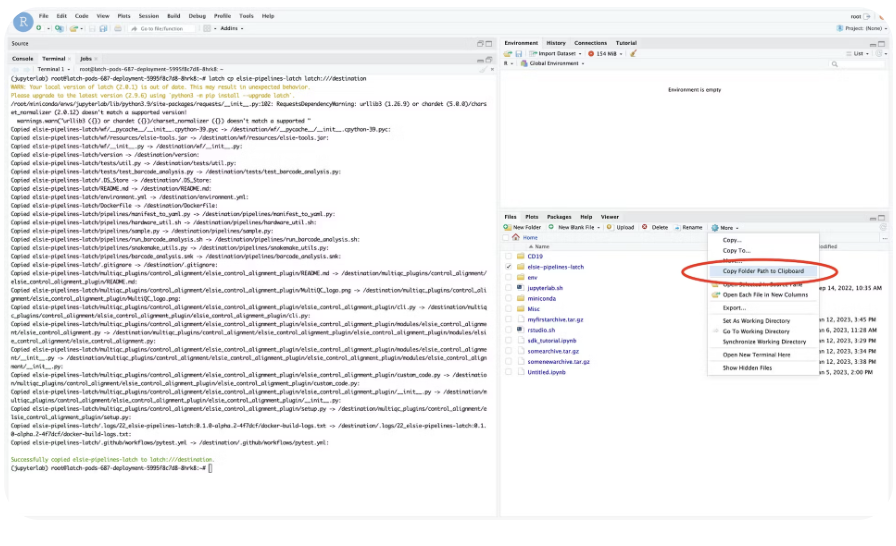 In RStudio, you can toggle the file or compressed folder you want to export. Then, click **More** and choose **Export**.
 Let’s now create a tar.gz archive, which will compress your folder into a smaller .gz file that will be ready to download.
To compress your folder, type the command
```
tar -czvf myfirstarchive.tar.gz
```
You will soon see a new file called `myfirstarchive.tar.gz` in your filesystem! Now, your compressed folder is ready to be downloaded.
To download data in Jupyter Lab, simply right-click on the file or compressed folder you can to export, and click **Download**.
Let’s now create a tar.gz archive, which will compress your folder into a smaller .gz file that will be ready to download.
To compress your folder, type the command
```
tar -czvf myfirstarchive.tar.gz
```
You will soon see a new file called `myfirstarchive.tar.gz` in your filesystem! Now, your compressed folder is ready to be downloaded.
To download data in Jupyter Lab, simply right-click on the file or compressed folder you can to export, and click **Download**.
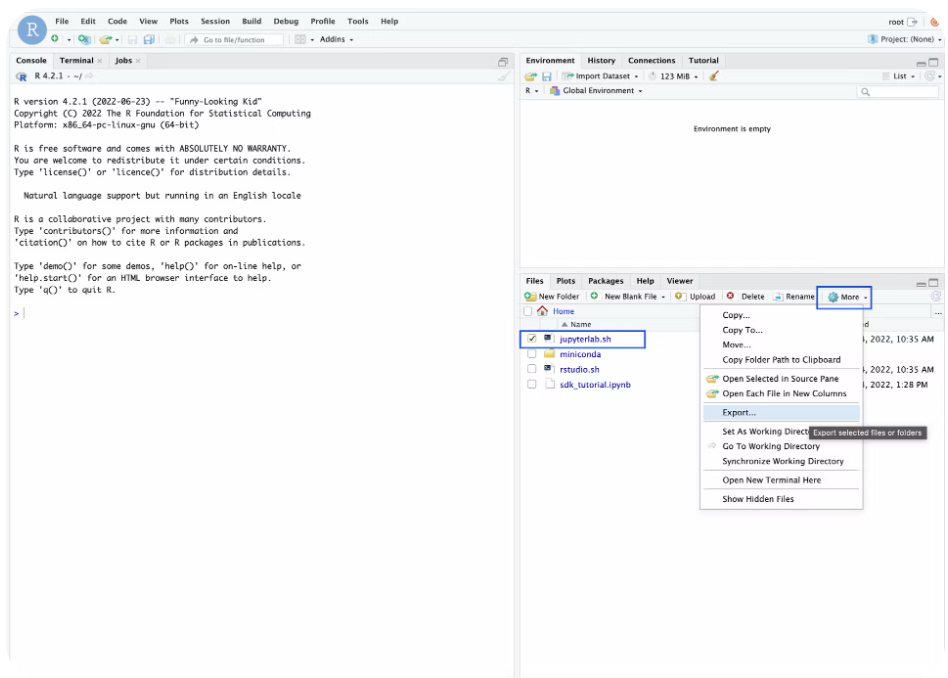 In RStudio, you can toggle the file or compressed folder you want to export. Then, click **More** and choose **Export**.
**From Local Computer to Pod**
Currently, only files can be uploaded directly using the UI. If you have a
folder, you must compress it first before uploading.
In JupyterLab, you can drag and drop your file and compressed folder directly onto the filesystem on Pod.
In RStudio, you can toggle the file or compressed folder you want to export. Then, click **More** and choose **Export**.
**From Local Computer to Pod**
Currently, only files can be uploaded directly using the UI. If you have a
folder, you must compress it first before uploading.
In JupyterLab, you can drag and drop your file and compressed folder directly onto the filesystem on Pod.
 In RStudio, there is no current way to drag and drop into the server’s filesystem. Because RStudio and JupyterLab both share the same filesystem on Pod, we recommend that you upload the data via JupyterLab for it to be displayed in Pod.
## Using the CLI
Latch Data serves as the intermediary for data transfer when moving data between Pod and your local computer.
For example, to copy data from local to Pod, you can use latch cp to first copy data from local to Latch Data, and use latch cp again to copy data from Latch Data to Pods.
Similarly, you can use latch cp to first copy data from Pod to Latch Data, and use latch cp to copy data from Latch Data to your local computer.
##
Using SFTP
Since Latch Pod is a remote server that allows for SSH access, you can use SFTP to connect and securely transfer data between your local computer and Pod.
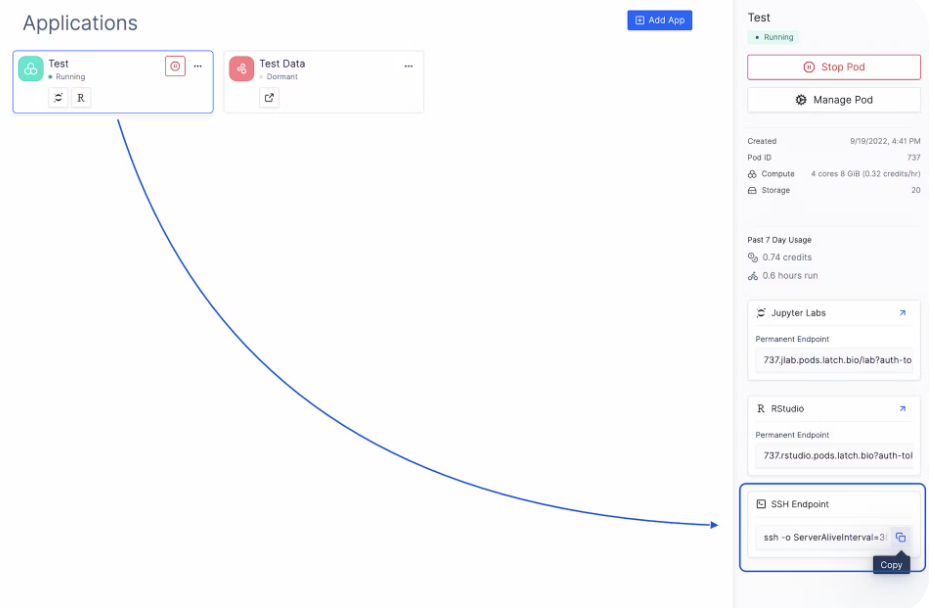
First, let’s test the SSH command. Click on the Pod you want to access, and copy the SSH end point on the right sidebar.
In RStudio, there is no current way to drag and drop into the server’s filesystem. Because RStudio and JupyterLab both share the same filesystem on Pod, we recommend that you upload the data via JupyterLab for it to be displayed in Pod.
## Using the CLI
Latch Data serves as the intermediary for data transfer when moving data between Pod and your local computer.
For example, to copy data from local to Pod, you can use latch cp to first copy data from local to Latch Data, and use latch cp again to copy data from Latch Data to Pods.
Similarly, you can use latch cp to first copy data from Pod to Latch Data, and use latch cp to copy data from Latch Data to your local computer.
##
Using SFTP
Since Latch Pod is a remote server that allows for SSH access, you can use SFTP to connect and securely transfer data between your local computer and Pod.
First, let’s test the SSH command. Click on the Pod you want to access, and copy the SSH end point on the right sidebar.
 Open up a terminal on your local computer, and paste in the SSH command.
If that works, exit out by typing:
```bash theme={null}
exit b
```
f that does not work, visit our Troubleshooting section for solutions.
Once you have tested that the SSH connection is working properly, you can establish an SFTP session by replacing the ssh in the SSH endpoint above with sftp. For example, if you have the following SSH command:
```bash theme={null}
ssh -o ServerAliveInterval=30 -o ServerAliveCountMax=5 -J root@a1fd7b5d7b5824b46b8671207e1124b6-610912349.us-west-2.elb.amazonaws.com root@172.20.227.129
```
You can establish by SFTP connection by typing:
```bash theme={null}
sftp -o ServerAliveInterval=30 -o ServerAliveCountMax=5 -J root@a1fd7b5d7b5824b46b8671207e1124b6-610912349.us-west-2.elb.amazonaws.com root@172.20.227.129
```
The command will connect you to the remote system and your prompt will change to an SFTP prompt.
All SFTP commands you would use in any remote SFTP session would work the exact same way in Pods. To view a complete guide on how to use SFTP commands, please visit the documentation by DigitalOcean [here](https://www.digitalocean.com/community/tutorials/how-to-use-sftp-to-securely-transfer-files-with-a-remote-server).
Open up a terminal on your local computer, and paste in the SSH command.
If that works, exit out by typing:
```bash theme={null}
exit b
```
f that does not work, visit our Troubleshooting section for solutions.
Once you have tested that the SSH connection is working properly, you can establish an SFTP session by replacing the ssh in the SSH endpoint above with sftp. For example, if you have the following SSH command:
```bash theme={null}
ssh -o ServerAliveInterval=30 -o ServerAliveCountMax=5 -J root@a1fd7b5d7b5824b46b8671207e1124b6-610912349.us-west-2.elb.amazonaws.com root@172.20.227.129
```
You can establish by SFTP connection by typing:
```bash theme={null}
sftp -o ServerAliveInterval=30 -o ServerAliveCountMax=5 -J root@a1fd7b5d7b5824b46b8671207e1124b6-610912349.us-west-2.elb.amazonaws.com root@172.20.227.129
```
The command will connect you to the remote system and your prompt will change to an SFTP prompt.
All SFTP commands you would use in any remote SFTP session would work the exact same way in Pods. To view a complete guide on how to use SFTP commands, please visit the documentation by DigitalOcean [here](https://www.digitalocean.com/community/tutorials/how-to-use-sftp-to-securely-transfer-files-with-a-remote-server).