> ## Documentation Index
> Fetch the complete documentation index at: https://wiki.latch.bio/llms.txt
> Use this file to discover all available pages before exploring further.
# Host a Custom App
> Latch Pods make it easy to host any custom application, such as Dash Apps, RShiny, Streamlit, and more, on Latch.
## Setting up your Custom App
In this guide, we will walk through step-by-step how you can set up your own custom application.
Ensure your app is installed and configured according to its documentation.
The startup script is located at `/opt/latch/custom_app`. Make sure the app is on **port 5000**, and listens on `::` **(not `localhost` or `0.0.0.0`)**.
* Here are a few examples of modifying the script in different languages.
* **ShinyApp**
```bash theme={null}
#!/usr/bin/env bash
/usr/local/bin/Rscript -e "shiny::runApp(appDir = '/root/', host = '::', port = 5000)"
```
Replace "/root/" with the actual path to your Shiny app directory.
* **Streamlit**
```bash theme={null}
#!/usr/bin/env bash
/opt/mamba/envs/default/bin/streamlit run /root/app.py --server.port 5000 --server.address :: --server.enableCORS false
```
Replace "/root/app.py" with the actual path to your Streamlit app file.
* **Dash App**
```bash theme={null}
#!/usr/bin/env bash
/opt/mamba/envs/default/bin/python /root/app.py
```
Where your Python script (`/root/app.py`) contains:
```python theme={null}
from dash import Dash
app = Dash(__name__, routes_pathname_prefix='/')
# Your app layout and callbacks here
if __name__ == '__main__':
app.run_server(host='::', port=5000)
```
Replace "/root/app.py" with the actual path to your Dash app file.
In the terminal, start the custom app service:
```bash theme={null}
systemctl --user start latch-custom-app
```
The command will run the script under `/opt/latch/custom_app` and start the application for the first time on the Pod.
If you're running these commands from RStudio terminal, you'll need to set these environment variables first:
```bash theme={null}
export XDG_RUNTIME_DIR='/run/user/0'
export DBUS_SESSION_BUS_ADDRESS='unix:path=${XDG_RUNTIME_DIR}/bus'
```
To make the app automatically start as the user starts the Pod the next time, enable the Latch custom app service:
```bash theme={null}
systemctl --user enable latch-custom-app
```
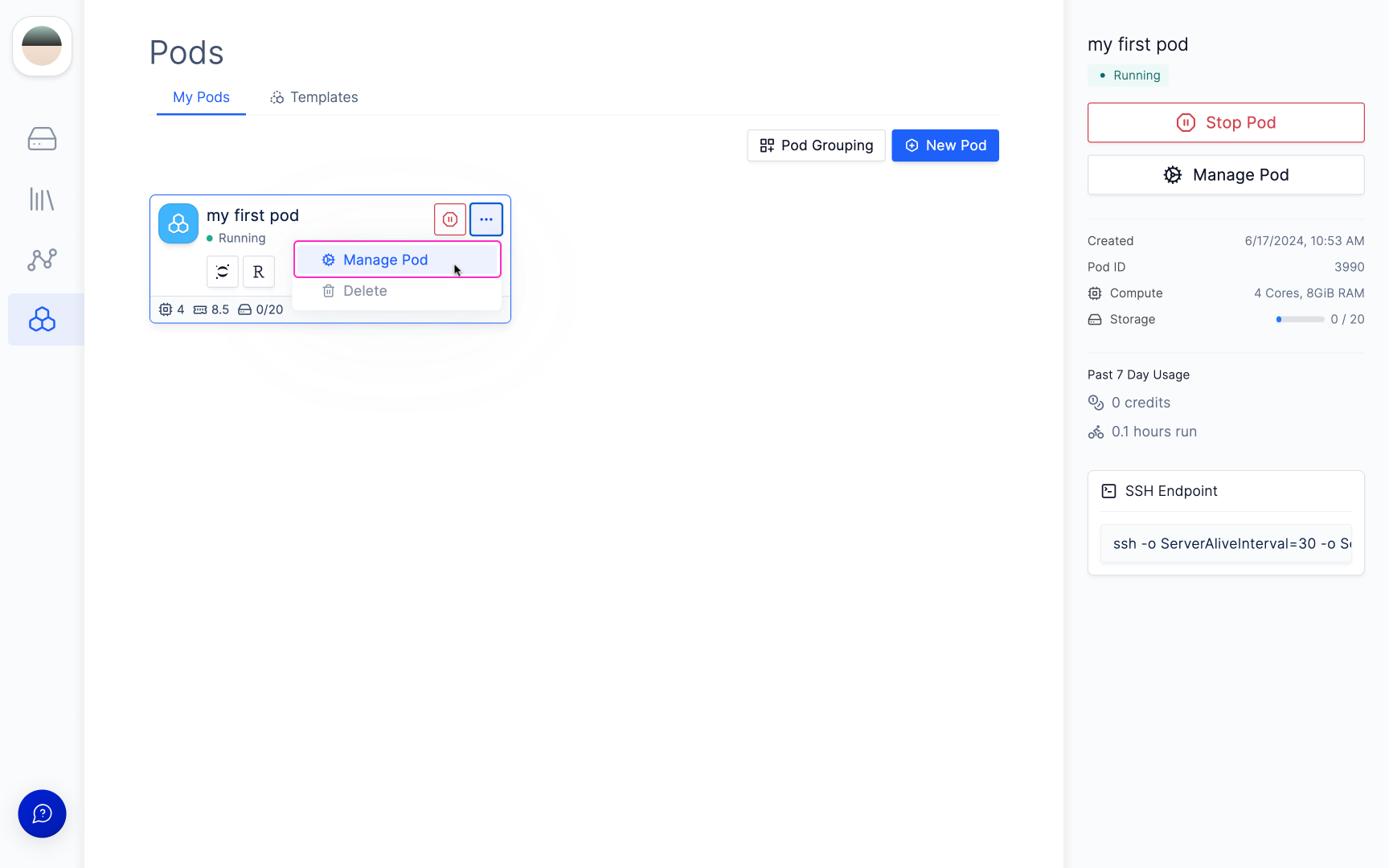
To verify if the Pod is running, navigate to the Pods page, and select **Manage Pod** go to Pod's settings.
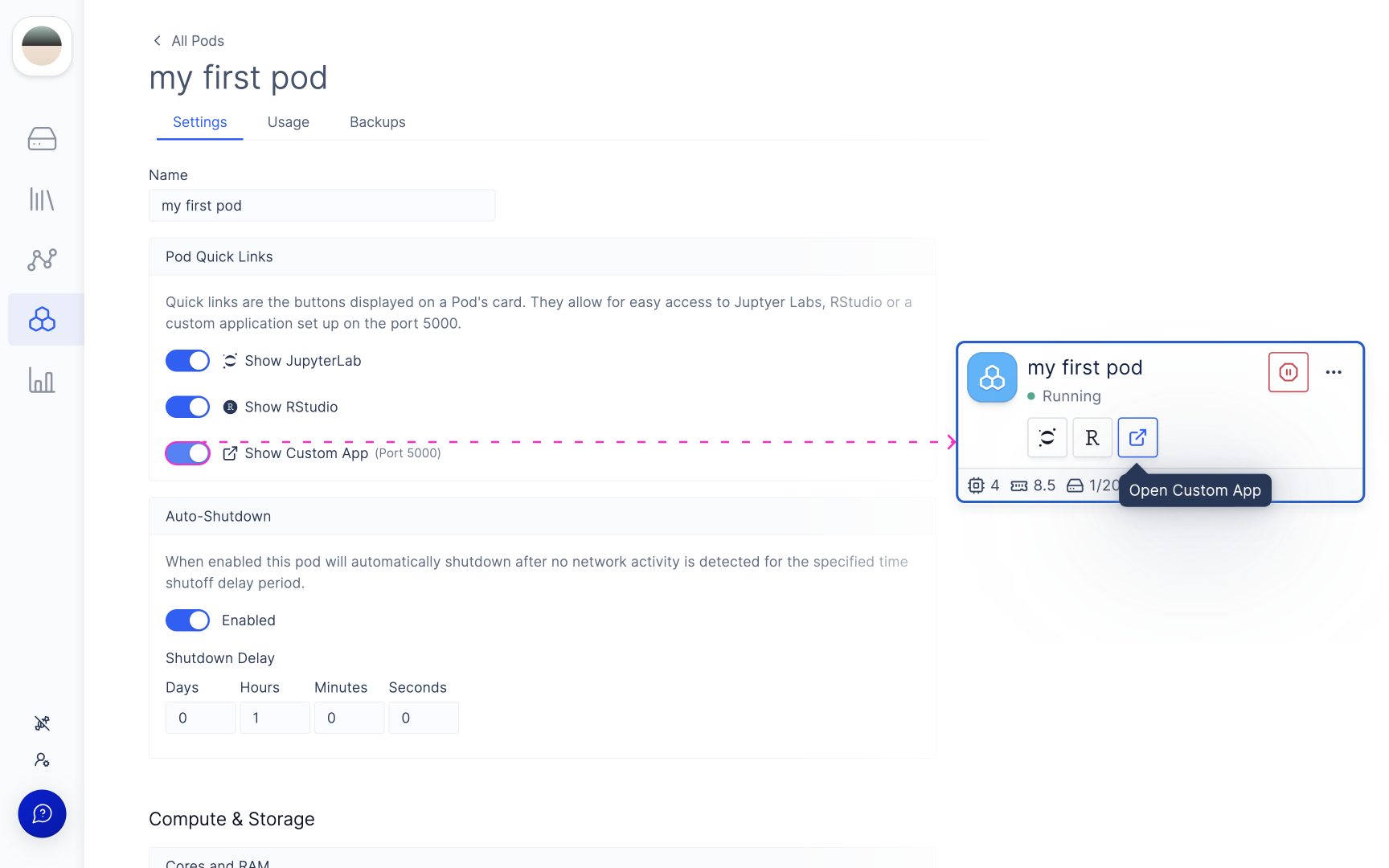
 This will display a third button on the Pod's card, which we can click to open the custom app running on port 5000.
 If the app is set up correctly, you should see it open up in a new tab!
If you receive a **502 Gateway Error**, that means the app has failed to start. Visit our [Debugging an Application](/pods/custom-app#debugging-an-application) section for further instructions.
To see the app in action, stop and start your Pod, and click on the **'Open Custom App'** button.
## Advanced: Enabling the Application to Read from Latch Data
Latch Pods come with Latch Data FUSE (Filesystem in Userspace), which displays the entire filesystem on Latch Data on pods.
LData FUSE is a file system that allows you to access Latch Data within Pods.
LData is mounted automatically when starting a pod, and its content can be inspected under the directory /ldata.
{" "}
We recommended that you add a component to your app to display the folder tree
under /ldata so that you can select the files you want.{" "}
#### To access LData FUSE:
1. Start a new Latch Pod.
2. Navigate to the /ldata directory in your Pod.
3. You will see the entire Latch Data filesystem mirrored in this directory.
## Debugging An Application
If you see a **502 Gateway Error** after clicking **'Open Custom App'**, it means the app has not been started correctly, and there is no application running on port 5000.
To see the logs of why the application may have failed, in your terminal, type:
```bash theme={null}
journalctl --user-unit latch-custom-app
```
The same command can also be used to inspect any other errors that occur while the app is running.
If the app is set up correctly, you should see it open up in a new tab!
If you receive a **502 Gateway Error**, that means the app has failed to start. Visit our [Debugging an Application](/pods/custom-app#debugging-an-application) section for further instructions.
To see the app in action, stop and start your Pod, and click on the **'Open Custom App'** button.
## Advanced: Enabling the Application to Read from Latch Data
Latch Pods come with Latch Data FUSE (Filesystem in Userspace), which displays the entire filesystem on Latch Data on pods.
LData FUSE is a file system that allows you to access Latch Data within Pods.
LData is mounted automatically when starting a pod, and its content can be inspected under the directory /ldata.
{" "}
We recommended that you add a component to your app to display the folder tree
under /ldata so that you can select the files you want.{" "}
#### To access LData FUSE:
1. Start a new Latch Pod.
2. Navigate to the /ldata directory in your Pod.
3. You will see the entire Latch Data filesystem mirrored in this directory.
## Debugging An Application
If you see a **502 Gateway Error** after clicking **'Open Custom App'**, it means the app has not been started correctly, and there is no application running on port 5000.
To see the logs of why the application may have failed, in your terminal, type:
```bash theme={null}
journalctl --user-unit latch-custom-app
```
The same command can also be used to inspect any other errors that occur while the app is running.