> ## Documentation Index
> Fetch the complete documentation index at: https://wiki.latch.bio/llms.txt
> Use this file to discover all available pages before exploring further.
# Input Widgets
> Use single-line Python to define input widgets and retrieve their values in code
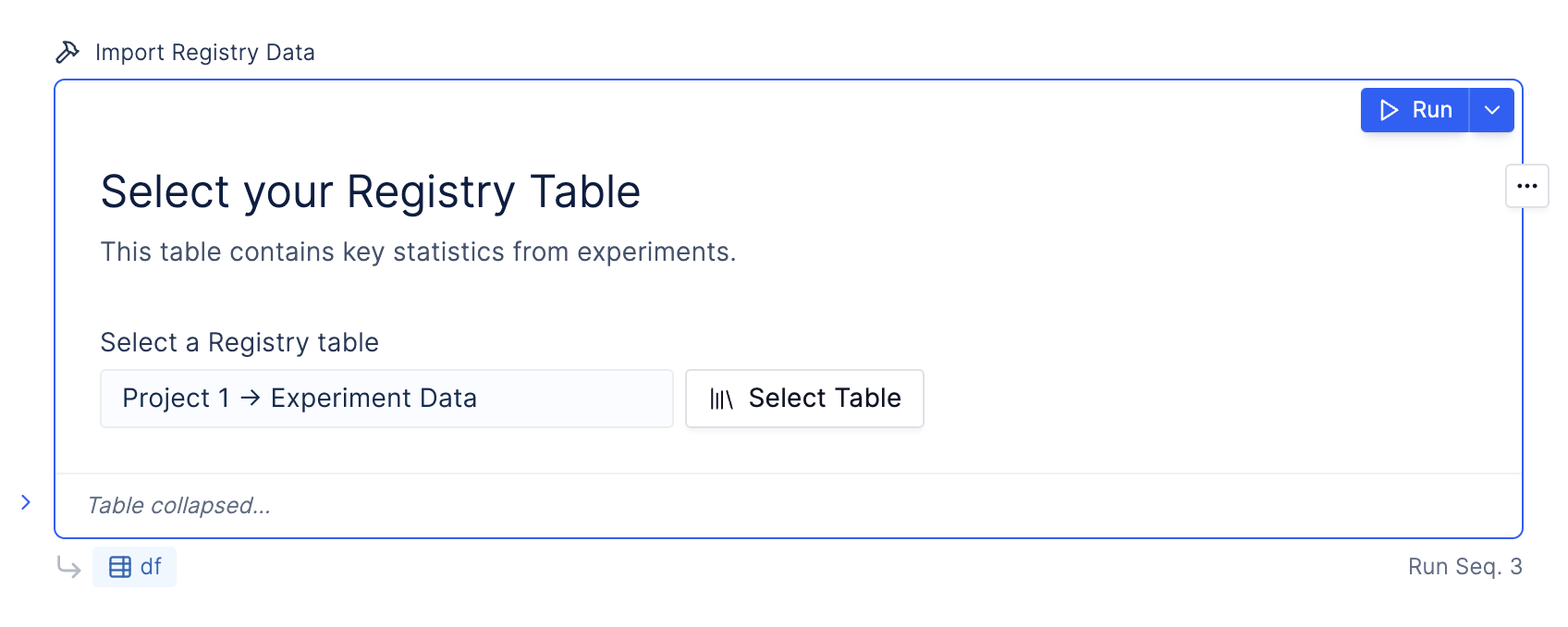 Each widget functions as a Python class and can be assigned to a variable. By calling `.value` on the variable, you can access the actual widget value. For example:
```python theme={null}
from lplots.widgets.select import w_select
options = w_select(
label="Select an item from the dropdown",
options=["alpha", "bravo", "charlie"],
)
print(options.value)
# prints `"alpha", "bravo" or "charlie"` depending on user selection
```
Widgets are rendered in the order that they are called.
## Supported Widget Types
Below is a comprehensive list of supported widget types.
Each widget functions as a Python class and can be assigned to a variable. By calling `.value` on the variable, you can access the actual widget value. For example:
```python theme={null}
from lplots.widgets.select import w_select
options = w_select(
label="Select an item from the dropdown",
options=["alpha", "bravo", "charlie"],
)
print(options.value)
# prints `"alpha", "bravo" or "charlie"` depending on user selection
```
Widgets are rendered in the order that they are called.
## Supported Widget Types
Below is a comprehensive list of supported widget types.
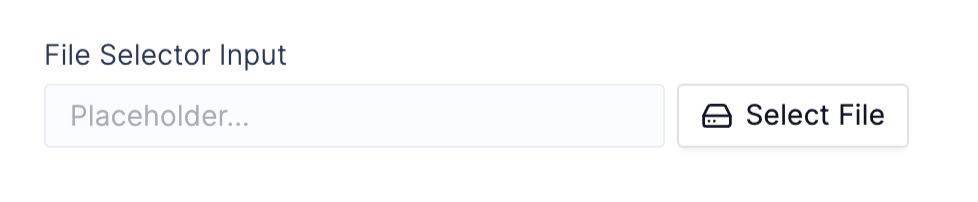 File selector widgets allow users to select a file in their Latch Data and return a latch path that can be downloaded and used in a layout.
```python theme={null}
from lplots.widgets.ldata import w_ldata_picker
import pandas as pd
csv = w_ldata_picker(
label="Condition CSV",
default="latch:///welcome/deseq2/conditions.csv"
)
csv_path = csv.value
# ex. "latch:///welcome/deseq2/conditions.csv"
# Read the selected file into a Pandas DataFrame
df = pd.read_csv(csv_path.download())
```
### Widget Parameters
`label`: *string* string value (required)
`default`: *string* latch data path string used as the default widget value
`required`: *boolean* a boolean that sets the input as requiring input by user and errored when empty
`appearance`: *dict* containing widget appearance attributes:
> `"placeholder"`: *string* placeholder value displayed before a set value
>
> `"detail"`: *string* secondary label text displayed after thet label
>
> `"help_text"`: *string* informative text displayed below input
>
> `"error_text"`: *string* error text displayed below input that replaces `help_text` and sets the input state as errored
>
> `"description"`: *string* longer description text displayed in a hoverable tooltip next to the label
File selector widgets allow users to select a file in their Latch Data and return a latch path that can be downloaded and used in a layout.
```python theme={null}
from lplots.widgets.ldata import w_ldata_picker
import pandas as pd
csv = w_ldata_picker(
label="Condition CSV",
default="latch:///welcome/deseq2/conditions.csv"
)
csv_path = csv.value
# ex. "latch:///welcome/deseq2/conditions.csv"
# Read the selected file into a Pandas DataFrame
df = pd.read_csv(csv_path.download())
```
### Widget Parameters
`label`: *string* string value (required)
`default`: *string* latch data path string used as the default widget value
`required`: *boolean* a boolean that sets the input as requiring input by user and errored when empty
`appearance`: *dict* containing widget appearance attributes:
> `"placeholder"`: *string* placeholder value displayed before a set value
>
> `"detail"`: *string* secondary label text displayed after thet label
>
> `"help_text"`: *string* informative text displayed below input
>
> `"error_text"`: *string* error text displayed below input that replaces `help_text` and sets the input state as errored
>
> `"description"`: *string* longer description text displayed in a hoverable tooltip next to the label
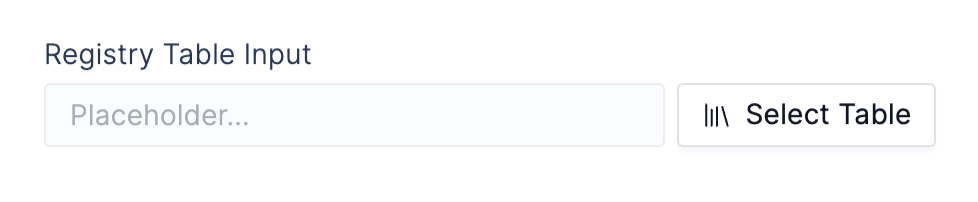 Registry Table Select inputs allow users to select a table from their workspaces registry. The input returns a table id that can be used to fetch table data using the Table class.
```python theme={null}
from lplots.widgets.registry import w_registry_table_picker
from latch.registry.table import Table
# Get the unique ID of the Registry table
table = w_registry_table_picker(label="Select a Registry table")
table_id = table.value
# ex. "3092"
if table_id is not None:
# Get a dataframe from the table ID
df = Table(
id=table_id
).get_dataframe()
```
### Widget Parameters
`label`: *string* label (required)
`default`: *string* id of a registry table
`required`: *boolean* that sets the input as requiring input by user and errored when empty
`appearance`: *dict* containing widget appearance attributes:
> `"placeholder"`: *string* placeholder value displayed before a set value
>
> `"detail"`: *string* secondary label text displayed after thet label
>
> `"help_text"`: *string* informative text displayed below input
>
> `"error_text"`: *string* error text displayed below input that replaces `help_text` and sets the input state as errored
>
> `"description"`: *string* longer description text displayed in a hoverable tooltip next to the label
### Table Class Parameters & Methods
Parameters
`id`: string id of registry table
Methods
`Table.get_dataframe()`: returns a pandas dataframe for the provided registry table id
Registry Table Select inputs allow users to select a table from their workspaces registry. The input returns a table id that can be used to fetch table data using the Table class.
```python theme={null}
from lplots.widgets.registry import w_registry_table_picker
from latch.registry.table import Table
# Get the unique ID of the Registry table
table = w_registry_table_picker(label="Select a Registry table")
table_id = table.value
# ex. "3092"
if table_id is not None:
# Get a dataframe from the table ID
df = Table(
id=table_id
).get_dataframe()
```
### Widget Parameters
`label`: *string* label (required)
`default`: *string* id of a registry table
`required`: *boolean* that sets the input as requiring input by user and errored when empty
`appearance`: *dict* containing widget appearance attributes:
> `"placeholder"`: *string* placeholder value displayed before a set value
>
> `"detail"`: *string* secondary label text displayed after thet label
>
> `"help_text"`: *string* informative text displayed below input
>
> `"error_text"`: *string* error text displayed below input that replaces `help_text` and sets the input state as errored
>
> `"description"`: *string* longer description text displayed in a hoverable tooltip next to the label
### Table Class Parameters & Methods
Parameters
`id`: string id of registry table
Methods
`Table.get_dataframe()`: returns a pandas dataframe for the provided registry table id
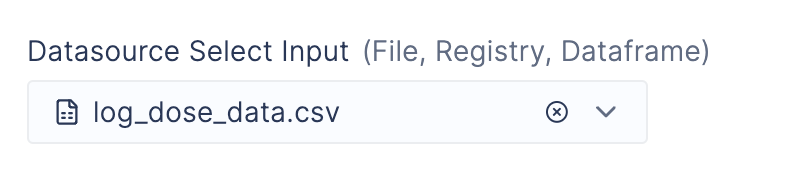 The Datasource widget allows you to select a tabular datasource from various sources. The datasource can be a file, registry table, or other dataframe in the notebook.
```python theme={null}
from lplots.widgets.datasource import w_datasource_picker, DataSourceValue
from lplots.widgets.text import w_text_output
datasource_picker = w_datasource_picker(
label="Datasource Select Input",
default={
"type": "ldata",
"node_id": "95902"
}
appearance={
"placeholder": "Placeholder…",
"detail": "(File, Registry, Dataframe)",
}
)
```
When setting default values, you must specify the datasource type and then specify the appropriate key or id.
```python theme={null}
# Files in Latch Data
…
default={
"type": "ldata",
"node_id": "95902"
}
…
# Registry Tables
…
default={
"type": "registry",
"table_id": "95902"
}
…
# Dataframes in the notebook
…
default={
"type": "dataframe",
"key": "my_dataframe"
}
…
```
The Datasource widget allows you to select a tabular datasource from various sources. The datasource can be a file, registry table, or other dataframe in the notebook.
```python theme={null}
from lplots.widgets.datasource import w_datasource_picker, DataSourceValue
from lplots.widgets.text import w_text_output
datasource_picker = w_datasource_picker(
label="Datasource Select Input",
default={
"type": "ldata",
"node_id": "95902"
}
appearance={
"placeholder": "Placeholder…",
"detail": "(File, Registry, Dataframe)",
}
)
```
When setting default values, you must specify the datasource type and then specify the appropriate key or id.
```python theme={null}
# Files in Latch Data
…
default={
"type": "ldata",
"node_id": "95902"
}
…
# Registry Tables
…
default={
"type": "registry",
"table_id": "95902"
}
…
# Dataframes in the notebook
…
default={
"type": "dataframe",
"key": "my_dataframe"
}
…
```
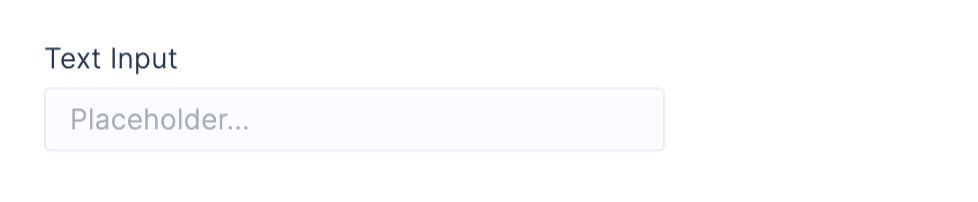 Text inputs allow users to specify a custom text string.
```python theme={null}
from lplots.widgets.text import w_text_input, w_text_output
name = w_text_input(
label="Your name",
default="Barnaby Jones"
)
name_value = name.value
# ex. "Barnaby Jones"
```
`label`: string label (required)
`default`: default string value for input
`required`: a boolean that sets the input as requiring input by user and errored when empty
`appearance`: a dict containing widget appearance attributes:
> `"placeholder"`: placeholder value displayed before a set value
>
> `"detail"`: secondary label text displayed after thet label
>
> `"help_text"`: informative text displayed below input
>
> `"error_text"`: error text displayed below input that replaces `help_text` and sets the input state as errored
>
> `"description"`: longer description text displayed in a hoverable tooltip next to the label
Text inputs allow users to specify a custom text string.
```python theme={null}
from lplots.widgets.text import w_text_input, w_text_output
name = w_text_input(
label="Your name",
default="Barnaby Jones"
)
name_value = name.value
# ex. "Barnaby Jones"
```
`label`: string label (required)
`default`: default string value for input
`required`: a boolean that sets the input as requiring input by user and errored when empty
`appearance`: a dict containing widget appearance attributes:
> `"placeholder"`: placeholder value displayed before a set value
>
> `"detail"`: secondary label text displayed after thet label
>
> `"help_text"`: informative text displayed below input
>
> `"error_text"`: error text displayed below input that replaces `help_text` and sets the input state as errored
>
> `"description"`: longer description text displayed in a hoverable tooltip next to the label
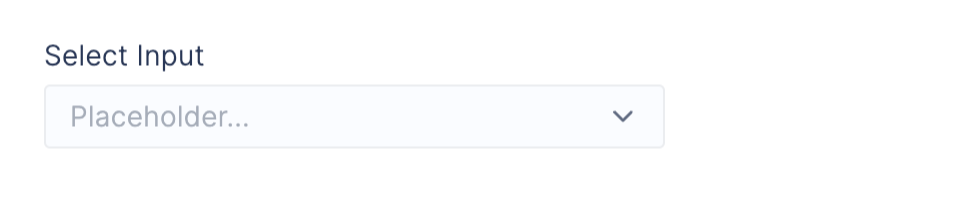 Select inputs allow users to select a single item from a list of string or number options.
```python theme={null}
from lplots.widgets.select import w_select
option = w_select(
label="Select an item from the dropdown",
options=[
"alpha",
"bravo",
"charlie"
],
)
option_value = option.value
# ex. "alpha"
```
`label`: string label (required)
`options`: list of values for the select
`default`: default option from options
`required`: a boolean that sets the input as requiring input by user and errored when empty
`appearance`: a dict containing widget appearance attributes:
> `"placeholder"`: placeholder value displayed before a set value
>
> `"detail"`: secondary label text displayed after thet label
>
> `"help_text"`: informative text displayed below input
>
> `"error_text"`: error text displayed below input that replaces `help_text` and sets the input state as errored
>
> `"description"`: longer description text displayed in a hoverable tooltip next to the label
Select inputs allow users to select a single item from a list of string or number options.
```python theme={null}
from lplots.widgets.select import w_select
option = w_select(
label="Select an item from the dropdown",
options=[
"alpha",
"bravo",
"charlie"
],
)
option_value = option.value
# ex. "alpha"
```
`label`: string label (required)
`options`: list of values for the select
`default`: default option from options
`required`: a boolean that sets the input as requiring input by user and errored when empty
`appearance`: a dict containing widget appearance attributes:
> `"placeholder"`: placeholder value displayed before a set value
>
> `"detail"`: secondary label text displayed after thet label
>
> `"help_text"`: informative text displayed below input
>
> `"error_text"`: error text displayed below input that replaces `help_text` and sets the input state as errored
>
> `"description"`: longer description text displayed in a hoverable tooltip next to the label
 Multiselect inputs allow users to select a list of items from a list of string or number options.
```python theme={null}
from lplots.widgets.multiselect import w_multi_select
options = w_multi_select(
label="Select an item from the dropdown",
options=[
"alpha",
"bravo",
"charlie"
],
)
options_values = options.value
# ex. ["alpha", "Bravo"]
```
`label`: string label (required)
`options`: list of values for the select
`default`: list of default options from options
`required`: a boolean that sets the input as requiring input by user and errored when empty
`appearance`: a dict containing widget appearance attributes:
> `"placeholder"`: placeholder value displayed before a set value
>
> `"detail"`: secondary label text displayed after thet label
>
> `"help_text"`: informative text displayed below input
>
> `"error_text"`: error text displayed below input that replaces `help_text` and sets the input state as errored
>
> `"description"`: longer description text displayed in a hoverable tooltip next to the label
Multiselect inputs allow users to select a list of items from a list of string or number options.
```python theme={null}
from lplots.widgets.multiselect import w_multi_select
options = w_multi_select(
label="Select an item from the dropdown",
options=[
"alpha",
"bravo",
"charlie"
],
)
options_values = options.value
# ex. ["alpha", "Bravo"]
```
`label`: string label (required)
`options`: list of values for the select
`default`: list of default options from options
`required`: a boolean that sets the input as requiring input by user and errored when empty
`appearance`: a dict containing widget appearance attributes:
> `"placeholder"`: placeholder value displayed before a set value
>
> `"detail"`: secondary label text displayed after thet label
>
> `"help_text"`: informative text displayed below input
>
> `"error_text"`: error text displayed below input that replaces `help_text` and sets the input state as errored
>
> `"description"`: longer description text displayed in a hoverable tooltip next to the label
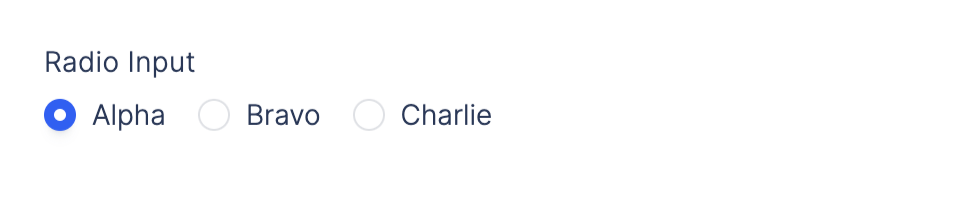 Radio group inputs allow users to select a single item from a list of string or number options.
```python theme={null}
from lplots.widgets.radio import w_radio_group
option = w_radio_group(
label="Select an item from the dropdown",
options=[
"alpha",
"bravo",
"charlie"
],
)
option_value = option.value
# ex. "alpha"
```
Radio group inputs allow users to select a single item from a list of string or number options.
```python theme={null}
from lplots.widgets.radio import w_radio_group
option = w_radio_group(
label="Select an item from the dropdown",
options=[
"alpha",
"bravo",
"charlie"
],
)
option_value = option.value
# ex. "alpha"
```
 Checkbox inputs allow users to select a boolean true or false value
```python theme={null}
from lplots.widgets.checkbox import w_checkbox
conditional = w_checkbox(
label="Checkbox Input",
)
conditional_value = conditional.value
# ex. true
```
Checkbox inputs allow users to select a boolean true or false value
```python theme={null}
from lplots.widgets.checkbox import w_checkbox
conditional = w_checkbox(
label="Checkbox Input",
)
conditional_value = conditional.value
# ex. true
```
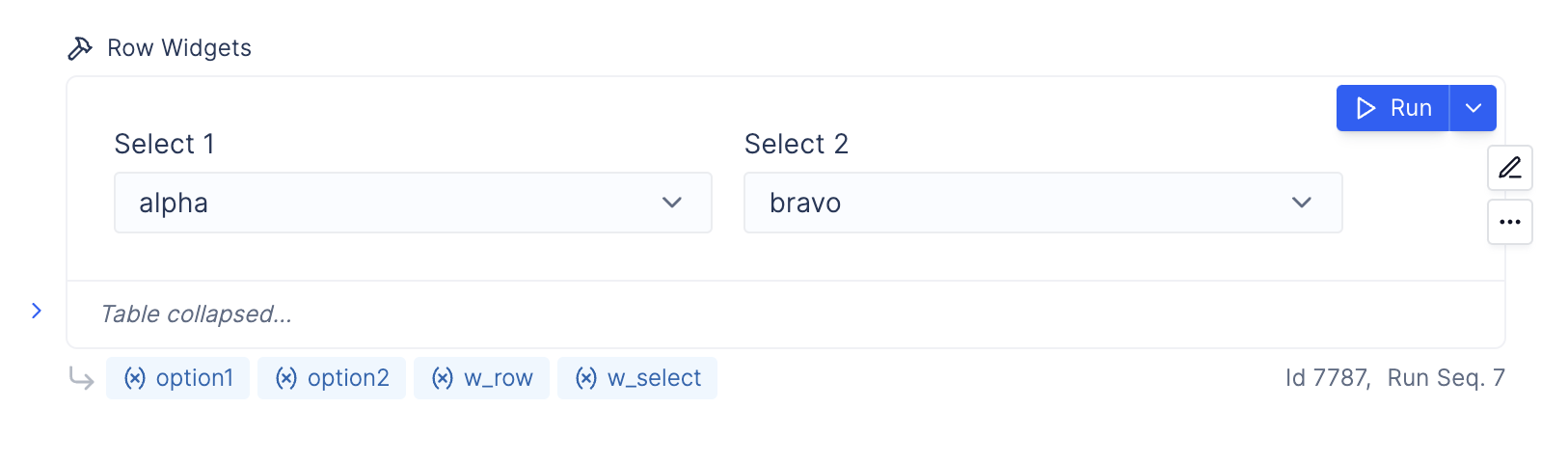 With Rows you're able to stack widgets horizontally, in a row. Widgets in a Row will automatically wrap to the next line when there is insufficient space.
```python theme={null}
from lplots.widgets.row import w_row
from lplots.widgets.select import w_select
option1 = w_select(
label="Select 1",
options=[
"alpha",
"bravo",
"charlie"
],
)
option2 = w_select(
label="Select 2",
options=[
"alpha",
"bravo",
"charlie"
],
)
w_row(
items=[option1, option2]
)
```
A button widget can be used to conditionally run a cell **only** when the button is clicked.
This approach is especially useful for long computational operations when you want to prevent the cell from automatically running in response to reactive widget input changes.
```python theme={null}
from lplots.widgets.button import w_button
from lplots.widgets.text import w_text_input, w_text_output
a = w_text_input(label="a")
b = w_text_input(label="b")
button = w_button(label="Click Button to Run")
if button.value:
# Print out the result of a+b. Pay attention to the video below where the value only updates after the button is clicked.
w_text_output(content=f"Result of a+b: {int(a.value) + int(b.value)}")
```
## Widget Appearance
Each widget allows you to specify appearance and input discriptions.
With Rows you're able to stack widgets horizontally, in a row. Widgets in a Row will automatically wrap to the next line when there is insufficient space.
```python theme={null}
from lplots.widgets.row import w_row
from lplots.widgets.select import w_select
option1 = w_select(
label="Select 1",
options=[
"alpha",
"bravo",
"charlie"
],
)
option2 = w_select(
label="Select 2",
options=[
"alpha",
"bravo",
"charlie"
],
)
w_row(
items=[option1, option2]
)
```
A button widget can be used to conditionally run a cell **only** when the button is clicked.
This approach is especially useful for long computational operations when you want to prevent the cell from automatically running in response to reactive widget input changes.
```python theme={null}
from lplots.widgets.button import w_button
from lplots.widgets.text import w_text_input, w_text_output
a = w_text_input(label="a")
b = w_text_input(label="b")
button = w_button(label="Click Button to Run")
if button.value:
# Print out the result of a+b. Pay attention to the video below where the value only updates after the button is clicked.
w_text_output(content=f"Result of a+b: {int(a.value) + int(b.value)}")
```
## Widget Appearance
Each widget allows you to specify appearance and input discriptions.
 ```python theme={null}
select = w_multi_select(
label="Multiselect Input",
options=["Alpha", "Bravo", "Charlie"],
appearance={
"placeholder": "Placeholder…",
"detail": "(details)",
"help_text": "Help text",
"error_text": "Error text",
"description": "Hover description",
}
)
```
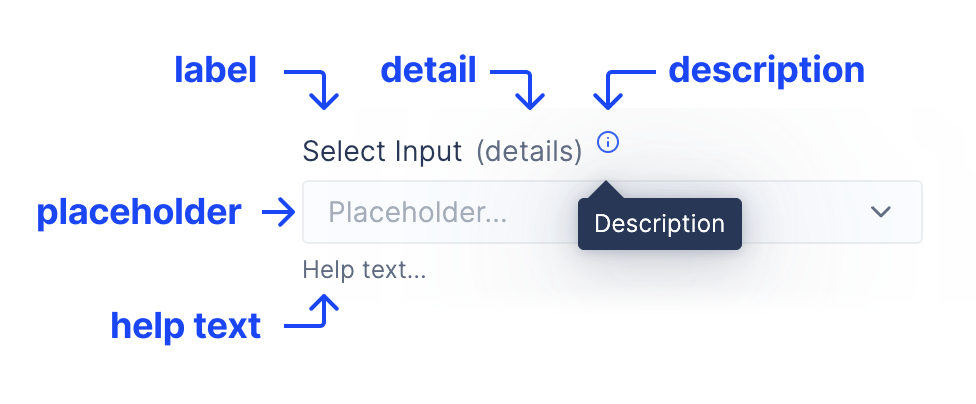
`appearance`: a dict containing widget appearance attributes:
> `"placeholder"`: placeholder value displayed before a set value
>
> `"detail"`: secondary label text displayed after thet label
>
> `"help_text"`: informative text displayed below input
>
> `"error_text"`: error text displayed below input that replaces `help_text` and sets the input state as errored
>
> `"description"`: longer description text displayed in a hoverable tooltip next to the label
## Widgets Reactivity
* Every widget stores a **Signal**, which is the fundamental unit of reactivity in a Plot notebook.
* Signals hold dynamic values that change over time. When a signal's value is updated, any notebook cell that references it is automatically re-executed.
* Each Signal consists of a writer and a listener:
* The writer sets the Signal's value.
* The listener subscribes to the Signal and triggers automatic cell execution when the Signal changes.
**Example**:
```python theme={null}
# Cell number 1
a = w_text_input(label="a")
print(a.value)
```
* In this example, the text input widget `a` is the writer. When the user inputs a new value, it updates the Signal associated with `a`.
* Accessing `a.value` makes the cell a listener. Whenever the input in a changes, the cell will automatically re-run. Calling `a.value` also returns the widget's current value.
* This reactivity extends to any downstream cell using `a.value`, ensuring they also re-execute when a is updated.
### Can I access a widget value without triggering a cell rerun?
To retrieve a widget's value, you typically would use `.value`. However, there are times when you don't want to trigger an automatic cell run when the widget value updates, especially if the cells using `widget.value` are computationally expensive. There are two solutions to this problem:
1. Use a Button widget (Recommended)
2. Use `.sample()`
#### 1. Use a Button Widget (Recommended)
A button widget allows you to manually trigger a cell run only when the button is clicked.
**Example**:
```python theme={null}
from lplots.widgets.text import w_text_input
from lplots.widgets.button import w_button
# Create a text input widget
text_input = w_text_input(label="Input")
# Create a button to trigger execution manually
button = w_button(label="Run")
# When the button is clicked, this cell will execute
if button.value:
print(text_input.value)
```
```python theme={null}
select = w_multi_select(
label="Multiselect Input",
options=["Alpha", "Bravo", "Charlie"],
appearance={
"placeholder": "Placeholder…",
"detail": "(details)",
"help_text": "Help text",
"error_text": "Error text",
"description": "Hover description",
}
)
```
`appearance`: a dict containing widget appearance attributes:
> `"placeholder"`: placeholder value displayed before a set value
>
> `"detail"`: secondary label text displayed after thet label
>
> `"help_text"`: informative text displayed below input
>
> `"error_text"`: error text displayed below input that replaces `help_text` and sets the input state as errored
>
> `"description"`: longer description text displayed in a hoverable tooltip next to the label
## Widgets Reactivity
* Every widget stores a **Signal**, which is the fundamental unit of reactivity in a Plot notebook.
* Signals hold dynamic values that change over time. When a signal's value is updated, any notebook cell that references it is automatically re-executed.
* Each Signal consists of a writer and a listener:
* The writer sets the Signal's value.
* The listener subscribes to the Signal and triggers automatic cell execution when the Signal changes.
**Example**:
```python theme={null}
# Cell number 1
a = w_text_input(label="a")
print(a.value)
```
* In this example, the text input widget `a` is the writer. When the user inputs a new value, it updates the Signal associated with `a`.
* Accessing `a.value` makes the cell a listener. Whenever the input in a changes, the cell will automatically re-run. Calling `a.value` also returns the widget's current value.
* This reactivity extends to any downstream cell using `a.value`, ensuring they also re-execute when a is updated.
### Can I access a widget value without triggering a cell rerun?
To retrieve a widget's value, you typically would use `.value`. However, there are times when you don't want to trigger an automatic cell run when the widget value updates, especially if the cells using `widget.value` are computationally expensive. There are two solutions to this problem:
1. Use a Button widget (Recommended)
2. Use `.sample()`
#### 1. Use a Button Widget (Recommended)
A button widget allows you to manually trigger a cell run only when the button is clicked.
**Example**:
```python theme={null}
from lplots.widgets.text import w_text_input
from lplots.widgets.button import w_button
# Create a text input widget
text_input = w_text_input(label="Input")
# Create a button to trigger execution manually
button = w_button(label="Run")
# When the button is clicked, this cell will execute
if button.value:
print(text_input.value)
```
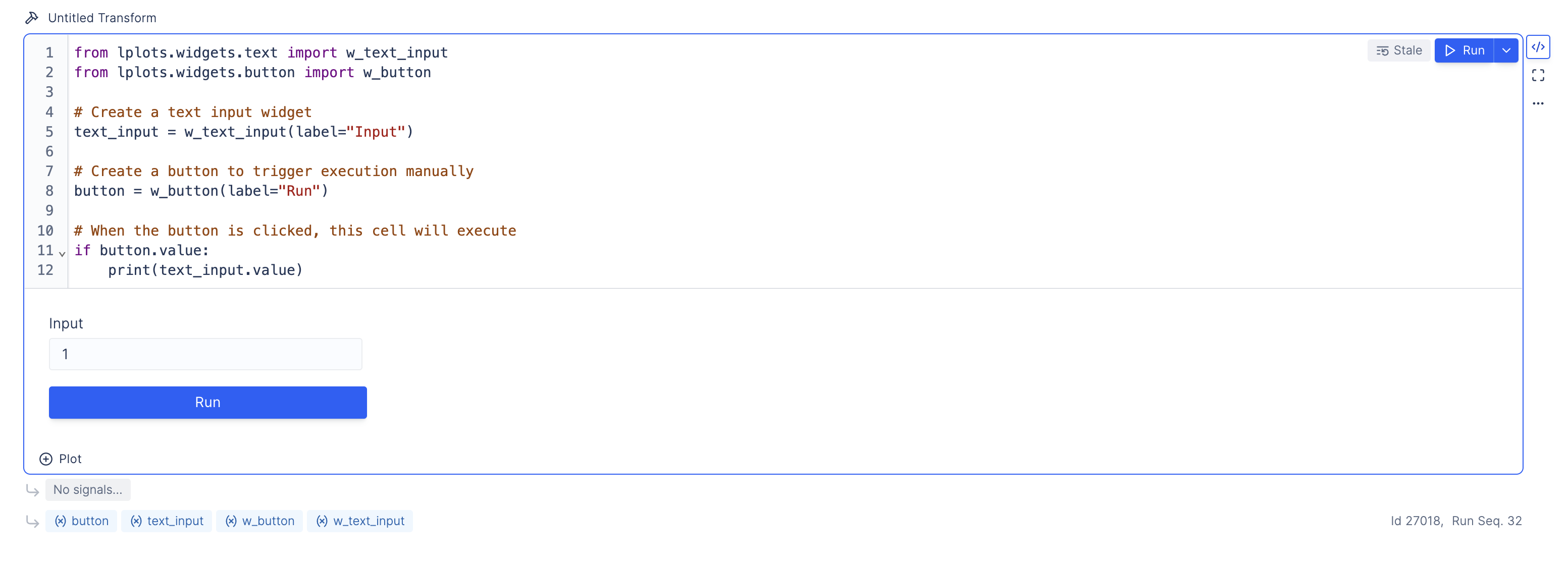 **How it works:**
* The cell only executes when the user clicks the Run button.
* Widget value changes do not automatically rerun the cell, offering full control over execution.
#### 2 - Use `sample()`
You can use `.sample()` to access the widget's value without triggering a cell rerun. Think of `.sample()` as capturing a snapshot of the widget's value at the precise moment you click the "Run" button in the upper right corner of a cell.
**Examples:**
The following code cell will automatically rerun whenever the widget value changes:
```python theme={null}
from lplots.widgets.text import w_text_input
text_input = w_text_input(label="Input")
print(text_input.value)
```
The following code will *only* execute when the user presses the "Run" button in the upper right corner of the UI:
```python theme={null}
from lplots.widgets.text import w_text_input
text_input = w_text_input(label="Input")
print(text_input.sample())
```
**How it works:**
* The cell only executes when the user clicks the Run button.
* Widget value changes do not automatically rerun the cell, offering full control over execution.
#### 2 - Use `sample()`
You can use `.sample()` to access the widget's value without triggering a cell rerun. Think of `.sample()` as capturing a snapshot of the widget's value at the precise moment you click the "Run" button in the upper right corner of a cell.
**Examples:**
The following code cell will automatically rerun whenever the widget value changes:
```python theme={null}
from lplots.widgets.text import w_text_input
text_input = w_text_input(label="Input")
print(text_input.value)
```
The following code will *only* execute when the user presses the "Run" button in the upper right corner of the UI:
```python theme={null}
from lplots.widgets.text import w_text_input
text_input = w_text_input(label="Input")
print(text_input.sample())
```