> ## Documentation Index
> Fetch the complete documentation index at: https://wiki.latch.bio/llms.txt
> Use this file to discover all available pages before exploring further.
# Table Display/Filter
> Learn how to use a table display to view data and filter it for use downstream.
## Overview
Table Display cells allow you to view data from various sources, filter and sort that data, and use the resulting filtered/sorted table elsewhere in the layout.
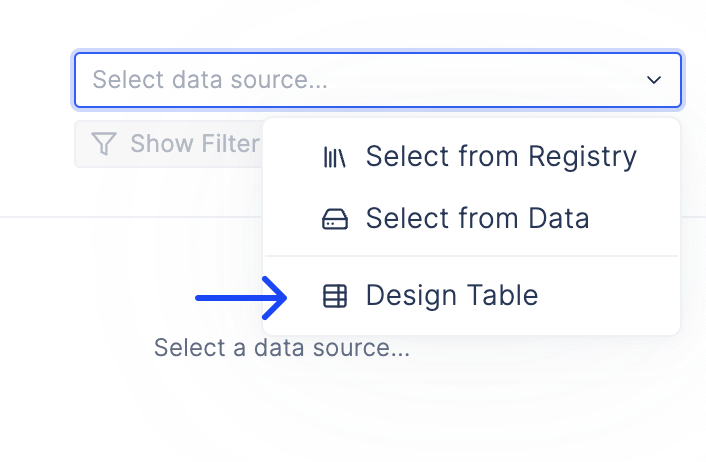
If you want to use the filtered/sorted version from the table viewer you can either select it from the data source selector:
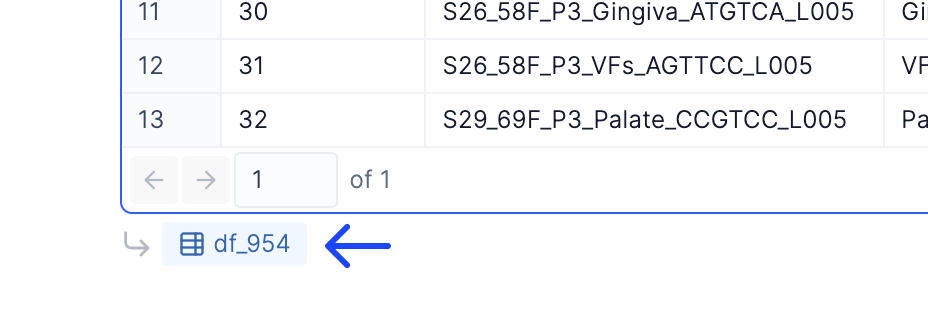
Or you can use the variable name it creates listed below the table viewer and reference that in a transform:
## Renaming
To rename a Table Viewer cell, simply double-click the title at the top of the cell and press enter when done.
 Or you can use the variable name it creates listed below the table viewer and reference that in a transform:
 ## Renaming
To rename a Table Viewer cell, simply double-click the title at the top of the cell and press enter when done.
## Renaming
To rename a Table Viewer cell, simply double-click the title at the top of the cell and press enter when done.