> ## Documentation Index
> Fetch the complete documentation index at: https://wiki.latch.bio/llms.txt
> Use this file to discover all available pages before exploring further.
# Plot Artifacts
> Use Artifacts API to create a new Plot notebook downstream of a workflow
With the Plots Artifacts API, your Latch workflow can generate a new notebook from a standard [Plot Template](/plots/developer/getting-started#:~:text=to%20create%20a-,Plot%20Template.,-Templates%20package%20everything) in your workspace and automatically populate the notebook's input widgets from parameters outputted from the workflow.
## Behavior
* Using the API in workflow code creates a Plot Artifact in Latch Data. We provide a detailed usage example below.
* Double-clicking the Artifact opens a new Plot Notebook based on the template defined in the workflow code.
* Each Plot Notebook runs on a dedicated machine:
* The machine is started the first time the Artifact is opened.
* Subsequent openings of the Artifact reuse the same machine to avoid extra costs.
## Usage
### Step 1: Define the `PlotsArtifact` dataclass:
```python Example theme={null}
from latch.types.plots import PlotsArtifactBindings, PlotsArtifactTemplate, PlotsArtifact, Widget
artifact = PlotsArtifact(
bindings=PlotsArtifactBindings(
plot_templates=[
PlotsArtifactTemplate(
template_id="1234", ## The Plot template ID
widgets=[
Widget(
transform_id="1234", ## The Python transform ID
key="1", ## The `key` of the widget that we want to populate
value="Value" ## Value to populate that widget with
)
],
)
]
)
)
```
To fill out the `PlotsArtifactTemplate` dataclass, we need to define four things:
1. The plot template ID
2. The ID of the Python transform cell that contains the widget
3. The unique ID of the widget (as one Python transform cell may contain many widgets)
4. The value we want to populate the widget with
### How to find:
* Navigate to [https://console.latch.bio/plots](https://console.latch.bio/plots)
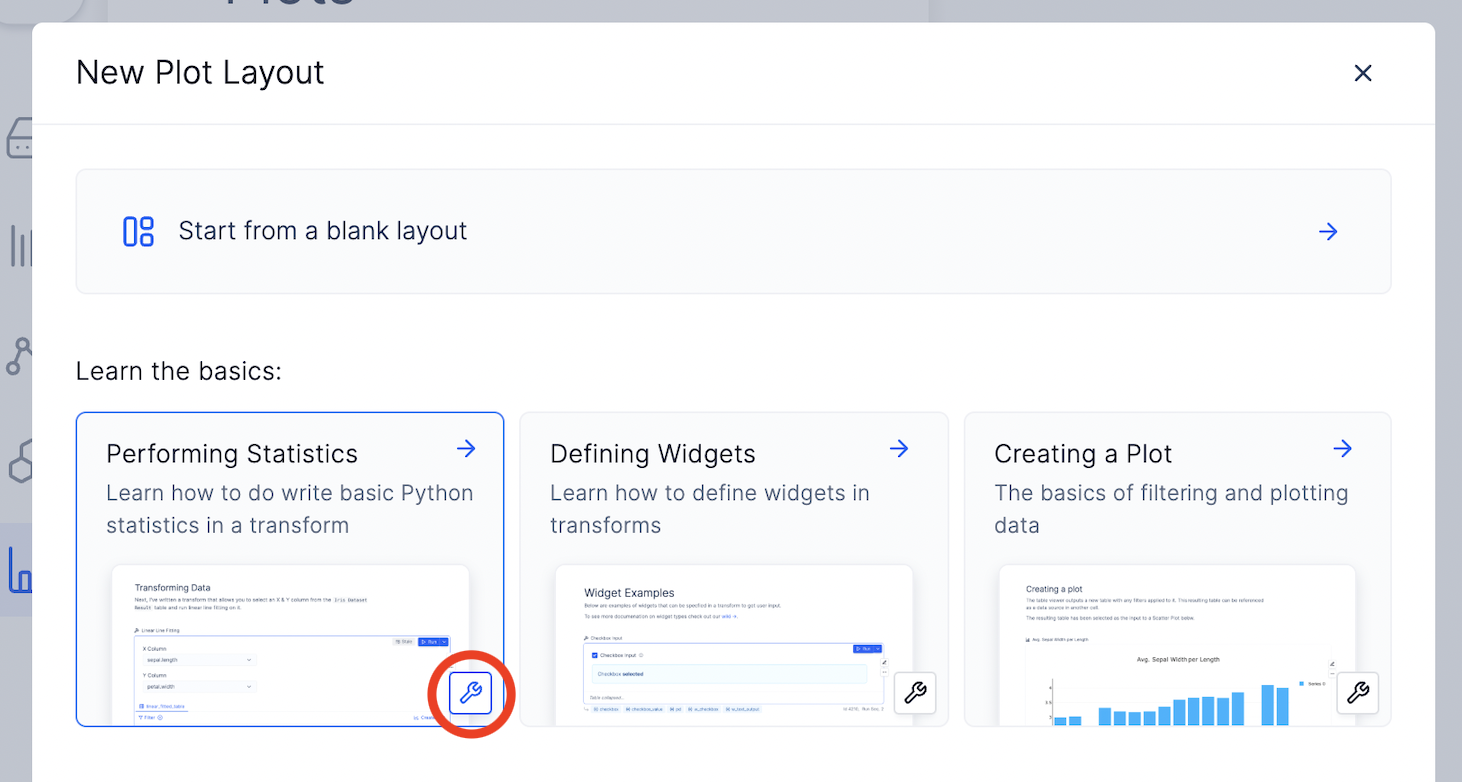
* Click on the **+ Layout** icon.
 * Click on the screwdriver icon to access the Template's settings.
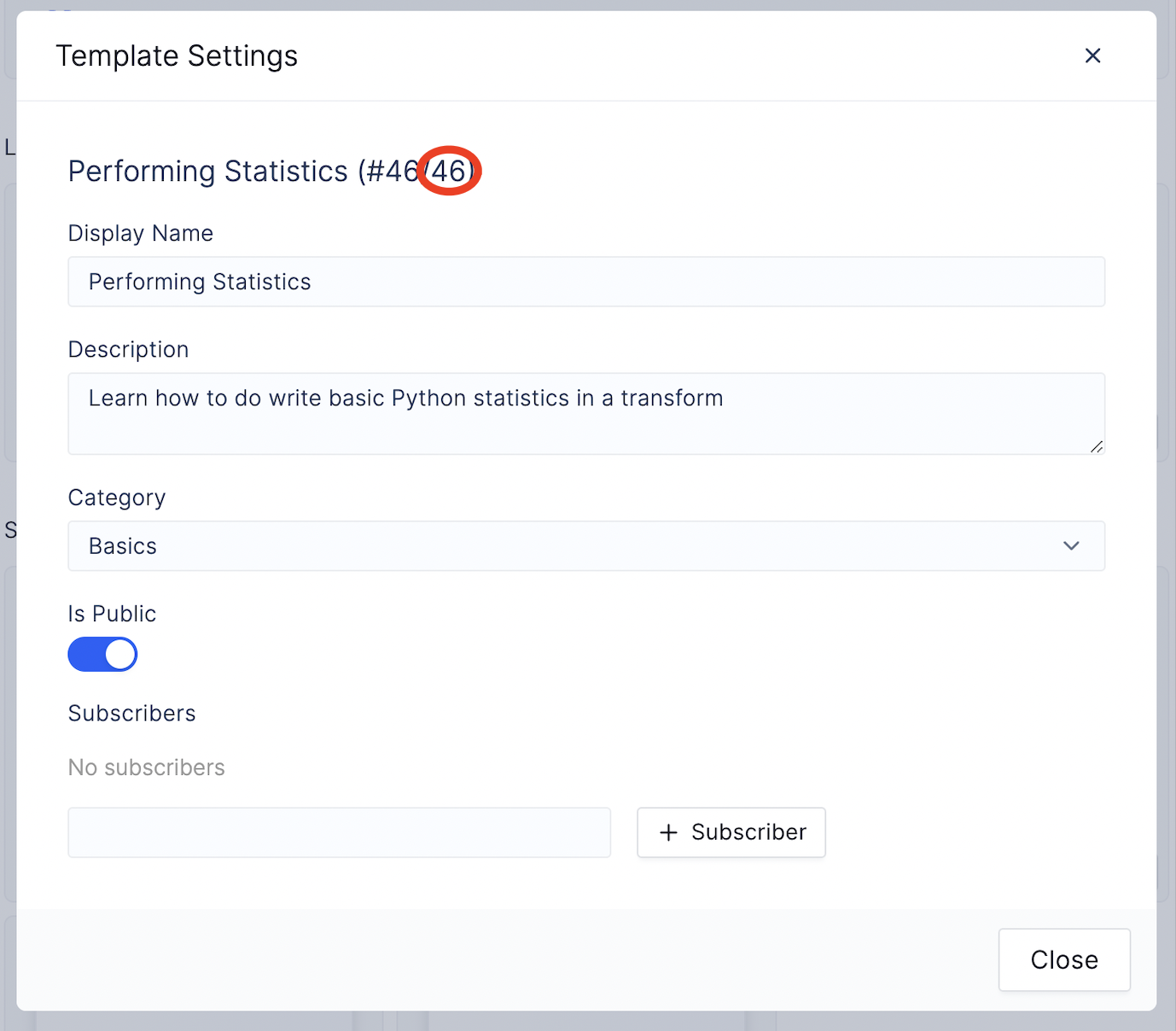
 * See the Plot Template's ID circled in the screenshot below. The template ID is the number to the right.
 * Create a new notebook from the template
* Make sure you turn on **Dev Mode** for the notebook.
* Create a new notebook from the template
* Make sure you turn on **Dev Mode** for the notebook.
 * Navigate to the cell of interest.
* Copy the ID underneath the cell.
* Navigate to the cell of interest.
* Copy the ID underneath the cell.
 When creating the Plot notebook's template, provide the widget with key like so:
```python Inside a code cell of a Plot Template theme={null}
from lplots.widgets.select import w_select
input_1 = w_select(
label="First input",
options=["A", "B", "C"],
key="input_1"
)
input_2 = w_select(
label="Second input",
options=["X", "Y", "Z"],
key="input_2"
)
```
**Pro-tip**: Not all the widgets in your original template have explicitly defined keys. If not, the key value is the order of the widget in that cell.
**Example**: Let's say a Python transform cell has three widgets:
* widget 1: (no key) => Key value is "0"
* widget 2: (key = "k") => Key value is "k"
* widget 3: (no key) => Key value is "1"
### Step 2: Upload the dataclass to Latch Data
Next, dump the dataclass into a JSON file and upload it to Latch Data.
```python expandable theme={null}
from latch.types.plots import PlotsArtifactBindings, PlotsArtifactTemplate, PlotsArtifact, Widget
@small_task
def my_task(output_dir: LatchDir) -> LatchFile:
artifact = PlotsArtifact(
bindings=PlotsArtifactBindings(
plot_templates=[
PlotsArtifactTemplate(
template_id="46", ## The Plot template ID
widgets=[
Widget(
transform_id="1234", ## The Python transform ID
key="input_1", ## The `key` of the widget that we want to populate
value="petal.width" ## Value to populate that widget with
)
],
)
]
)
)
# Convert the dataclass to a dictionary
artifact_dict = artifact.asdict()
# Write it to a JSON file
with open("artifact.json", "w") as f:
json.dump(artifact_dict, f, indent=2)
# You need to return a file artifact for the workflow
return LatchFile(output_path, f"{output_dir.remote_path}/artifact.json")
```
When creating the Plot notebook's template, provide the widget with key like so:
```python Inside a code cell of a Plot Template theme={null}
from lplots.widgets.select import w_select
input_1 = w_select(
label="First input",
options=["A", "B", "C"],
key="input_1"
)
input_2 = w_select(
label="Second input",
options=["X", "Y", "Z"],
key="input_2"
)
```
**Pro-tip**: Not all the widgets in your original template have explicitly defined keys. If not, the key value is the order of the widget in that cell.
**Example**: Let's say a Python transform cell has three widgets:
* widget 1: (no key) => Key value is "0"
* widget 2: (key = "k") => Key value is "k"
* widget 3: (no key) => Key value is "1"
### Step 2: Upload the dataclass to Latch Data
Next, dump the dataclass into a JSON file and upload it to Latch Data.
```python expandable theme={null}
from latch.types.plots import PlotsArtifactBindings, PlotsArtifactTemplate, PlotsArtifact, Widget
@small_task
def my_task(output_dir: LatchDir) -> LatchFile:
artifact = PlotsArtifact(
bindings=PlotsArtifactBindings(
plot_templates=[
PlotsArtifactTemplate(
template_id="46", ## The Plot template ID
widgets=[
Widget(
transform_id="1234", ## The Python transform ID
key="input_1", ## The `key` of the widget that we want to populate
value="petal.width" ## Value to populate that widget with
)
],
)
]
)
)
# Convert the dataclass to a dictionary
artifact_dict = artifact.asdict()
# Write it to a JSON file
with open("artifact.json", "w") as f:
json.dump(artifact_dict, f, indent=2)
# You need to return a file artifact for the workflow
return LatchFile(output_path, f"{output_dir.remote_path}/artifact.json")
```