> ## Documentation Index
> Fetch the complete documentation index at: https://wiki.latch.bio/llms.txt
> Use this file to discover all available pages before exploring further.
# Mounting S3 Buckets
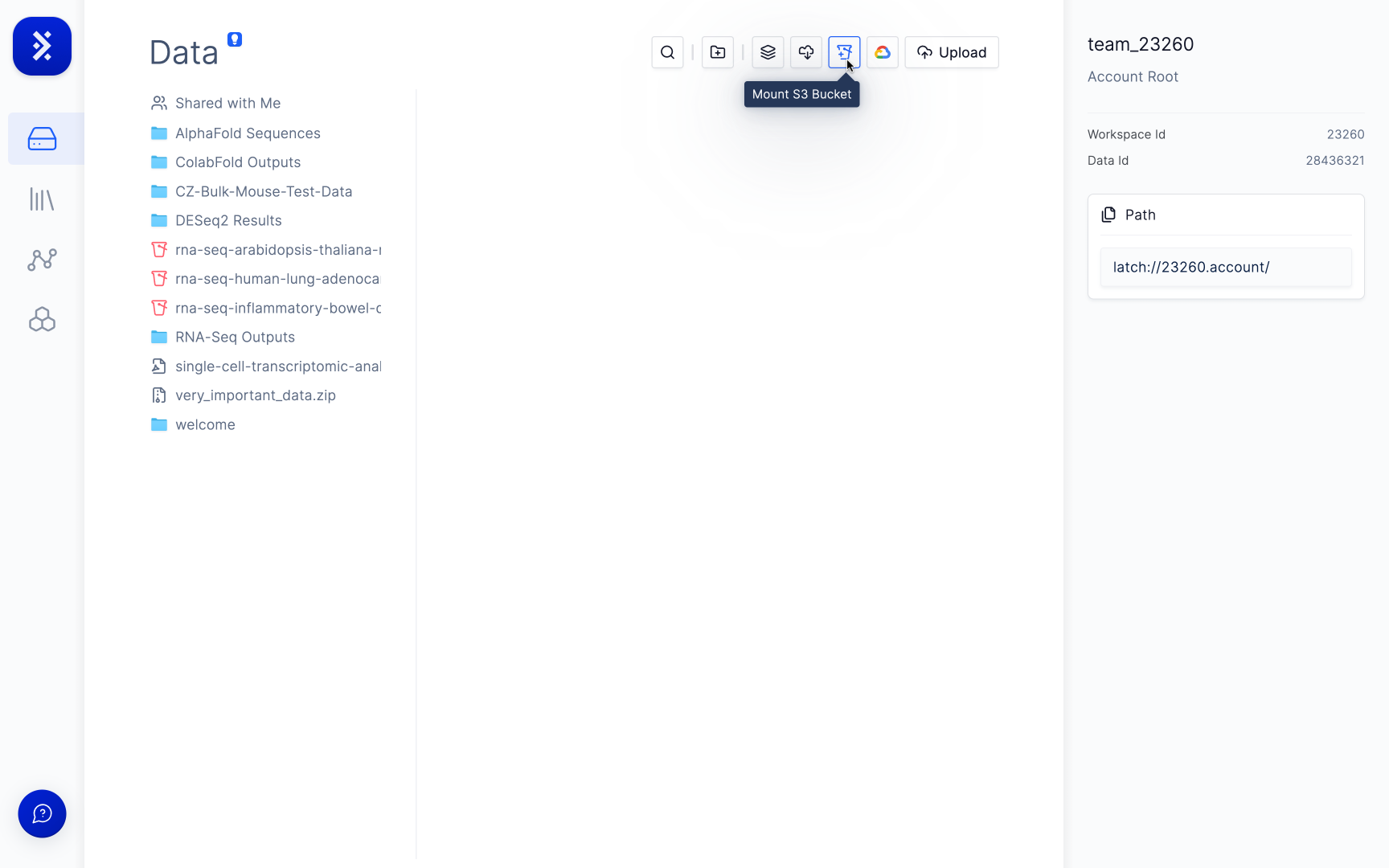
> Latch allows you to mount your own AWS S3 Buckets and use them the same as you would any data on Latch. All you need is to connect your AWS account with Latch to mount buckets from that account.
## Prerequisites
Before you start, ensure you have an IAM role in your AWS that permits you to [create CloudFormation Templates](https://aws.amazon.com/cloudformation/resources/templates/).
Latch utilizes CloudFormation Templates to establish an IAM role that enables the configuration and discovery of your S3 buckets.
## Instructions
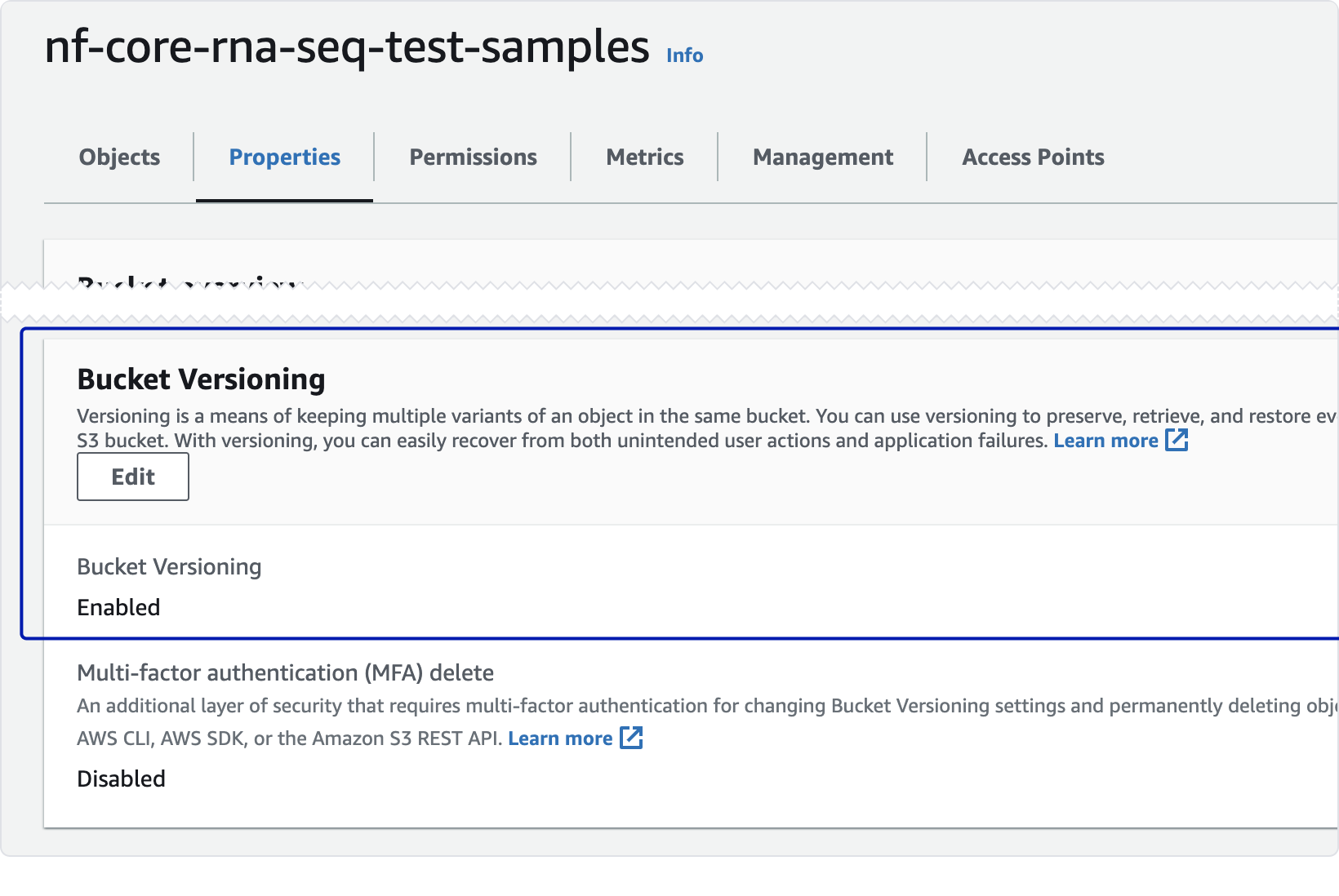
**Important:** Latch only supports mounting *versioned* buckets. To check if your bucket is versioned, open the bucket in S3, go to the **Properties** tab, and check **Bucket Versioning**.
### Connecting an AWS Account
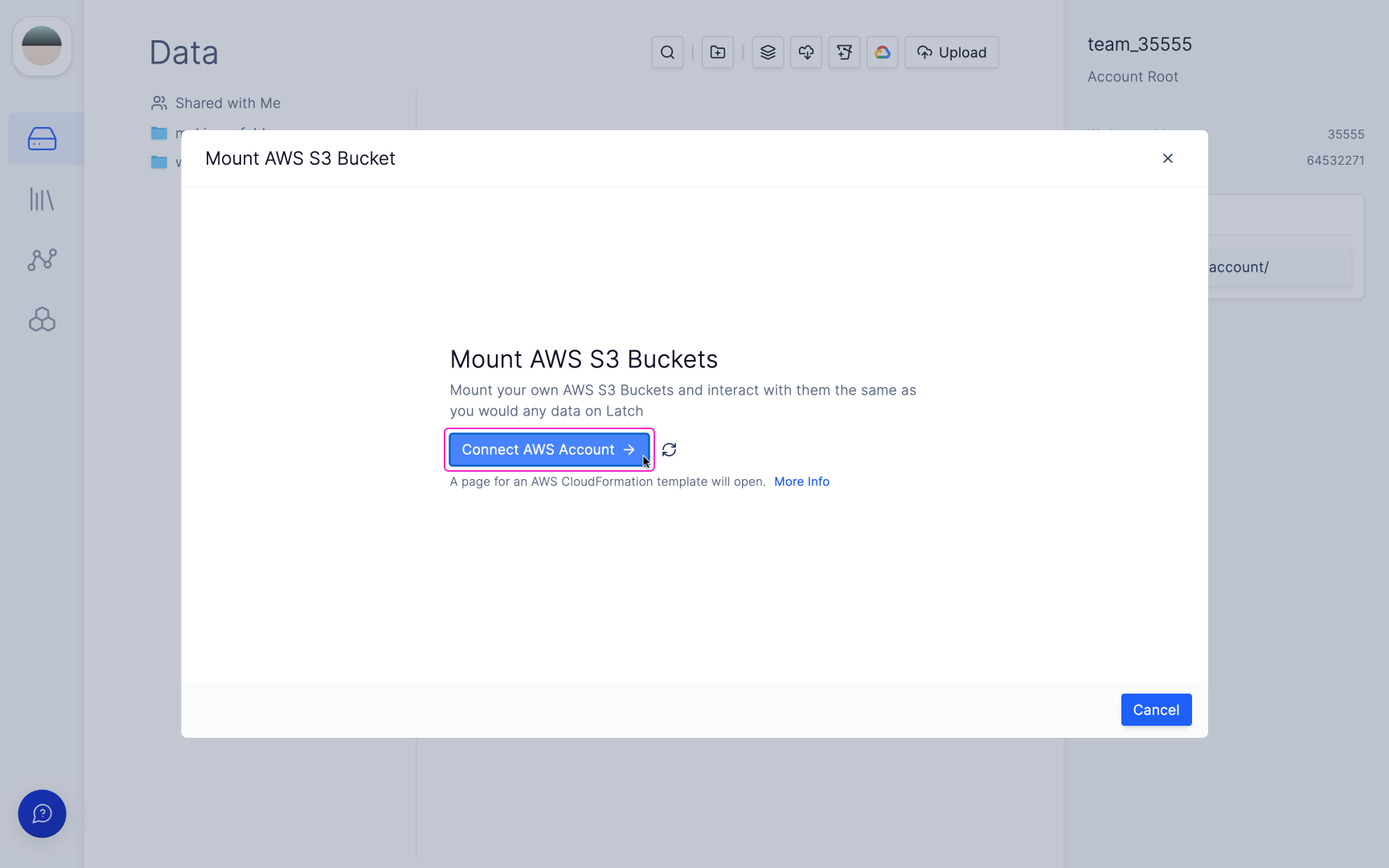 This template creates an IAM role with:
* Permission to list all of your buckets,
* Permission to view or update CORS, versioning, policy, and notification settings only on select buckets you specify,
* Permission to create, tag, delete, and permission a `latch-mount-fw-*` Lambda in your account (this Lambda is limited to writing its own CloudWatch logs and forwarding incoming S3 events to SNS, SQS, or Lambda targets), and
* Permission to execute lambdas and to publish events to LatchBio's SQS queue (for configuration and bucket notifications, respectively).
The stack also creates a separate "roleReporter" Lambda with no permissions in your account that posts the new role's ARN back to LatchBio. No permission in the template allows LatchBio to read or configure your account outside of the permitted buckets.
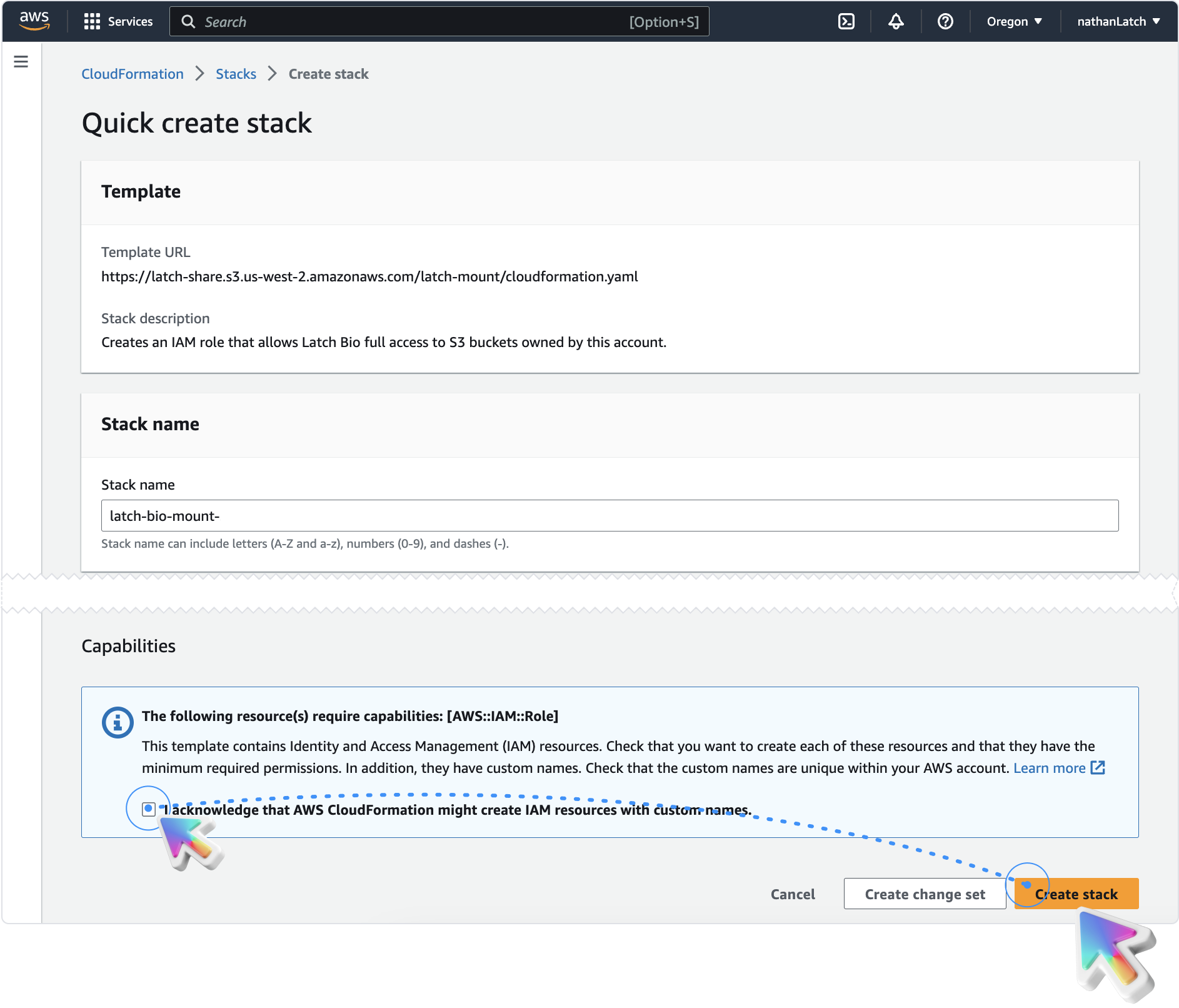
When you open the CloudFormation template, you'll see an acknowledgment stating "The following resource(s) require capabilities: \[AWS::IAM::Role]. I acknowledge that AWS CloudFormation might create IAM resources with custom names." This pertains to you as the customer executing the CloudFormation stack. The role created by the stack has no IAM permissions, but since it needs to be created and it is an IAM role, AWS ensures that you are aware of this action. However, the role itself in the template has the permissions discussed above and no more, which can be verified by inspecting the template in the AWS UI.
You can also use wildcards (\*) to specify multiple buckets.
This template creates an IAM role with:
* Permission to list all of your buckets,
* Permission to view or update CORS, versioning, policy, and notification settings only on select buckets you specify,
* Permission to create, tag, delete, and permission a `latch-mount-fw-*` Lambda in your account (this Lambda is limited to writing its own CloudWatch logs and forwarding incoming S3 events to SNS, SQS, or Lambda targets), and
* Permission to execute lambdas and to publish events to LatchBio's SQS queue (for configuration and bucket notifications, respectively).
The stack also creates a separate "roleReporter" Lambda with no permissions in your account that posts the new role's ARN back to LatchBio. No permission in the template allows LatchBio to read or configure your account outside of the permitted buckets.
When you open the CloudFormation template, you'll see an acknowledgment stating "The following resource(s) require capabilities: \[AWS::IAM::Role]. I acknowledge that AWS CloudFormation might create IAM resources with custom names." This pertains to you as the customer executing the CloudFormation stack. The role created by the stack has no IAM permissions, but since it needs to be created and it is an IAM role, AWS ensures that you are aware of this action. However, the role itself in the template has the permissions discussed above and no more, which can be verified by inspecting the template in the AWS UI.
You can also use wildcards (\*) to specify multiple buckets.
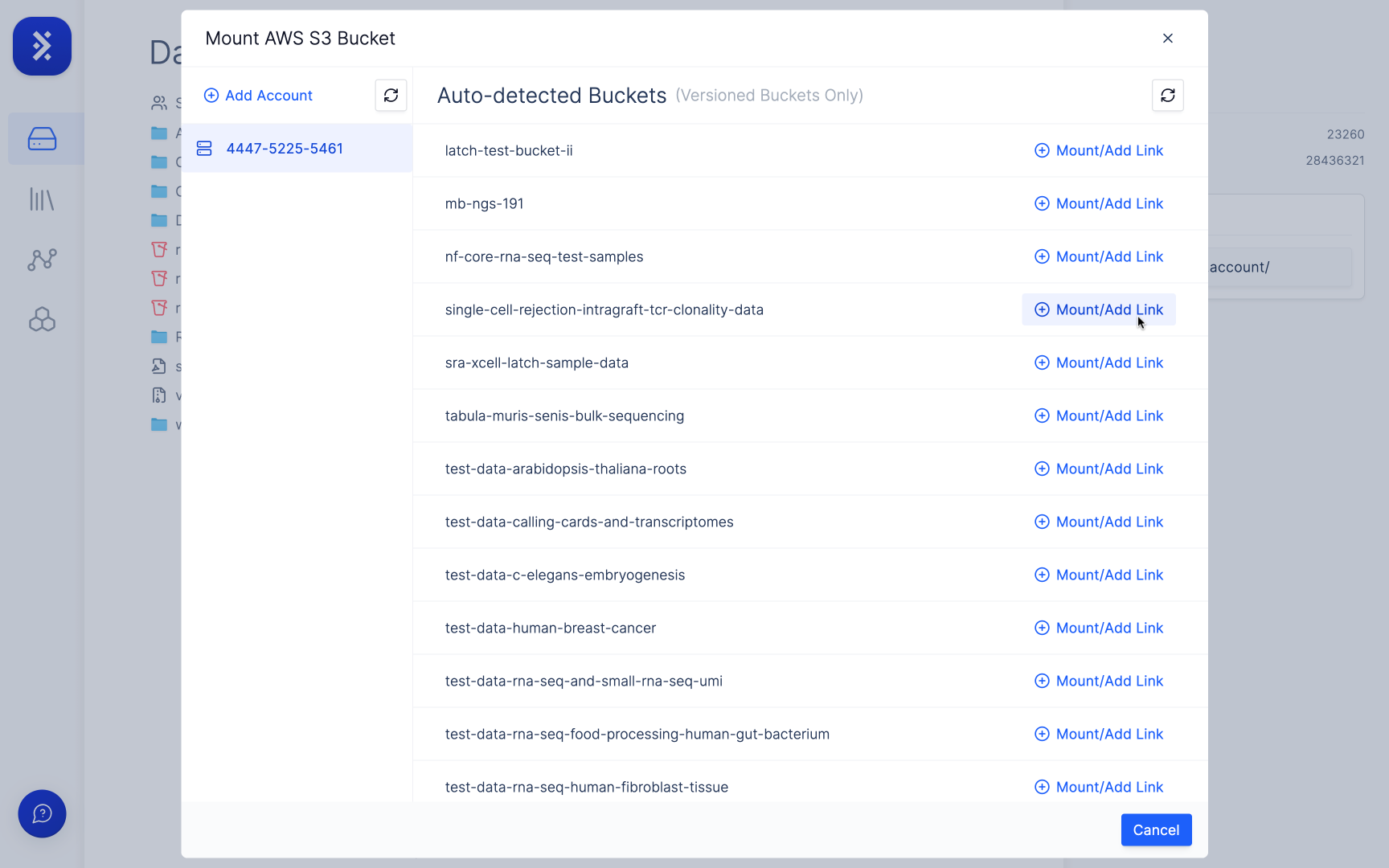
 The 'Mount S3 Bucket' modal should show your AWS account and all of the buckets you gave LatchBio access to. You might have to click the refresh button on the modal a few times before your buckets show up.
The modal will close and the bucket you added will appear in the data list.
The 'Mount S3 Bucket' modal should show your AWS account and all of the buckets you gave LatchBio access to. You might have to click the refresh button on the modal a few times before your buckets show up.
The modal will close and the bucket you added will appear in the data list.
 You can add more buckets by clicking the Add Buckets button - this will allow you to update the Cloudformation stack and give LatchBio access to other buckets in your account.
### Removing a Bucket
Removing a bucket requires edits both on the LatchBio side and in your AWS account.
You can add more buckets by clicking the Add Buckets button - this will allow you to update the Cloudformation stack and give LatchBio access to other buckets in your account.
### Removing a Bucket
Removing a bucket requires edits both on the LatchBio side and in your AWS account.
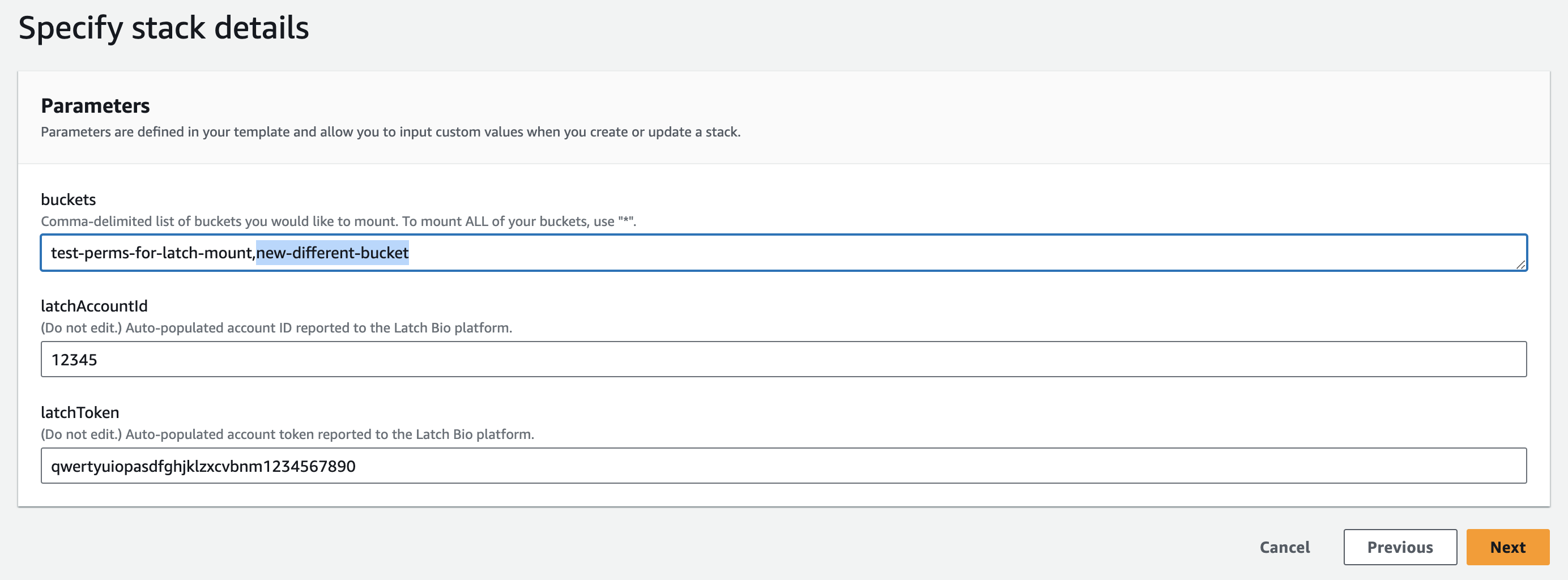
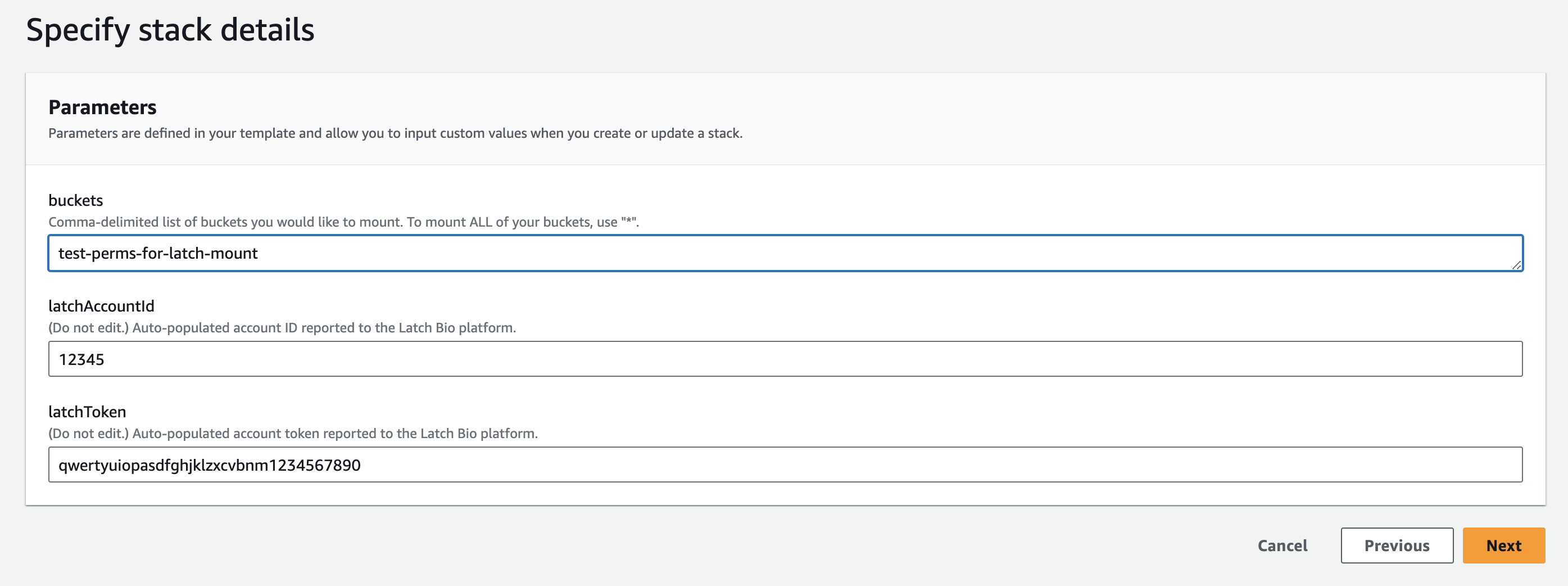
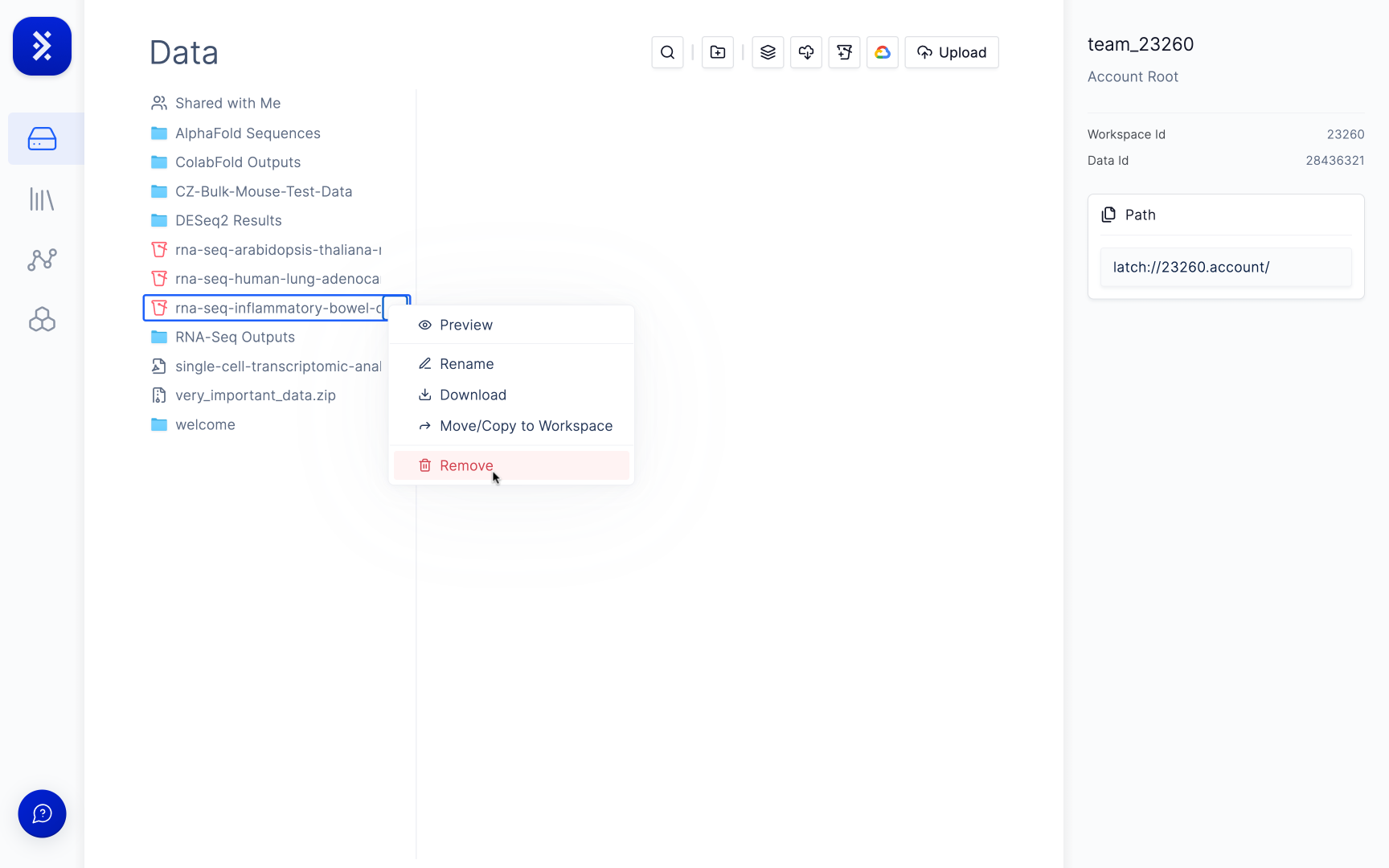 Remove the bucket from the `buckets` list and update the Cloudformation
stack.
Remove the bucket from the `buckets` list and update the Cloudformation
stack.
 If this is the only entry in the `Statements` array, you can just delete
the bucket policy outright.
If this is the only entry in the `Statements` array, you can just delete
the bucket policy outright.
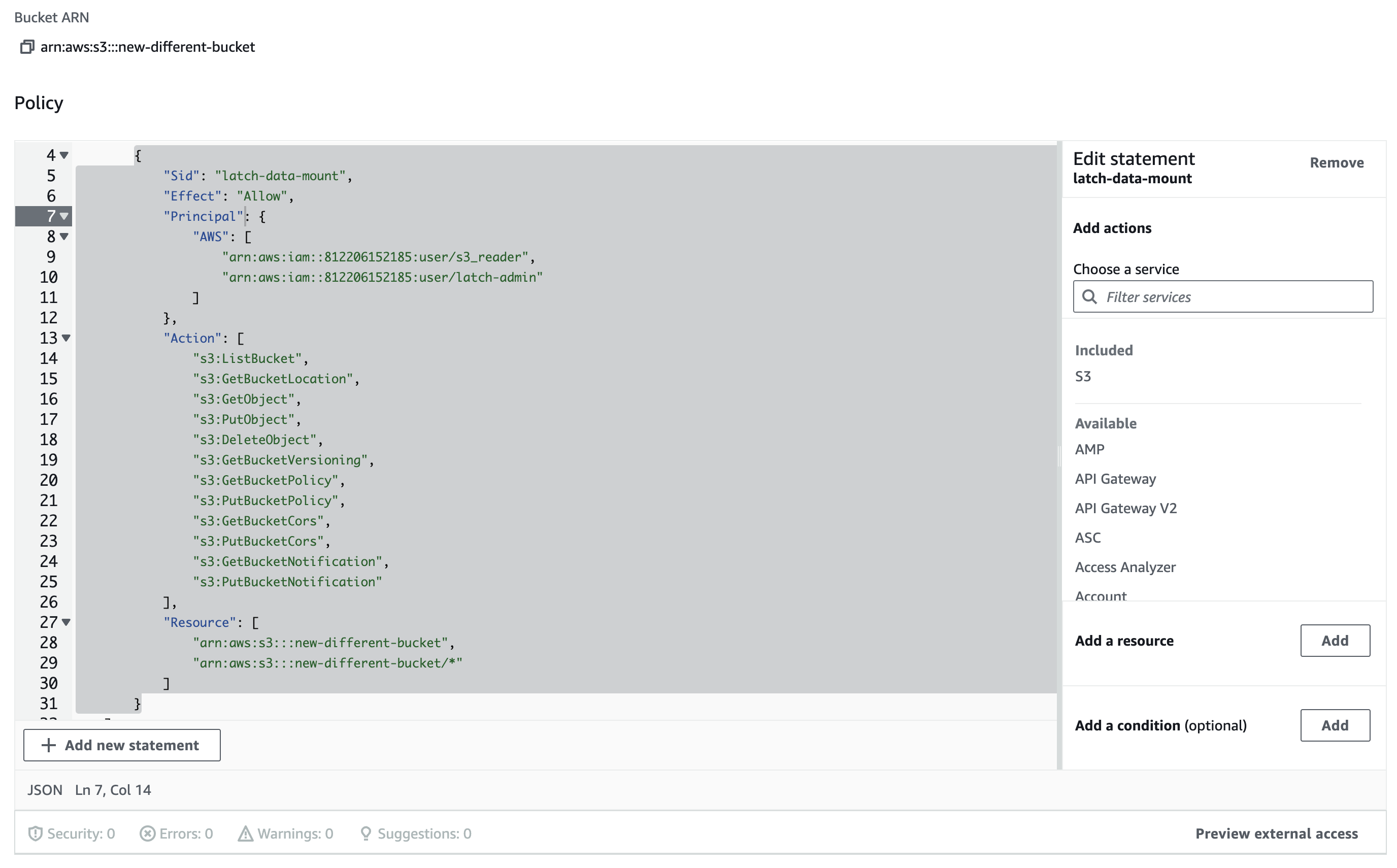 If you previously had an event notification for this bucket set up, you'll
have to: 1. Restore that notification, and 2. Go to the Lambda homepage and
delete the Lambda called `latch-mount-fw-[BUCKET_NAME]`.
If you previously had an event notification for this bucket set up, you'll
have to: 1. Restore that notification, and 2. Go to the Lambda homepage and
delete the Lambda called `latch-mount-fw-[BUCKET_NAME]`.
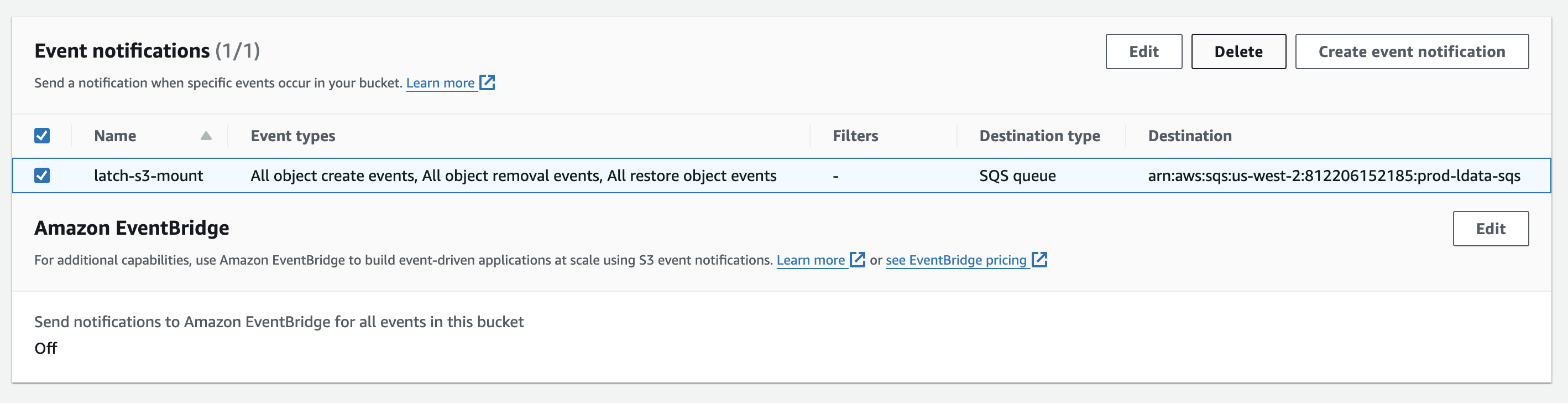 Your bucket has now been removed.
## Troubleshooting
### My bucket isn't showing up in the list in the Mount S3 Bucket modal.
This might be because your bucket isn't versioned. Latch only supports versioned buckets for mounting. To check if your bucket is versioned, open the bucket in S3, go to the **Properties** tab, and check **Bucket Versioning**. If your bucket is versioned and is still not showing up, please reach out to [support@latch.bio](mailto:support@latch.bio) for assistance.
Your bucket has now been removed.
## Troubleshooting
### My bucket isn't showing up in the list in the Mount S3 Bucket modal.
This might be because your bucket isn't versioned. Latch only supports versioned buckets for mounting. To check if your bucket is versioned, open the bucket in S3, go to the **Properties** tab, and check **Bucket Versioning**. If your bucket is versioned and is still not showing up, please reach out to [support@latch.bio](mailto:support@latch.bio) for assistance.