> ## Documentation Index
> Fetch the complete documentation index at: https://wiki.latch.bio/llms.txt
> Use this file to discover all available pages before exploring further.

# Mounting GCP Buckets

> Latch allows you to mount your own GCP Buckets and use them the same as you would any data on Latch.
<Steps>
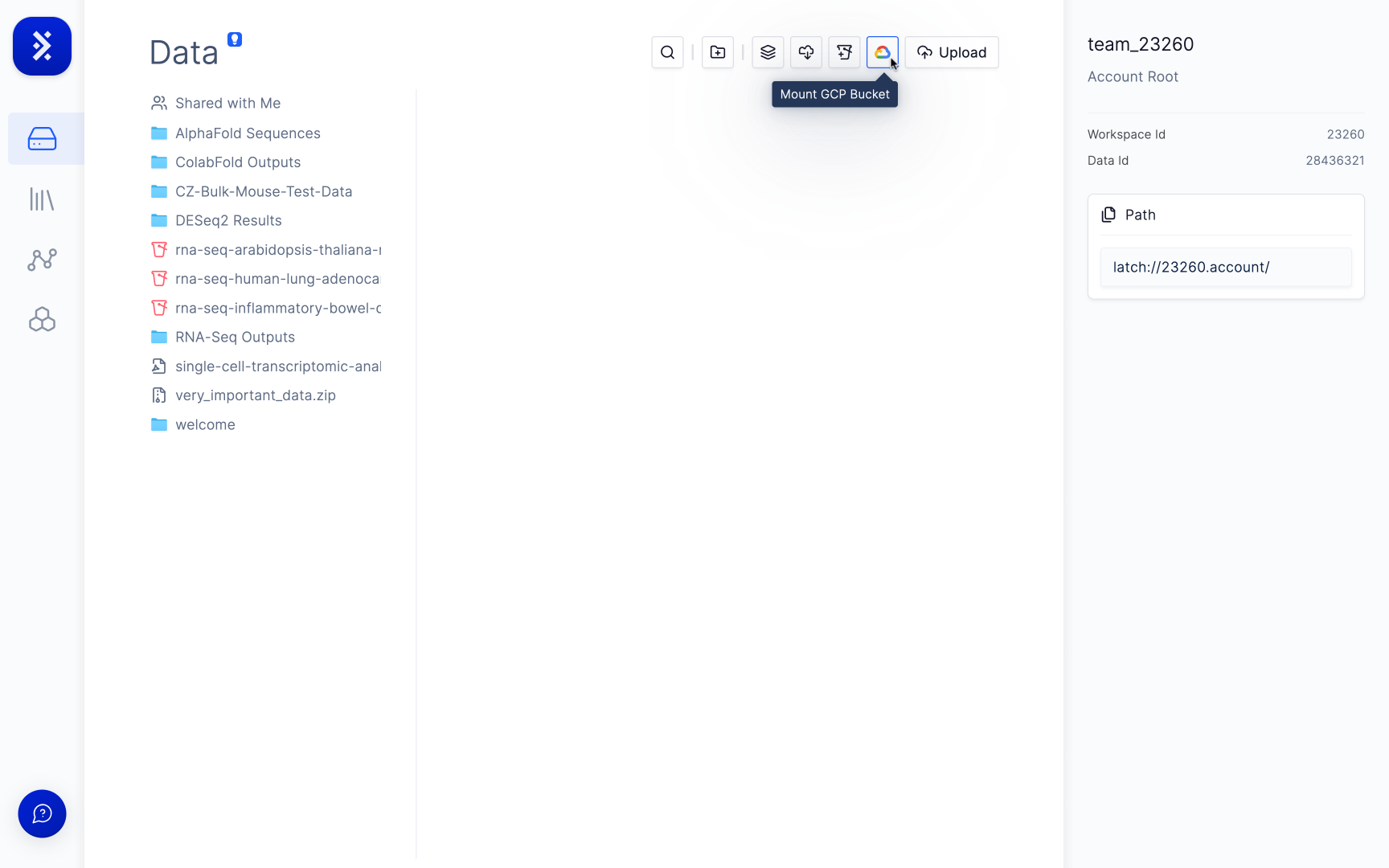
  <Step title="Go to the 'Data Tab' and click the 'Mount GCP Bucket' button.">
    <img src="https://mintcdn.com/latchbio/rSliEwubl8sq_Ts8/images/data/mount-gcp/gcp.png?fit=max&auto=format&n=rSliEwubl8sq_Ts8&q=85&s=68a64a255f2bd393d5c4d768108249db" className="h-56 border-slate-100 border rounded-md" width="1728" height="1080" data-path="images/data/mount-gcp/gcp.png" />
  </Step>

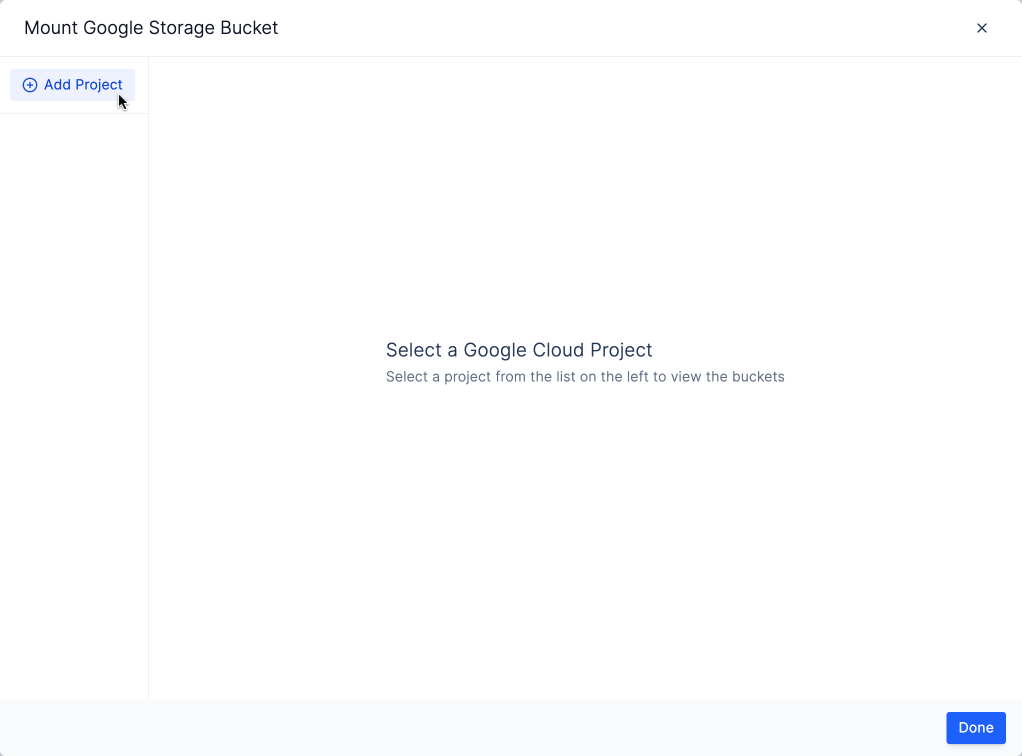
  <Step title="If you have not connected any GCP projects to Latch, click the 'Add Project' button.">
    <img src="https://mintcdn.com/latchbio/rSliEwubl8sq_Ts8/images/data/mount-gcp/gcp2.png?fit=max&auto=format&n=rSliEwubl8sq_Ts8&q=85&s=3e6a365580610e7322666d8b4e4afdf2" className="h-56 border-slate-100 border rounded-md" width="1022" height="756" data-path="images/data/mount-gcp/gcp2.png" />
  </Step>

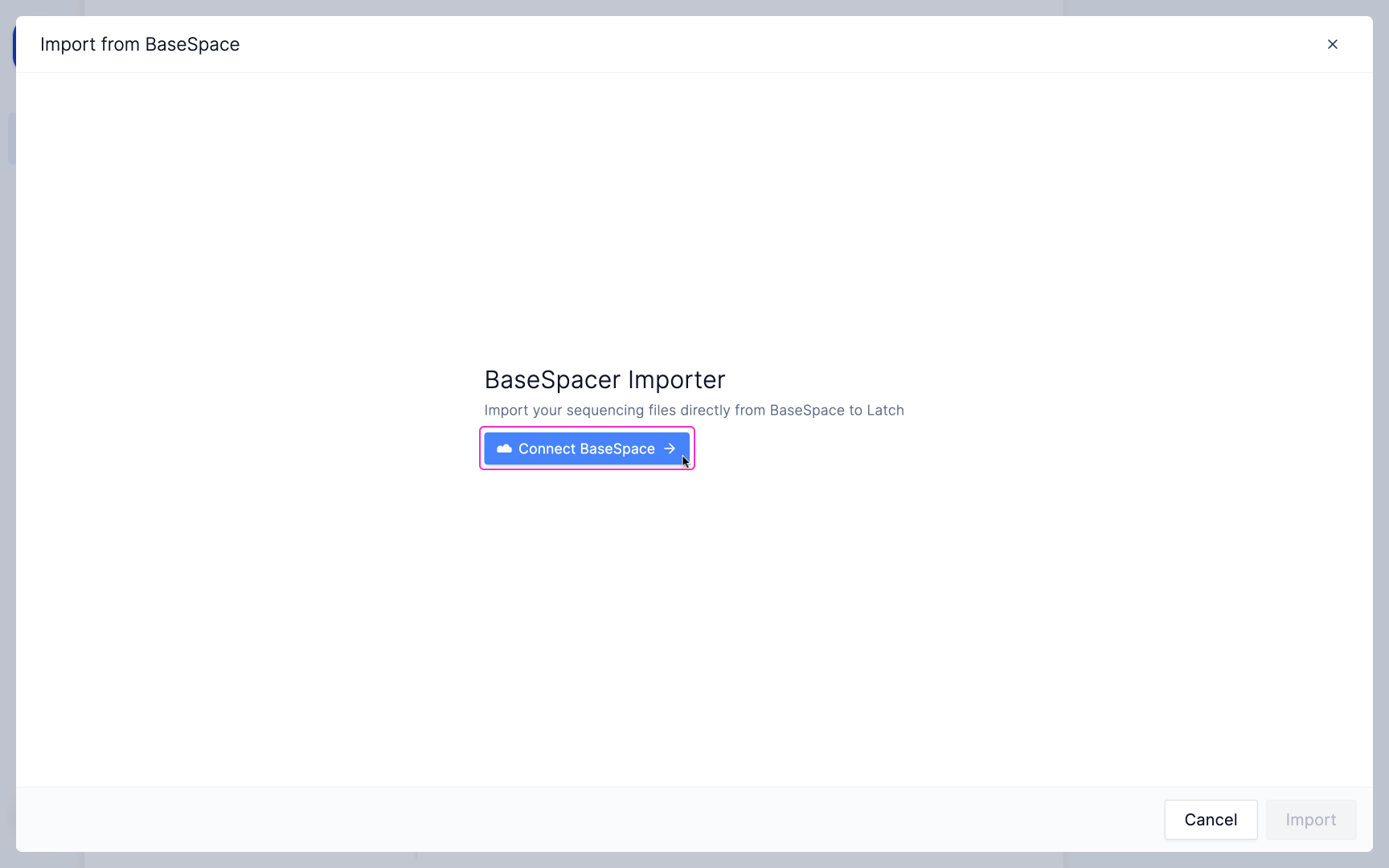
  <Step title="Click on the 'Authorize Project Access' button and go through the authentication flow with Google.">
    This will permit Latch to access the list of the projects that you have access to for 1 hour.
    <img src="https://mintcdn.com/latchbio/rSliEwubl8sq_Ts8/images/data/mount-gcp/gcp3.png?fit=max&auto=format&n=rSliEwubl8sq_Ts8&q=85&s=f21e367490358f950b96c2f461b88856" className="h-56 border-slate-100 border rounded-md" width="1728" height="1080" data-path="images/data/mount-gcp/gcp3.png" />
  </Step>

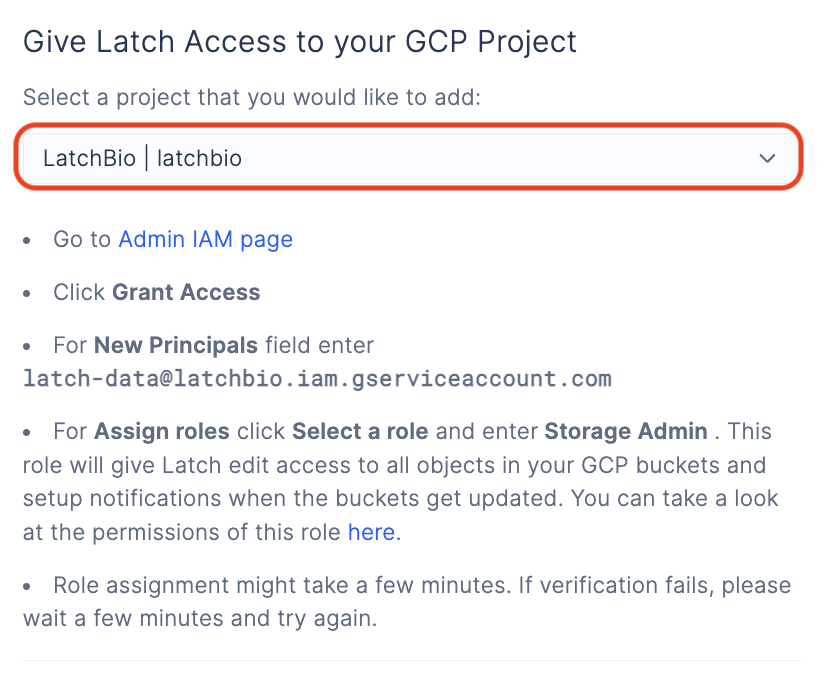
  <Step title="Select the project from the dropdown that contains the bucket you want to mount.">
    <img src="https://mintcdn.com/latchbio/rSliEwubl8sq_Ts8/images/data/mount-gcp/mount-gcp-4.png?fit=max&auto=format&n=rSliEwubl8sq_Ts8&q=85&s=6f307c288f1a32fd08e4125b6863ba16" className="h-56 border-slate-100 border rounded-md" width="832" height="680" data-path="images/data/mount-gcp/mount-gcp-4.png" />
  </Step>

  <Step title="You will need to authorize Latch to list the buckets in your project and give 'Storage Admin' permission to the bucket that you want to mount.">
    Latch requires the following permissions in your project:

    * `storage.buckets.list` permission on the project level.
    * `Storage Admin` on the bucket level.
  </Step>

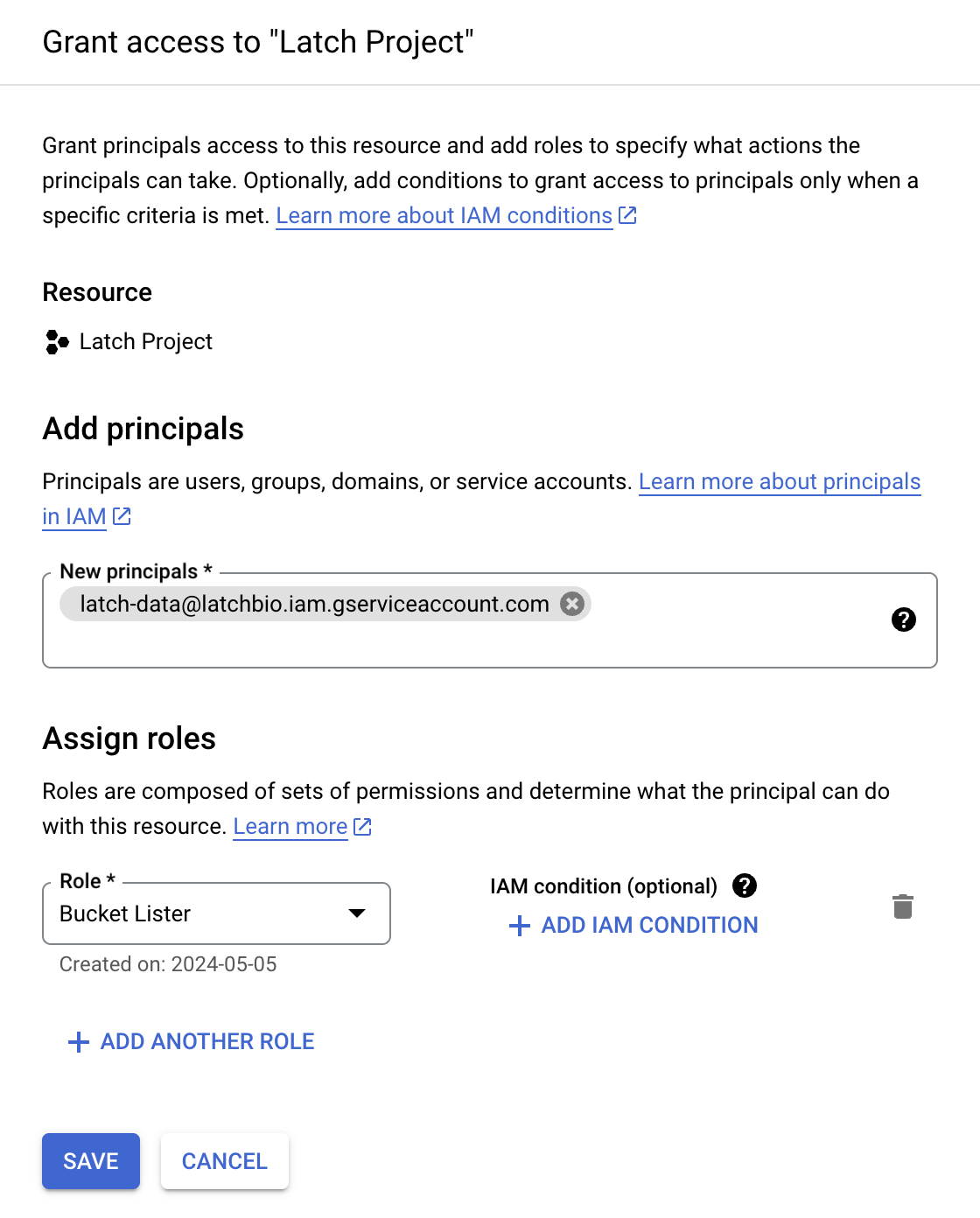
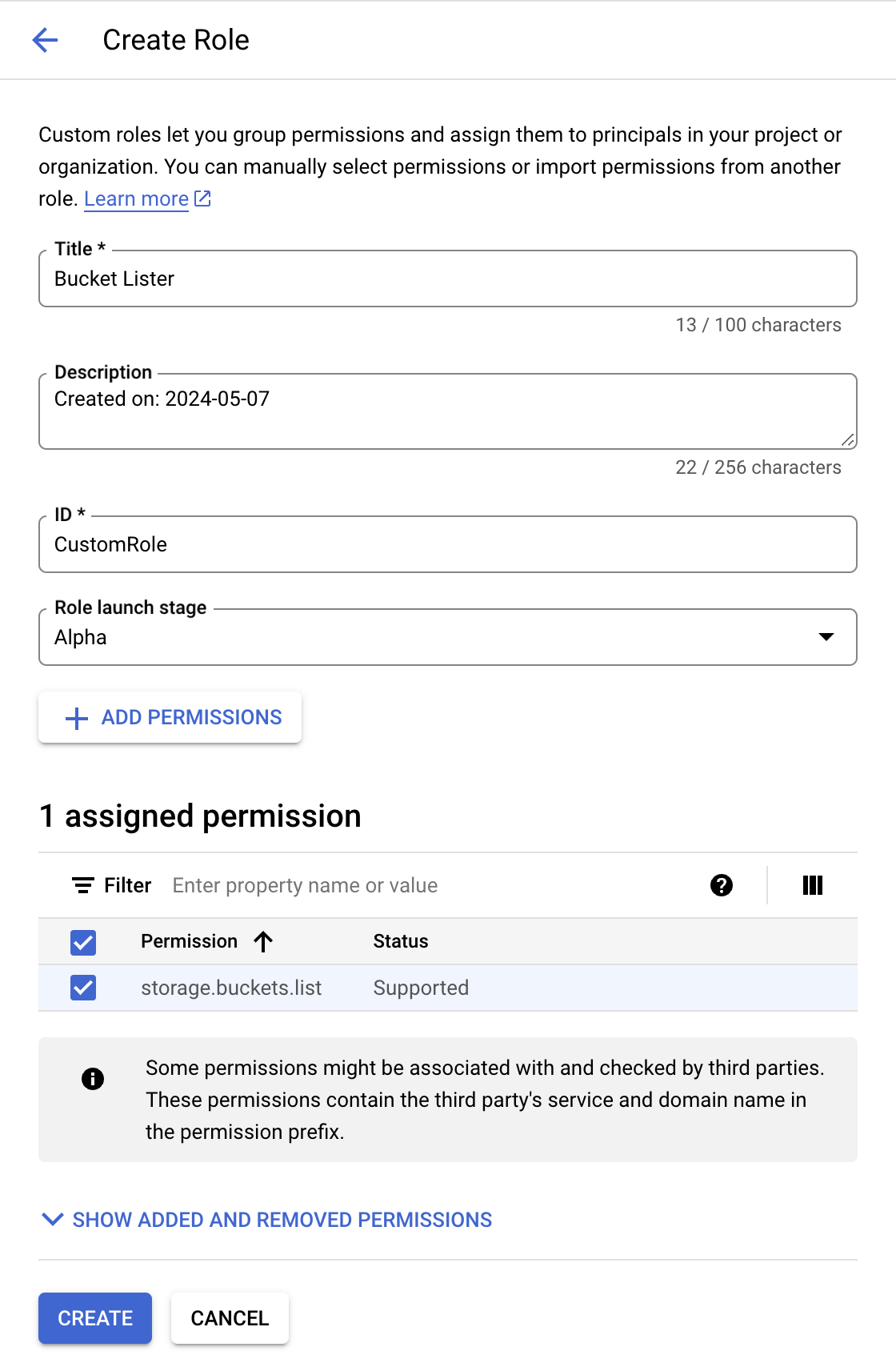
  <Step title="To give Latch 'storage.buckets.list' permission, go to the 'Create Custom Role' page in your project.">
    Visit the [Create Custom Role page here.](https://console.cloud.google.com/iam-admin/roles/create)

    1. Give the role name `Bucket Lister`.
    2. Click on **Add Permissions** and enter `storage.buckets.list`. This will permit Latch to list buckets in your project which is required when mounting your bucket. After you have mounted the bucket, you can remove this permission.
    3. Click on **Create**.
    <img src="https://mintcdn.com/latchbio/rSliEwubl8sq_Ts8/images/data/mount-gcp/mount-gcp-5.png?fit=max&auto=format&n=rSliEwubl8sq_Ts8&q=85&s=c3428a7d528f84793f0fc72f02b99e61" className="h-56 border-slate-100 border rounded-md" width="1120" height="1708" data-path="images/data/mount-gcp/mount-gcp-5.png" />
  </Step>

  <Step title="Go to the 'IAM & Admin' page in your project.">
    Visit the [IAM & Admin page here.](https://console.cloud.google.com/iam-admin/iam)

  </Step>

  <Step title="Click on 'Add' and enter the email address 'latch-data@latchbio.iam.gserviceaccount.com' and select the role 'Bucket Lister' that you created." />

  <Step title="Click on 'Save'.">
    <img src="https://mintcdn.com/latchbio/rSliEwubl8sq_Ts8/images/data/mount-gcp/mount-gcp-6.png?fit=max&auto=format&n=rSliEwubl8sq_Ts8&q=85&s=01396bb21f85cf1dd399a77af6b6402d" width="2324" height="186" data-path="images/data/mount-gcp/mount-gcp-6.png" />

    <img src="https://mintcdn.com/latchbio/rSliEwubl8sq_Ts8/images/data/mount-gcp/mount-gcp-7.png?fit=max&auto=format&n=rSliEwubl8sq_Ts8&q=85&s=4932d19d779911f82dae0da1819cdbd0" width="1120" height="1392" data-path="images/data/mount-gcp/mount-gcp-7.png" />
  </Step>

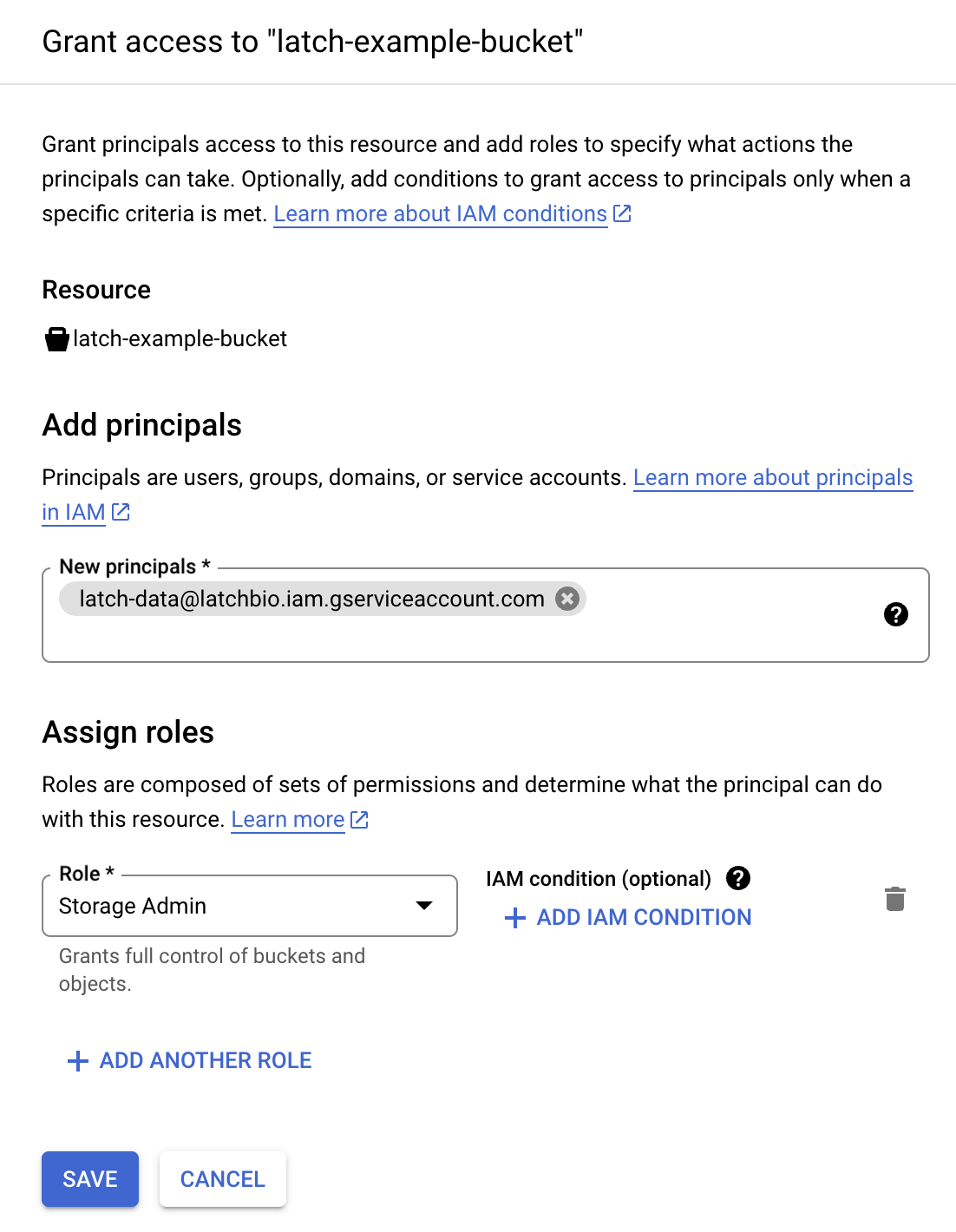
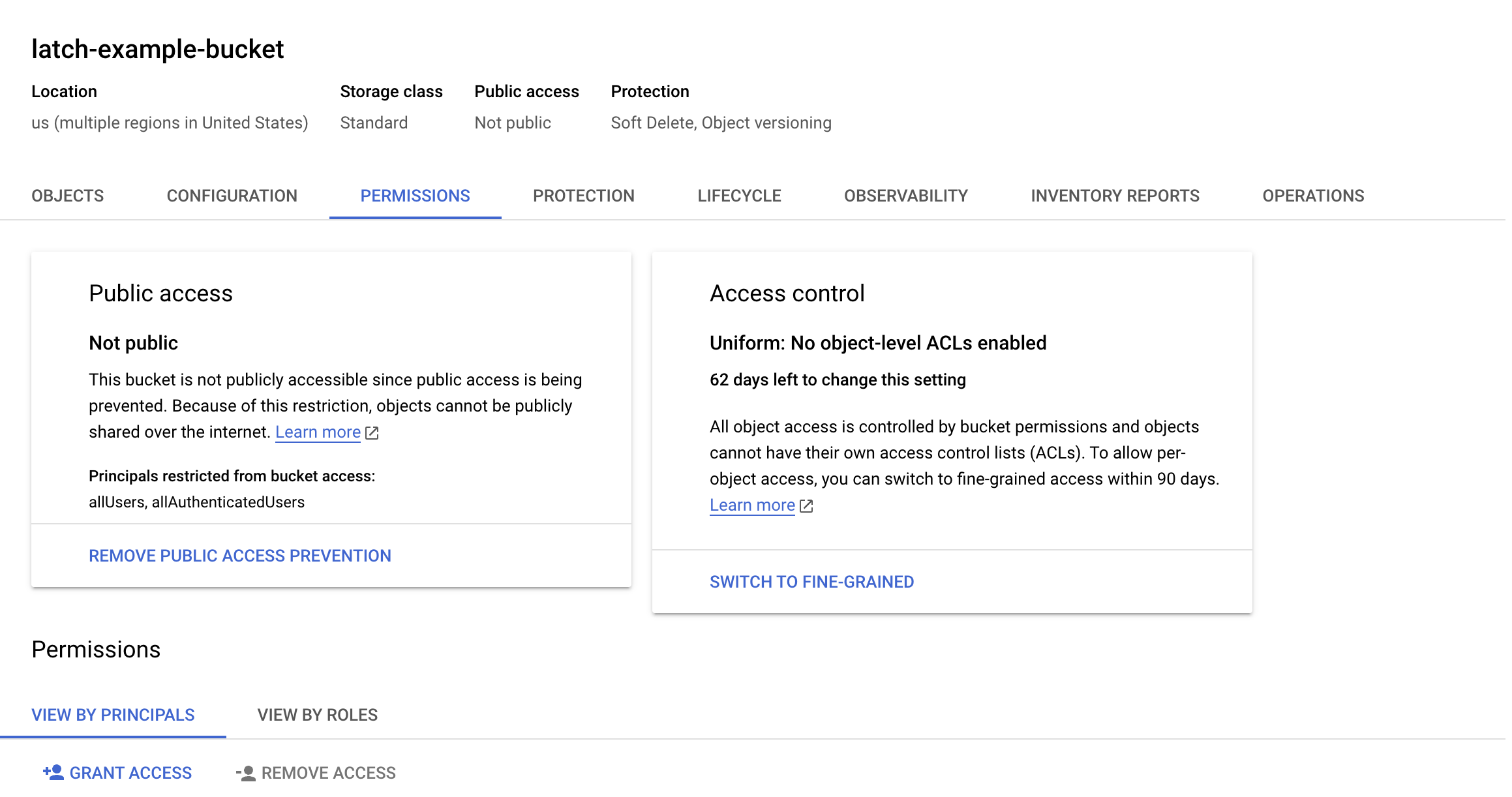
  <Step title="To give Latch 'Storage Admin' permission on the bucket level, you need to go to the 'Storage Browser' page in your project.">
    Visit the [Storage Browser page here.](https://console.cloud.google.com/storage/browser)

    1. Click on the bucket that you want to mount.
    2. Click on **Permissions** and `Grant Access`.
    3. Enter the email address `latch-data@latchbio.iam.gserviceaccount.com` and select the role `Storage Admin`.
    4. Click on **Save**.
    <img src="https://mintcdn.com/latchbio/rSliEwubl8sq_Ts8/images/data/mount-gcp/mount-gcp-8.png?fit=max&auto=format&n=rSliEwubl8sq_Ts8&q=85&s=72bd3de4b36011c044168ac37edee13e" className="h-56 border-slate-100 border rounded-md" width="2318" height="1222" data-path="images/data/mount-gcp/mount-gcp-8.png" />

    <img src="https://mintcdn.com/latchbio/rSliEwubl8sq_Ts8/images/data/mount-gcp/mount-gcp-9.png?fit=max&auto=format&n=rSliEwubl8sq_Ts8&q=85&s=3fd3cc6dbbcba9737d9926d944f4b32f" className="h-56 border-slate-100 border rounded-md" width="1102" height="1420" data-path="images/data/mount-gcp/mount-gcp-9.png" />

    <Note>On mount, Latch will set up notifications for the bucket to monitor file updates in the bucket and update the CORS policy to allow Latch to access the bucket data from the browser.</Note>
  </Step>

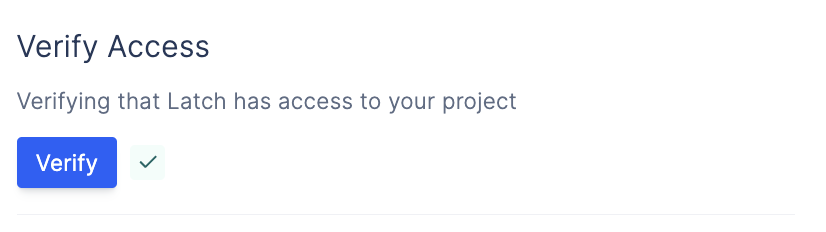
  <Step title="Click on 'Verify' on Latch Console to verify that Latch has the required permissions in your project.">
    <img src="https://mintcdn.com/latchbio/rSliEwubl8sq_Ts8/images/data/mount-gcp/mount-gcp-10.png?fit=max&auto=format&n=rSliEwubl8sq_Ts8&q=85&s=5abea8160c27d3eea714e31cb8d71864" width="826" height="232" data-path="images/data/mount-gcp/mount-gcp-10.png" />
  </Step>

  <Step title="Back on the main page, select your project in the list.">
    <img src="https://mintcdn.com/latchbio/rSliEwubl8sq_Ts8/images/data/mount-gcp/mount-gcp-11.png?fit=max&auto=format&n=rSliEwubl8sq_Ts8&q=85&s=43a4f0b14890533e87ecaa1aaae18af3" width="1116" height="268" data-path="images/data/mount-gcp/mount-gcp-11.png" />
  </Step>

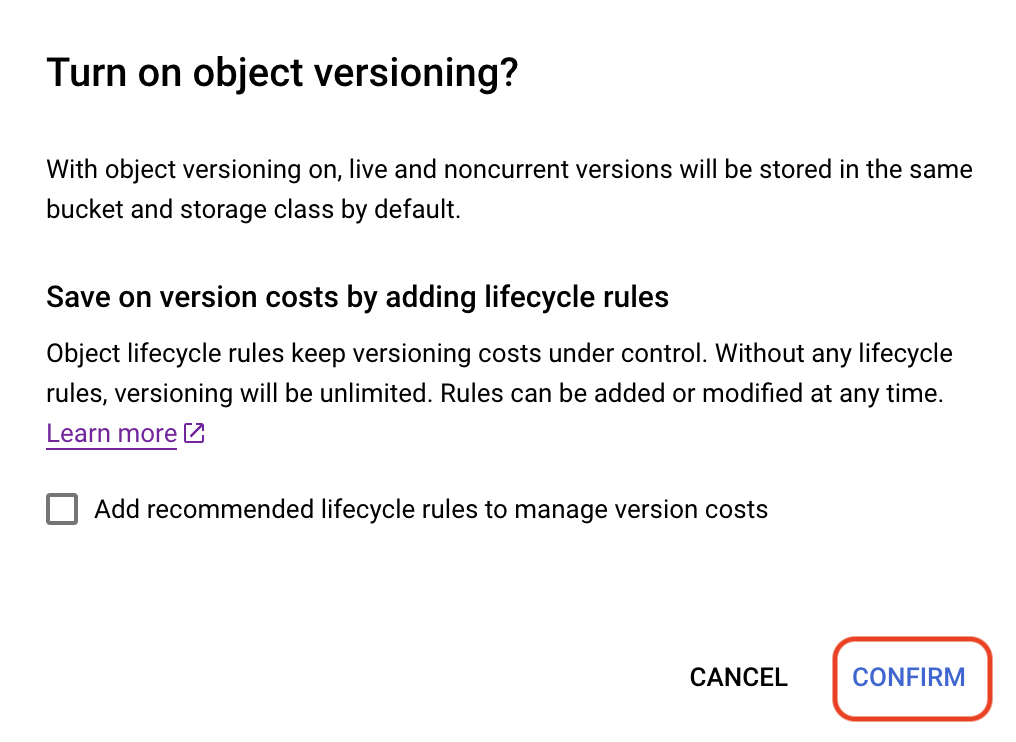
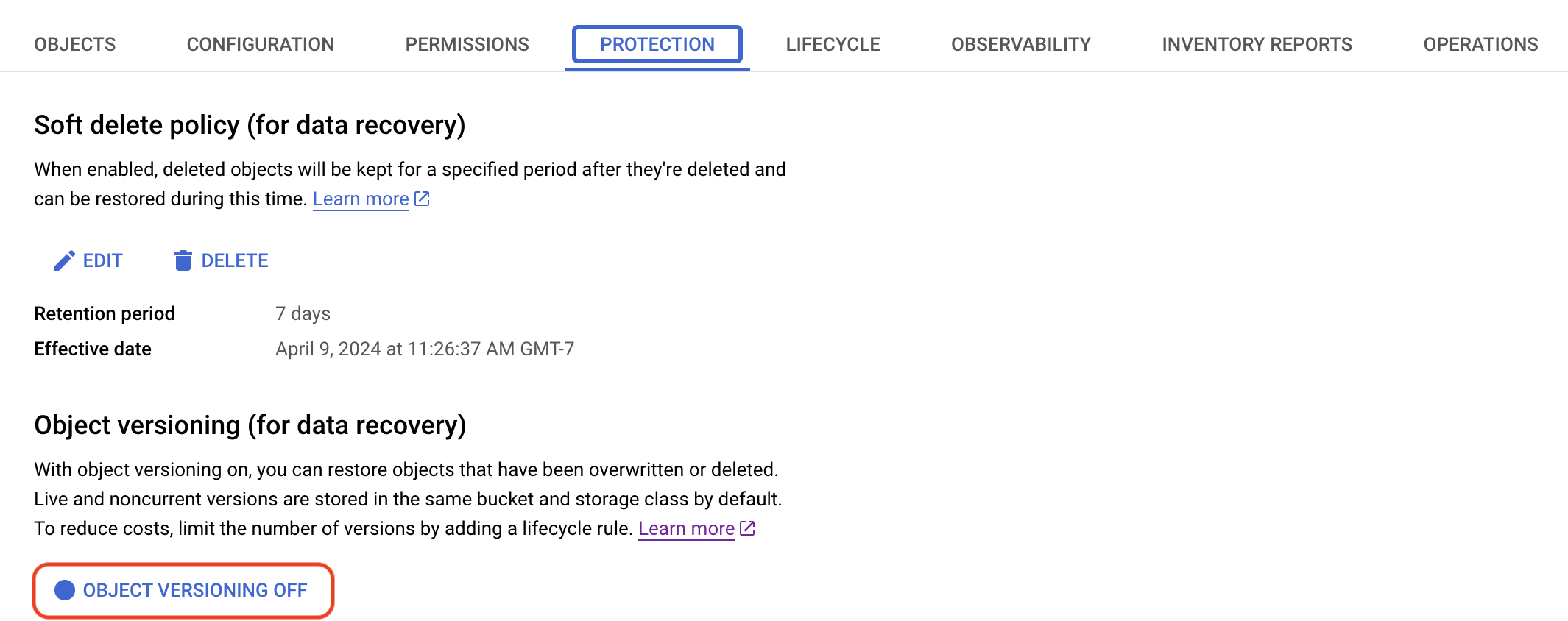
  <Step title="You need to enable versioning for your bucket before you can mount it.">
    1. Go to the [Storage Browser](https://console.cloud.google.com/storage/browser) page in your project.
    2. Click on the bucket that you want to mount.
    3. Click on **Protection** and enable versioning.
    <img src="https://mintcdn.com/latchbio/rSliEwubl8sq_Ts8/images/data/mount-gcp/mount-gcp-12.png?fit=max&auto=format&n=rSliEwubl8sq_Ts8&q=85&s=6017c3c1d3ce4d0d6753af5ce9f83c35" className="h-56 border-slate-100 border rounded-md" width="2130" height="844" data-path="images/data/mount-gcp/mount-gcp-12.png" />

    <img src="https://mintcdn.com/latchbio/rSliEwubl8sq_Ts8/images/data/mount-gcp/mount-gcp-13.png?fit=max&auto=format&n=rSliEwubl8sq_Ts8&q=85&s=e419cc5fcce4c853654dde1c44e6508b" className="h-56 border-slate-100 border rounded-md" width="1016" height="742" data-path="images/data/mount-gcp/mount-gcp-13.png" />
  </Step>

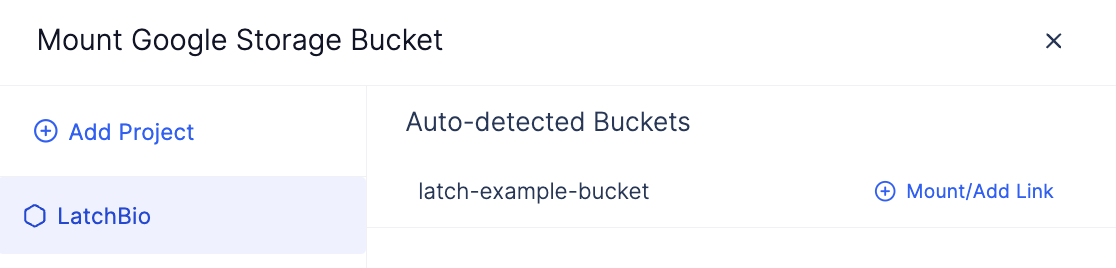
  <Step title="Select the bucket you want to mount and click 'Mount/Add Link'.">
    The modal will close and the bucket you added will appear in the data list.

    <img src="https://mintcdn.com/latchbio/rSliEwubl8sq_Ts8/images/data/mount-gcp/mount-gcp-14.png?fit=max&auto=format&n=rSliEwubl8sq_Ts8&q=85&s=eaaa5b65a6d25ea07ad68d9bcc95318a" width="1628" height="260" data-path="images/data/mount-gcp/mount-gcp-14.png" />
  </Step>
</Steps>

### Removing a Mounted Bucket

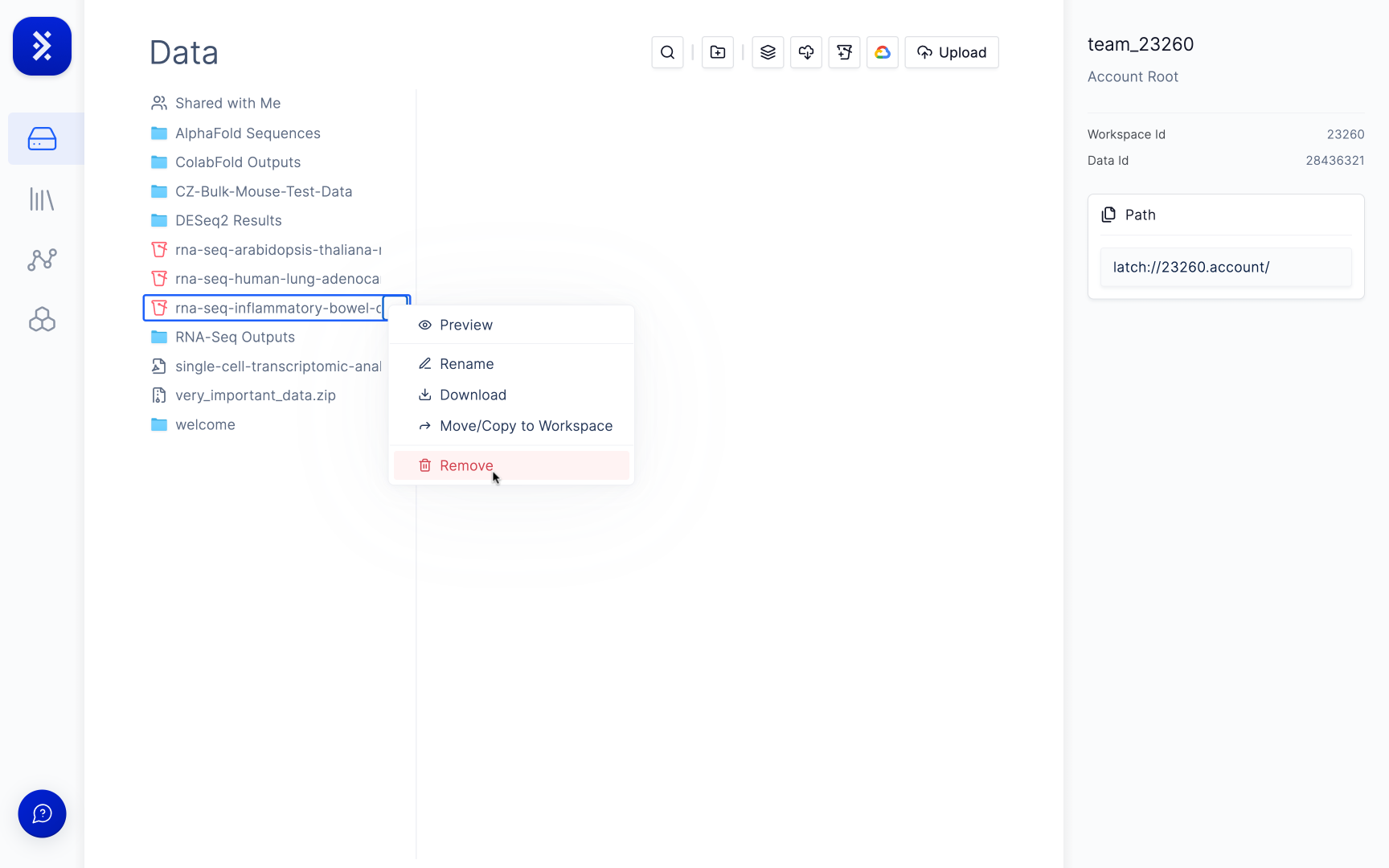
Simply hover over the bucket in the data viewer, click the ellipsis and select **Remove**.
<img src="https://mintcdn.com/latchbio/rBOhi8AJn1gA0vrv/images/data/delete-mounted-bucket.png?fit=max&auto=format&n=rBOhi8AJn1gA0vrv&q=85&s=8380c5aa83afbabfb00e59929f098f33" className="h-56 border-slate-100 border rounded-md" width="1728" height="1080" data-path="images/data/delete-mounted-bucket.png" />

## Troubleshooting

### My bucket isn't showing up in the list in the Mount GCP Bucket modal.

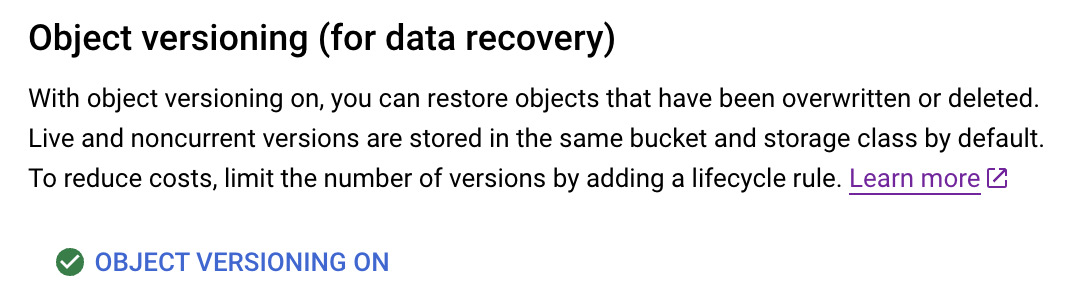
This might be because your bucket isn't versioned. Latch only supports versioned buckets for mounting. To check to see if your bucket is versioned or not, open the bucket in GCP, go to the **Protection** tab and check that the Object Versioning is enabled.
<img src="https://mintcdn.com/latchbio/rSliEwubl8sq_Ts8/images/data/mount-gcp/mount-gcp-15.png?fit=max&auto=format&n=rSliEwubl8sq_Ts8&q=85&s=1f004fdc73ce6dbe852d56fadfe1ab2a" width="1068" height="300" data-path="images/data/mount-gcp/mount-gcp-15.png" />