> ## Documentation Index
> Fetch the complete documentation index at: https://wiki.latch.bio/llms.txt
> Use this file to discover all available pages before exploring further.
# Tools
> Internal capabilities and tools available to Latch Agent.
Latch Agent operates within [Latch Plots](/plots/overview) and has direct tools to manipulate the notebook environment. It can add, delete, and modify cells; execute code; and create interactive widgets for user interaction, and more.
 ## Latch Plots Manipulation
Tools used to interact with and manipulate the Latch Plots notebook interface.
Manipulate notebook cells programmatically:
* Create code cell
* Create markdown cell
* Edit cell
* Delete cell
* Delete all cells
* Run cell
* Stop cell
Cells are automatically executed after creation or editing.
Manage notebook structure and organization:
* Rename notebook
* Create tab
* Rename tab
Revert the notebook to a previously-created checkpoint state.
Useful when you are unhappy with recent prompt and notebook changes and want to revert the notebook state to the prompt before.
Generate and interact with widgets using the [Latch Plots library](/plots/widgets):
* **Set widget value**: By widget key
* **Auto-run code cells**: Configure widgets to automatically run code cells when values change
Users can interact with widgets directly, triggering real-time updates.
Interact with the H5AD viewer, a performant viewer widget in Latch Plots for single-cell and spatial data:
**Data Visualization:**
* **Change embeddings**: Switch between different embeddings (PCA, UMAP, t-SNE, etc.)
* **Color by**: Set the viewer to color cells by a specific observation or variable
* **Filter by range**: Set filters for an h5/AnnData widget to focus on specific data ranges
* **Change marker opacity**: Adjust the opacity of cell markers in the visualization
**View Controls:**
* **Autoscale**: Reset the plotted view to Plotly's autoscaled data bounds
* **Zoom**: Zoom the Plotly view in or out
**Background Images:**
* **Set background image**: Set a background image from user-attached file
* **Toggle background visibility**: Show or hide a specific background image
* **Open image aligner**: Open the image alignment modal
**Data Management:**
* **Manage observations**: Create or delete an observation column
* **Add selected cells to category**: Assign selected cells to a categorical observation
Capture images of what's displayed in the notebook to help with analysis and decision-making:
* **Capture widget image**: Take screenshots of h5/AnnData or plot widgets (Plotly, Matplotlib, Seaborn, etc.) displayed in the notebook
* **Returns metadata**: Includes base64-encoded PNG images with visualization state (color\_by settings, filters, cell counts for h5 widgets)
Use this to visually inspect plots, clustering results, or any Plotly-based visualization.
Guide user attention and interaction:
* **Spotlight UI element**: Highlight a UI element to draw attention to specific parts of the interface
Manage the agent's analysis plan:
* **Update plan**: Modify the structured plan during execution
* **Submit response**: Final responses with status, questions, and summaries
## System Access
Tools used to interact with the underlying compute environment that powers Latch Plots.
Manage the computational environment:
* **Installing dependencies**: Install Python/R packages and system dependencies on demand
Interact with the local file system:
* **Read file**: Optional offset and limit for large files (returns numbered lines)
* **Search files**: Find files matching glob patterns (e.g., 'technology\_docs/\*.md')
* **Search text**: Search for patterns using grep with line numbers (supports regex)
* **Edit file**: Replace strings using search and replace operations
Execute code and inspect variables:
* **Execute Python code**: Run code in the notebook kernel and return results, stdout, stderr, and exceptions
* **Inspect variables**: Get detailed information about global variables (type, shape, columns, dtypes) - especially useful for DataFrames and AnnData objects
Execute system and bash commands when needed for advanced operations:
## Analysis Capabilities
Latch Agent's analysis capabilities are based on partnerships with solution providers. We work with kit, assay, and instrument providers to build customized agents for each technology, ensuring best-in-class tools for each data type.
Redeem packages so the workspace gains access to technology-specific assets like data, workflows, and more.
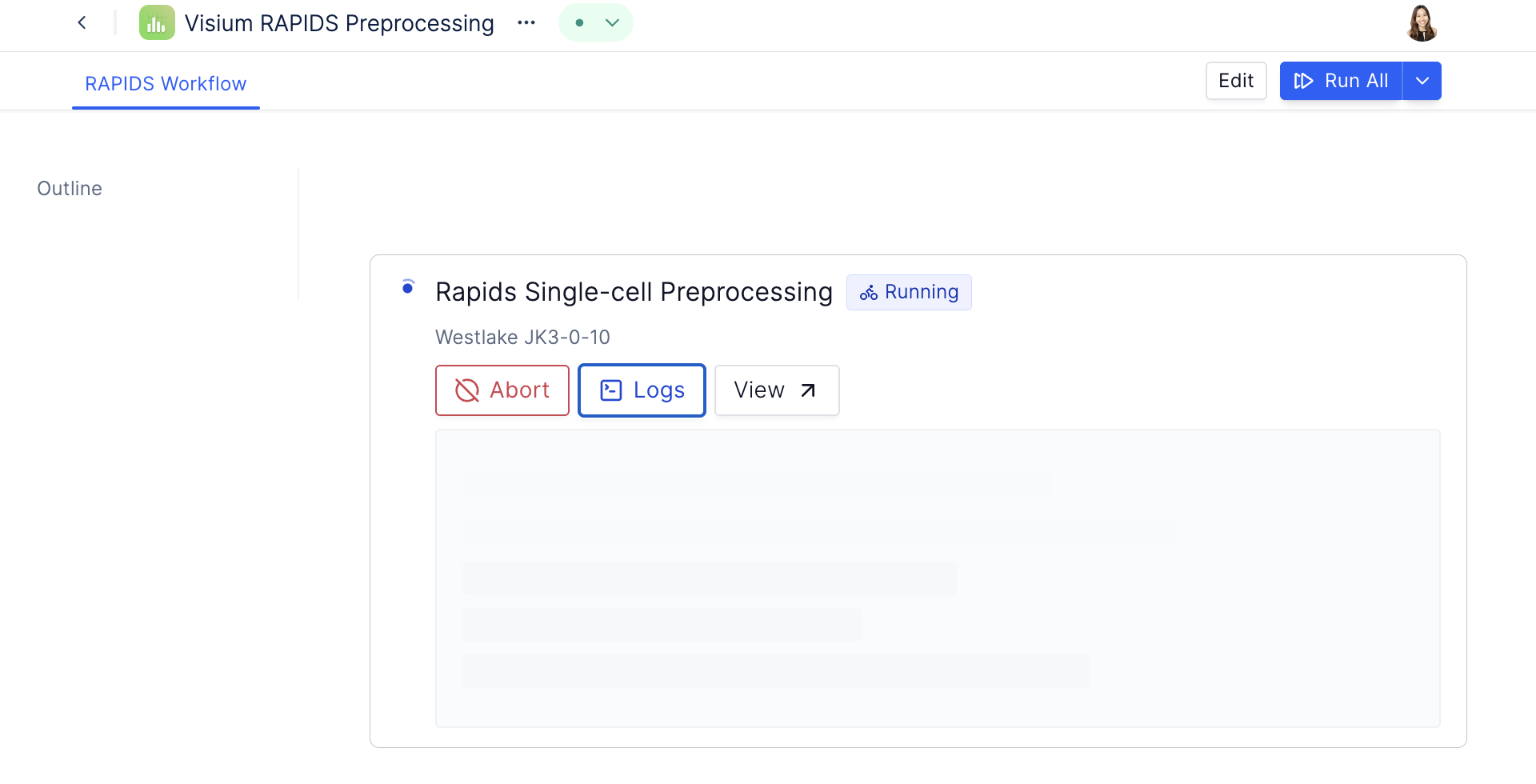
Launch registered Latch workflows, configure parameters, retrieve results, and monitor execution progress. The available workflows are based on our solution provider partnerships.
#### Technology-Specific Workflows
| Workflow | Technology | Utility |
| ------------------------------------- | -------------------------- | ------------------------------------------------------------------------------------------------------------------------------------------------ |
| `xenium_preprocess_workflow` | 10X Xenium | Preprocesses raw Xenium output into an analysis-ready .h5ad file. Run when user provides raw Xenium data without an existing H5AD. |
| `xenium_cell_segmentation_workflow` | 10X Xenium | Re-segments cells using custom parameters or alternative segmentation methods when default Xenium segmentation is insufficient. |
| `vizgen_cell_segmentation_wf` | Vizgen MERFISH | Performs cell segmentation on raw Vizgen MERSCOPE images. Required when starting from raw imaging data without pre-computed cell boundaries. |
| `domain_detection_wf` | 10X Xenium, Vizgen MERFISH | Identifies spatial domains/niches in tissue sections using clustering of spatial neighborhoods. Useful for discovering tissue microenvironments. |
| `trekker_pipeline_wf` | Takara Trekker | Processes raw FastQ files from Takara Trekker spatial experiments into analysis-ready outputs. |
| `visium_spaceranger_to_h5ad_workflow` | 10X Visium | Converts Space Ranger output directories into .h5ad format for downstream analysis. |
| `opt_workflow` | AtlasXOmics (DBiT-seq) | Optimizes clustering parameters for spatial ATAC-seq data. |
| `compare_workflow` | AtlasXOmics (DBiT-seq) | Performs differential expression/accessibility analysis between groups or conditions. |
#### Cross-Platform Workflows
| Workflow | Technology | Utility |
| ---------------------------------- | ---------------------------- | ----------------------------------------------------------------------------------------------------- |
| `cell2location_workflow` | Cross-platform (any spatial) | Performs cell type deconvolution using a single-cell reference. Maps cell types to spatial locations. |
| `rapids_single-cell_preprocessing` | Cross-platform | GPU-accelerated preprocessing for large single-cell/spatial datasets using RAPIDS. |
Technology-specific analysis best practices are delivered through [skills](/agent/skills) — modular prompt packages that the agent loads on demand. Latch maintains a public set of skills covering platform APIs and technology workflows:
* **Platform skills**: Widget APIs, data access patterns, and workflow launching for Latch Plots (`latch-plots-ui`, `latch-data-access`, `latch-workflows`, `latch-curation`)
* **Technology skills**: Provider-specific analysis workflows, QC standards, and interpretation guidelines delivered as devkit skills (`takara-devkit`, `xenium-devkit`, `vizgen-devkit`, `atlasx-devkit`)
Organizations can also register [custom skills](/agent/skills) from private GitHub repositories to add institutional conventions, internal workflows, or additional technology support.
## Latch Plots Manipulation
Tools used to interact with and manipulate the Latch Plots notebook interface.
Manipulate notebook cells programmatically:
* Create code cell
* Create markdown cell
* Edit cell
* Delete cell
* Delete all cells
* Run cell
* Stop cell
Cells are automatically executed after creation or editing.
Manage notebook structure and organization:
* Rename notebook
* Create tab
* Rename tab
Revert the notebook to a previously-created checkpoint state.
Useful when you are unhappy with recent prompt and notebook changes and want to revert the notebook state to the prompt before.
Generate and interact with widgets using the [Latch Plots library](/plots/widgets):
* **Set widget value**: By widget key
* **Auto-run code cells**: Configure widgets to automatically run code cells when values change
Users can interact with widgets directly, triggering real-time updates.
Interact with the H5AD viewer, a performant viewer widget in Latch Plots for single-cell and spatial data:
**Data Visualization:**
* **Change embeddings**: Switch between different embeddings (PCA, UMAP, t-SNE, etc.)
* **Color by**: Set the viewer to color cells by a specific observation or variable
* **Filter by range**: Set filters for an h5/AnnData widget to focus on specific data ranges
* **Change marker opacity**: Adjust the opacity of cell markers in the visualization
**View Controls:**
* **Autoscale**: Reset the plotted view to Plotly's autoscaled data bounds
* **Zoom**: Zoom the Plotly view in or out
**Background Images:**
* **Set background image**: Set a background image from user-attached file
* **Toggle background visibility**: Show or hide a specific background image
* **Open image aligner**: Open the image alignment modal
**Data Management:**
* **Manage observations**: Create or delete an observation column
* **Add selected cells to category**: Assign selected cells to a categorical observation
Capture images of what's displayed in the notebook to help with analysis and decision-making:
* **Capture widget image**: Take screenshots of h5/AnnData or plot widgets (Plotly, Matplotlib, Seaborn, etc.) displayed in the notebook
* **Returns metadata**: Includes base64-encoded PNG images with visualization state (color\_by settings, filters, cell counts for h5 widgets)
Use this to visually inspect plots, clustering results, or any Plotly-based visualization.
Guide user attention and interaction:
* **Spotlight UI element**: Highlight a UI element to draw attention to specific parts of the interface
Manage the agent's analysis plan:
* **Update plan**: Modify the structured plan during execution
* **Submit response**: Final responses with status, questions, and summaries
## System Access
Tools used to interact with the underlying compute environment that powers Latch Plots.
Manage the computational environment:
* **Installing dependencies**: Install Python/R packages and system dependencies on demand
Interact with the local file system:
* **Read file**: Optional offset and limit for large files (returns numbered lines)
* **Search files**: Find files matching glob patterns (e.g., 'technology\_docs/\*.md')
* **Search text**: Search for patterns using grep with line numbers (supports regex)
* **Edit file**: Replace strings using search and replace operations
Execute code and inspect variables:
* **Execute Python code**: Run code in the notebook kernel and return results, stdout, stderr, and exceptions
* **Inspect variables**: Get detailed information about global variables (type, shape, columns, dtypes) - especially useful for DataFrames and AnnData objects
Execute system and bash commands when needed for advanced operations:
## Analysis Capabilities
Latch Agent's analysis capabilities are based on partnerships with solution providers. We work with kit, assay, and instrument providers to build customized agents for each technology, ensuring best-in-class tools for each data type.
Redeem packages so the workspace gains access to technology-specific assets like data, workflows, and more.
Launch registered Latch workflows, configure parameters, retrieve results, and monitor execution progress. The available workflows are based on our solution provider partnerships.
#### Technology-Specific Workflows
| Workflow | Technology | Utility |
| ------------------------------------- | -------------------------- | ------------------------------------------------------------------------------------------------------------------------------------------------ |
| `xenium_preprocess_workflow` | 10X Xenium | Preprocesses raw Xenium output into an analysis-ready .h5ad file. Run when user provides raw Xenium data without an existing H5AD. |
| `xenium_cell_segmentation_workflow` | 10X Xenium | Re-segments cells using custom parameters or alternative segmentation methods when default Xenium segmentation is insufficient. |
| `vizgen_cell_segmentation_wf` | Vizgen MERFISH | Performs cell segmentation on raw Vizgen MERSCOPE images. Required when starting from raw imaging data without pre-computed cell boundaries. |
| `domain_detection_wf` | 10X Xenium, Vizgen MERFISH | Identifies spatial domains/niches in tissue sections using clustering of spatial neighborhoods. Useful for discovering tissue microenvironments. |
| `trekker_pipeline_wf` | Takara Trekker | Processes raw FastQ files from Takara Trekker spatial experiments into analysis-ready outputs. |
| `visium_spaceranger_to_h5ad_workflow` | 10X Visium | Converts Space Ranger output directories into .h5ad format for downstream analysis. |
| `opt_workflow` | AtlasXOmics (DBiT-seq) | Optimizes clustering parameters for spatial ATAC-seq data. |
| `compare_workflow` | AtlasXOmics (DBiT-seq) | Performs differential expression/accessibility analysis between groups or conditions. |
#### Cross-Platform Workflows
| Workflow | Technology | Utility |
| ---------------------------------- | ---------------------------- | ----------------------------------------------------------------------------------------------------- |
| `cell2location_workflow` | Cross-platform (any spatial) | Performs cell type deconvolution using a single-cell reference. Maps cell types to spatial locations. |
| `rapids_single-cell_preprocessing` | Cross-platform | GPU-accelerated preprocessing for large single-cell/spatial datasets using RAPIDS. |
Technology-specific analysis best practices are delivered through [skills](/agent/skills) — modular prompt packages that the agent loads on demand. Latch maintains a public set of skills covering platform APIs and technology workflows:
* **Platform skills**: Widget APIs, data access patterns, and workflow launching for Latch Plots (`latch-plots-ui`, `latch-data-access`, `latch-workflows`, `latch-curation`)
* **Technology skills**: Provider-specific analysis workflows, QC standards, and interpretation guidelines delivered as devkit skills (`takara-devkit`, `xenium-devkit`, `vizgen-devkit`, `atlasx-devkit`)
Organizations can also register [custom skills](/agent/skills) from private GitHub repositories to add institutional conventions, internal workflows, or additional technology support.