> ## Documentation Index
> Fetch the complete documentation index at: https://wiki.latch.bio/llms.txt
> Use this file to discover all available pages before exploring further.
# Workspace Roles
> Learn about workspace roles and permissions
## Basic Roles and Permissions
There are 4 base roles for a workspace:
### Owner
* This is the user who created the workspace.
* The only one who can delete a workspace.
* Has all permissions of **Admin**.
### Admin
* Has full access to everything in a workspace.
* Can invite new members and change member workspace permissions.
* Can change workspace settings.
* Can view and manage workspace billing.
* Can view and edit all workspace data(data, workflows, pods, etc.).
### Member
* Can execute, edit and delete resources inside of the workspace.
### Viewer
* Can only view and download data in the workspace.
* Cannot execute, edit or delete resources(ex. workflows, pods, etc.).
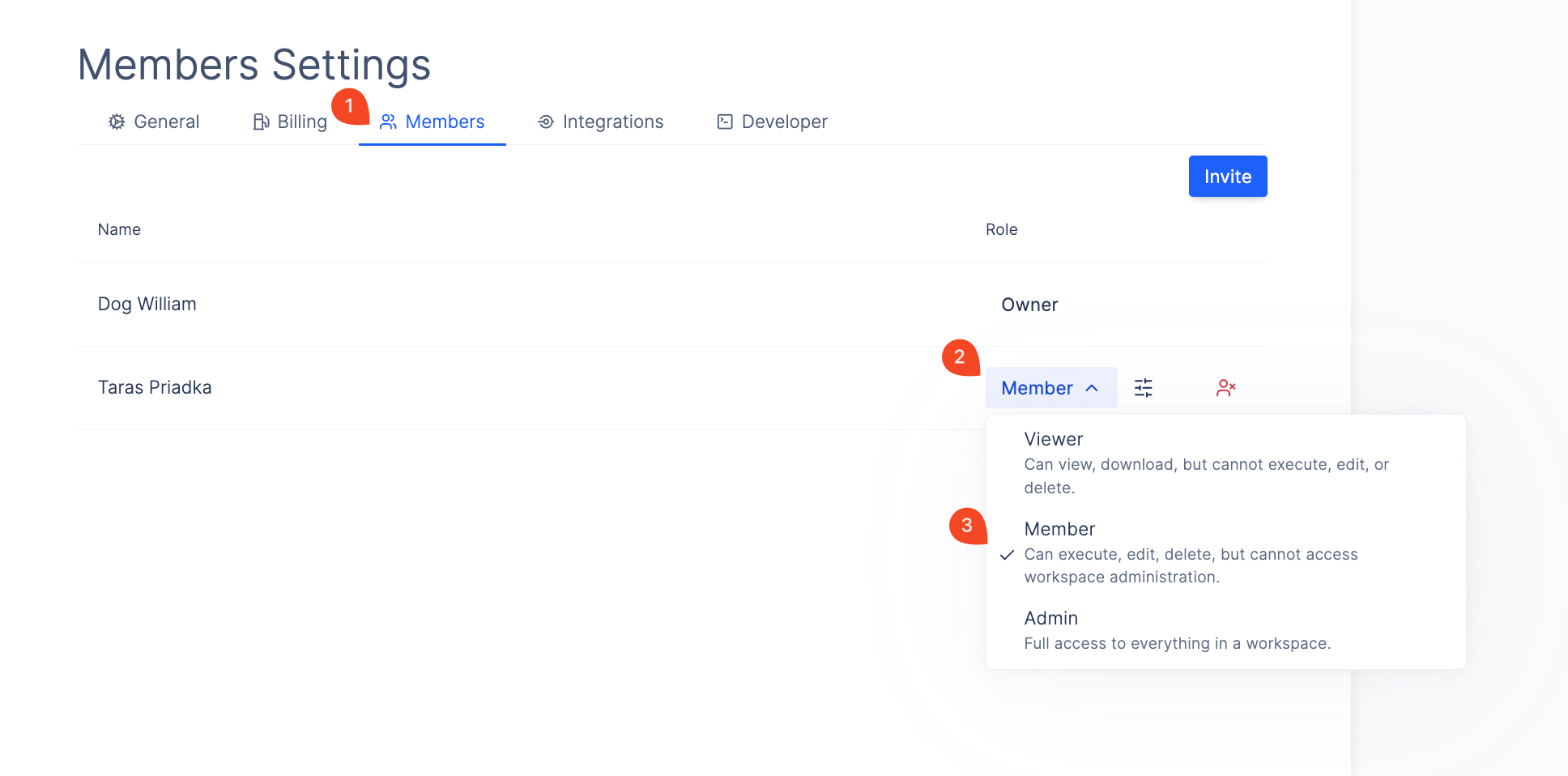
## Changing a Member's Role
1. Go to Workspace Settings > Members Tab.
2. Click on the role dropdown for the user.
3. Select the new role.
 ## Advanced Roles and Permissions
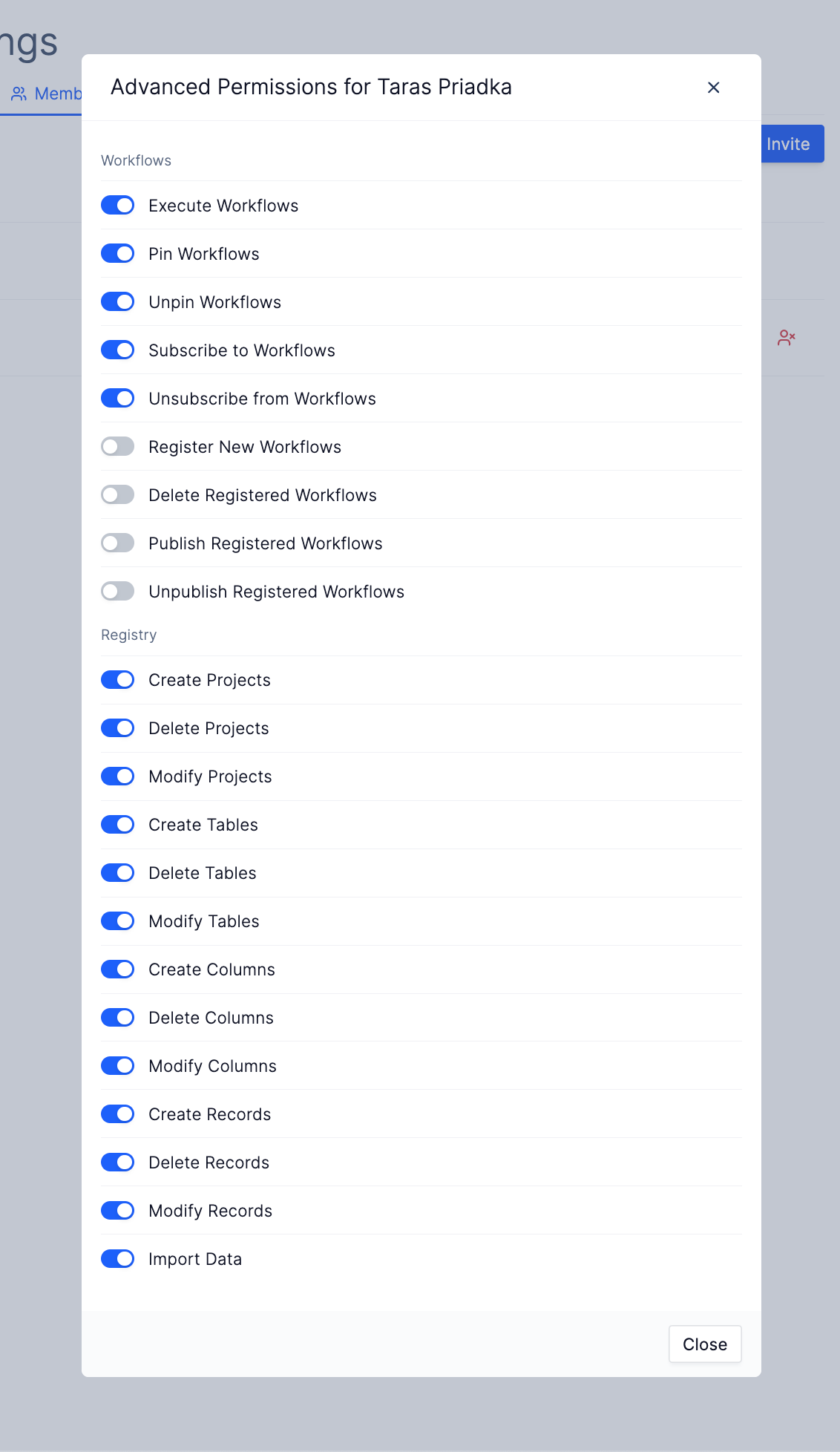
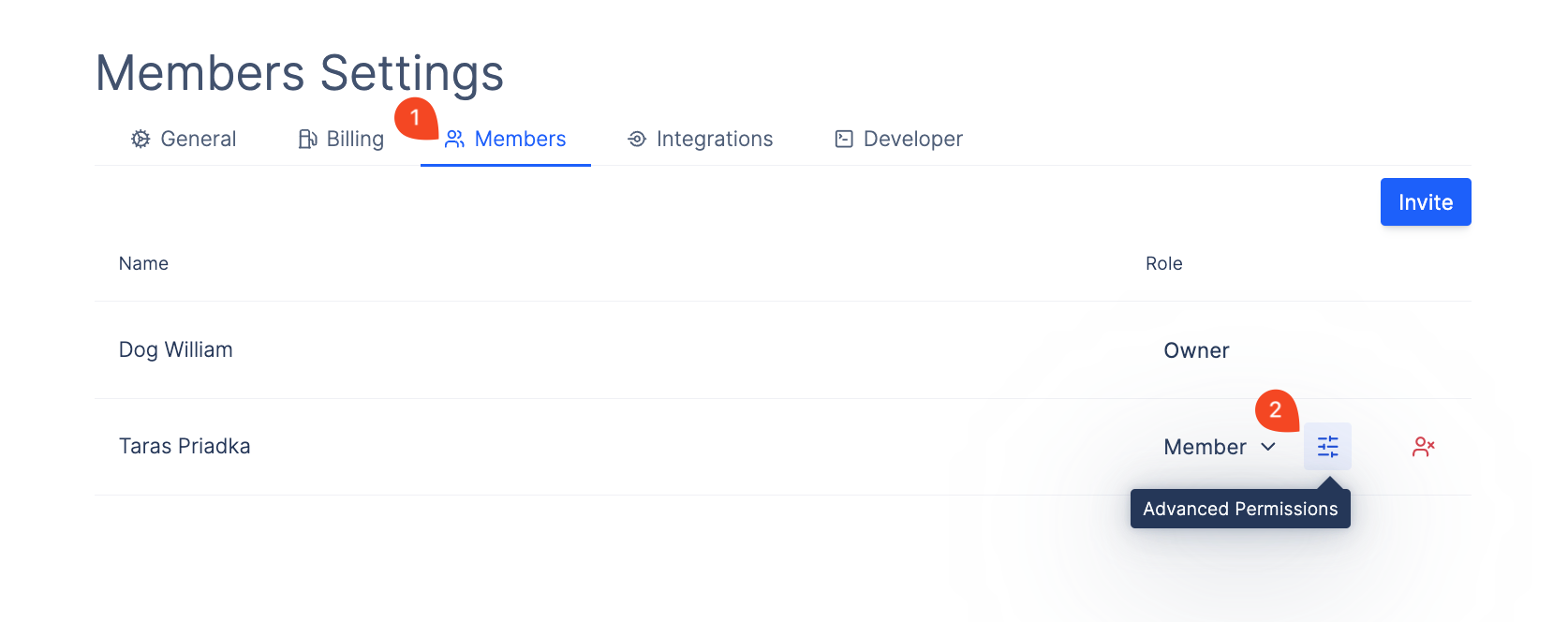
You can set fine-grained permissions for what a member of a workspace can do:
1. Go to Workspace Settings > Members Tab.
2. Click on the Advanced Permissions button next to the role dropdown for the user.
## Advanced Roles and Permissions
You can set fine-grained permissions for what a member of a workspace can do:
1. Go to Workspace Settings > Members Tab.
2. Click on the Advanced Permissions button next to the role dropdown for the user.
 3. This will open up a window where you can toggle specific permissions on and off.