> ## Documentation Index
> Fetch the complete documentation index at: https://wiki.latch.bio/llms.txt
> Use this file to discover all available pages before exploring further.
# Inviting Members to a Workspace
> Learn how to invite users to an existing workspace
## Creating and sending workspace invites
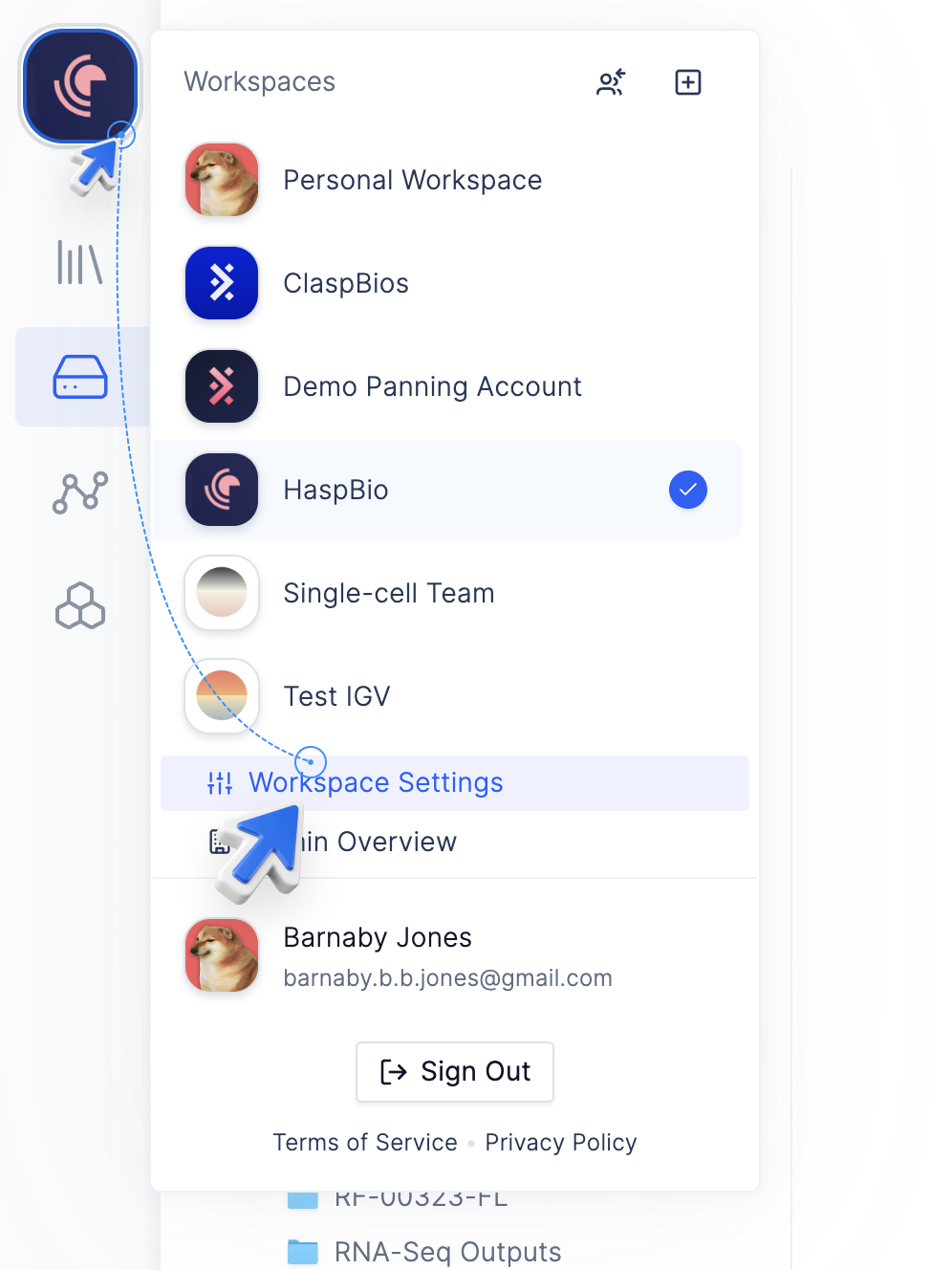
1. Go to your Workspace Settings
1. Click on your **Avatar**.
2. Then click **Workspace Settings** at the bottom of the dropdown.
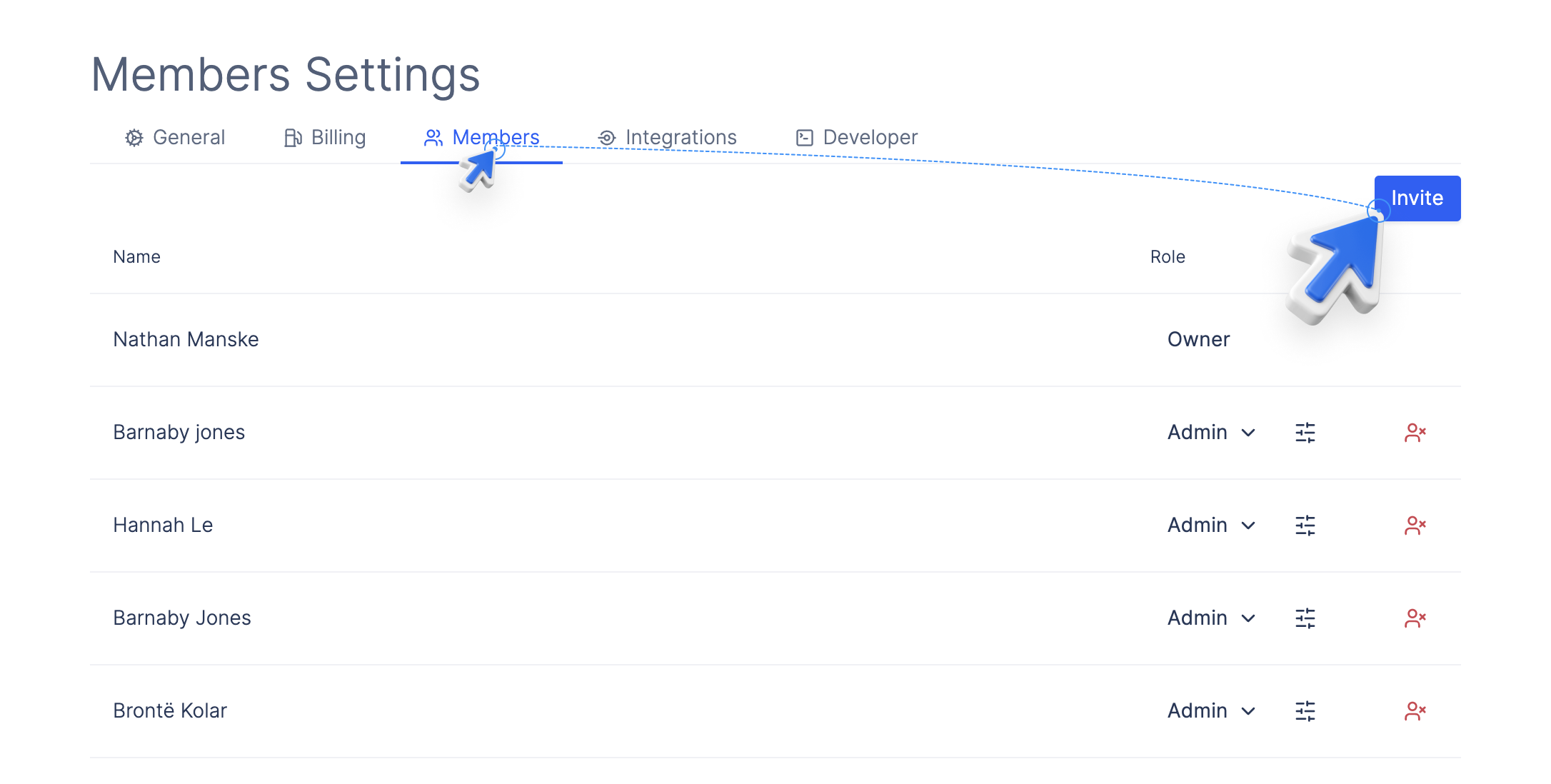
 2. Go to the **Members Tab**.
3. To invite a user, click the **Invite** button at the top of the members table.
2. Go to the **Members Tab**.
3. To invite a user, click the **Invite** button at the top of the members table.
 4. A window will open where you can enter the emails of the users you would like to invite to your workspace.
* You can enter multiple emails separated by commas(`test@latch.bio, test1@latch.bio`)
4. A window will open where you can enter the emails of the users you would like to invite to your workspace.
* You can enter multiple emails separated by commas(`test@latch.bio, test1@latch.bio`)
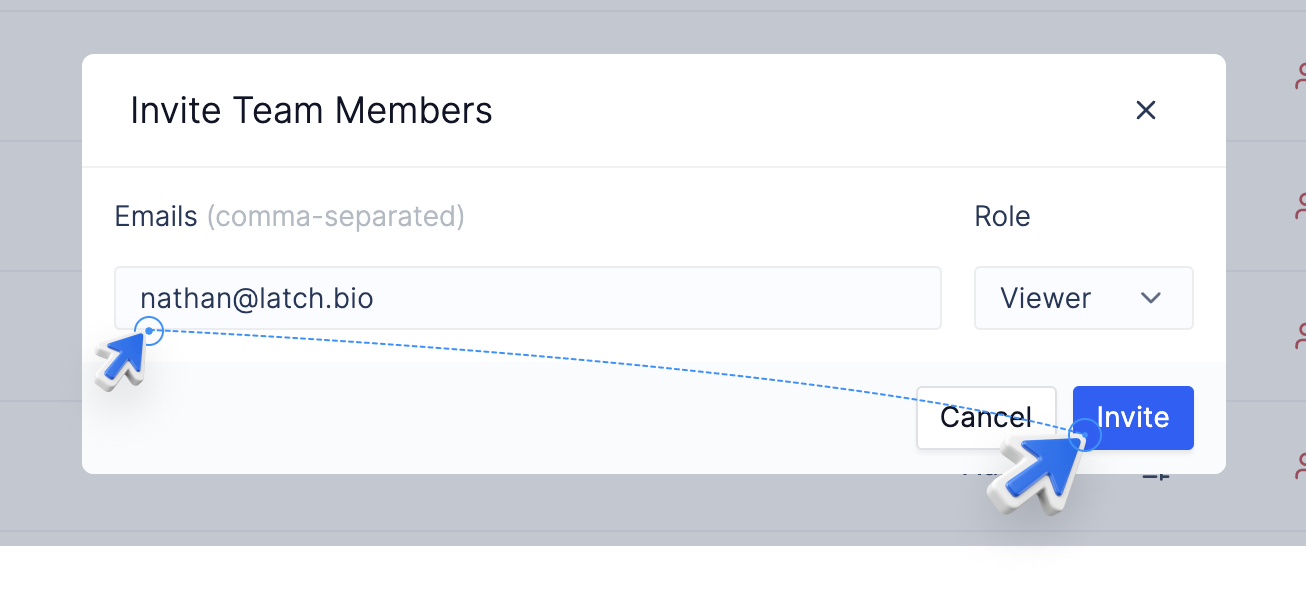 5. Select the [role](./roles) you would like them to have.
6. Click **Invite** to send emails to the provided emails.
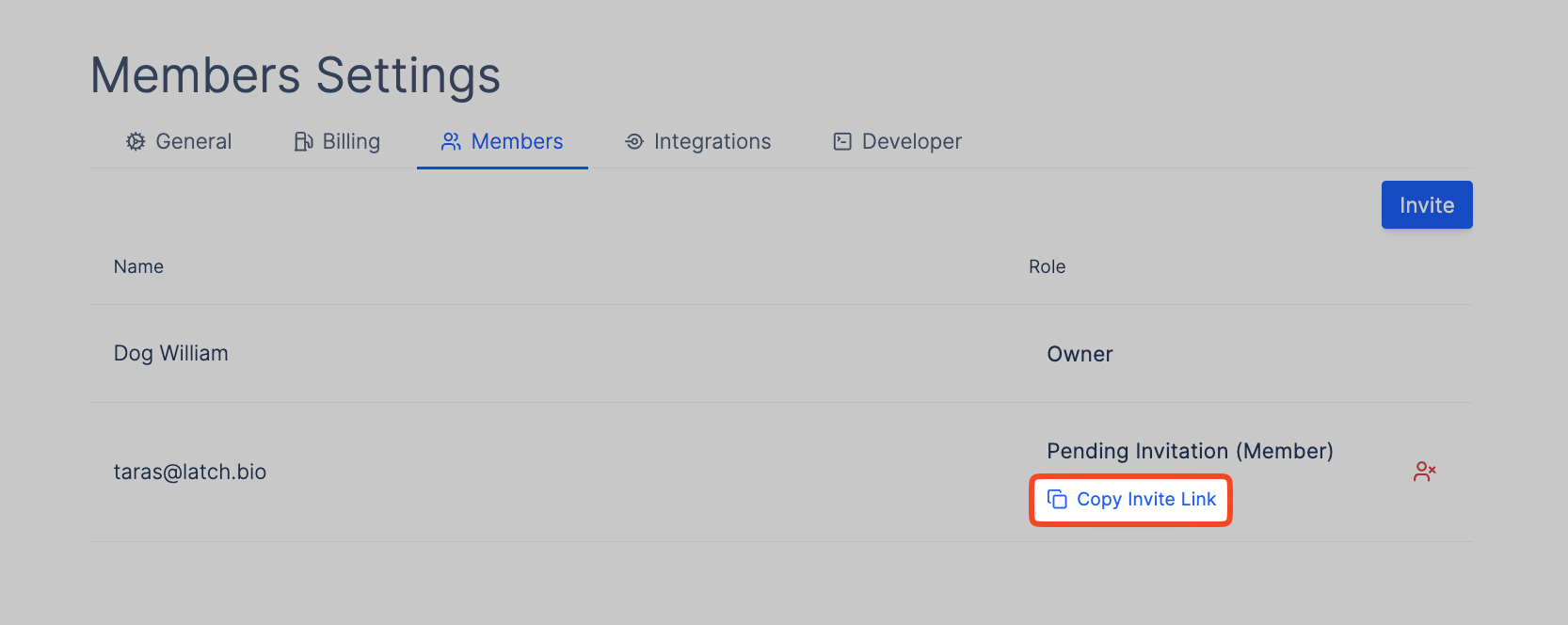
7. *Alternatively*, you can get an **Invite Link** by clicking **Copy Invite Link** on the pending member row for that invited user.
5. Select the [role](./roles) you would like them to have.
6. Click **Invite** to send emails to the provided emails.
7. *Alternatively*, you can get an **Invite Link** by clicking **Copy Invite Link** on the pending member row for that invited user.
 ## Joining workspace using workspace invites
### If you received an invitation email
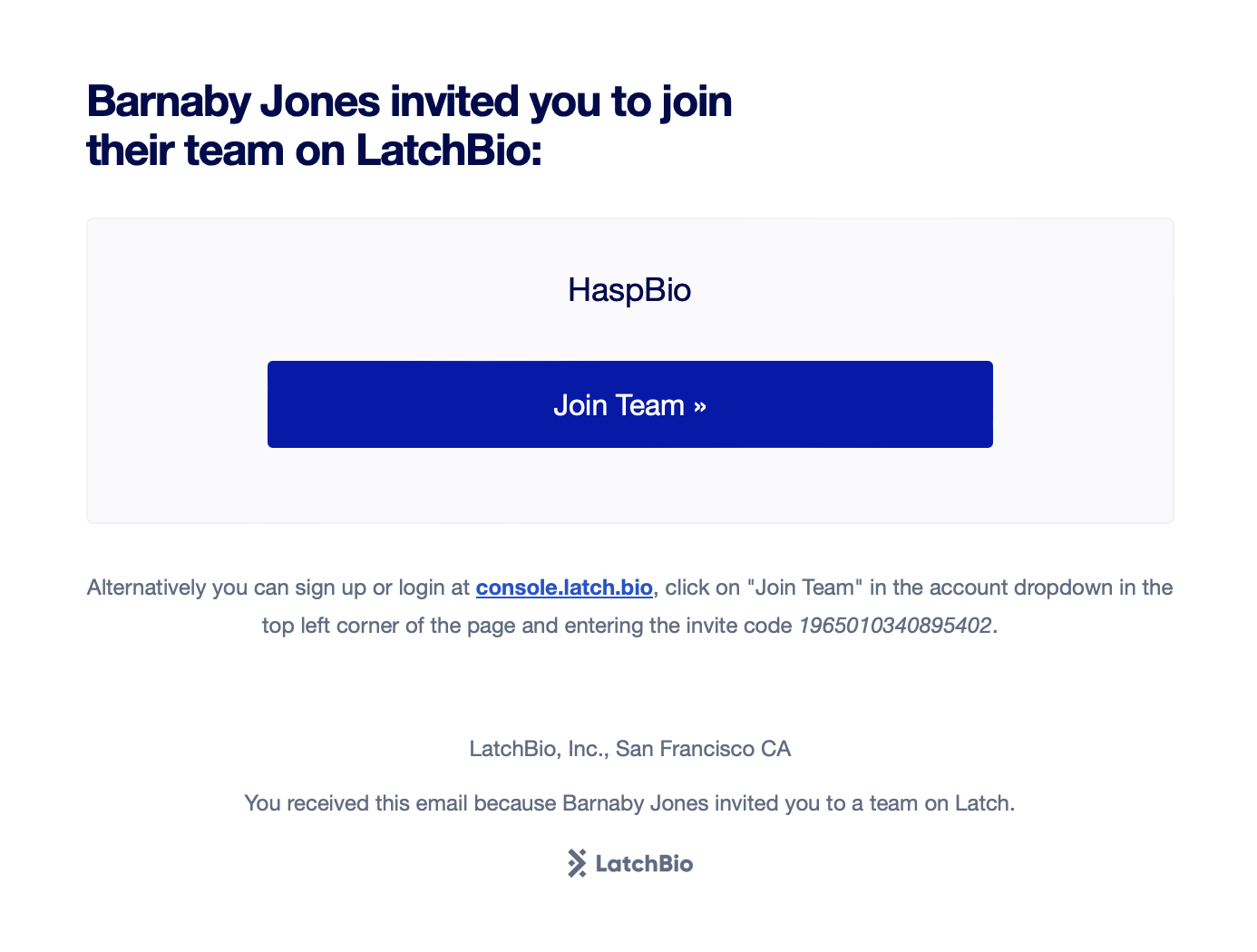
1. To join the workspace, click **Join Workspace** button in the email which will open the modal to join the workspace.
2. *Alternatively*, copy the code at the bottom of the email and follow the steps for [if you have the invitation code](./inviting-members#if-you-have-a-workspace-invitation-code).
## Joining workspace using workspace invites
### If you received an invitation email
1. To join the workspace, click **Join Workspace** button in the email which will open the modal to join the workspace.
2. *Alternatively*, copy the code at the bottom of the email and follow the steps for [if you have the invitation code](./inviting-members#if-you-have-a-workspace-invitation-code).
 ### If you have a workspace invitation code
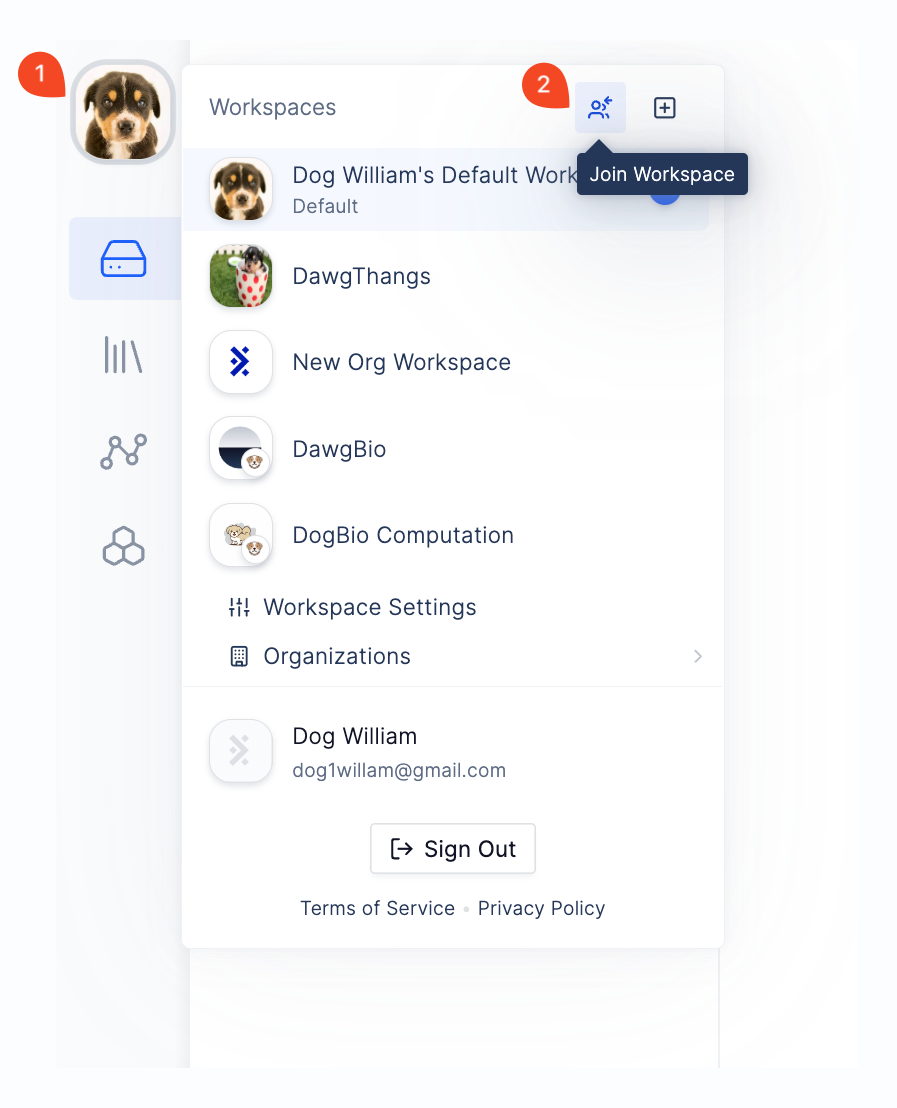
1. Go to your account and click on the avatar.
2. Click the **Join Workspace** button at the top of the navigation bar.
### If you have a workspace invitation code
1. Go to your account and click on the avatar.
2. Click the **Join Workspace** button at the top of the navigation bar.
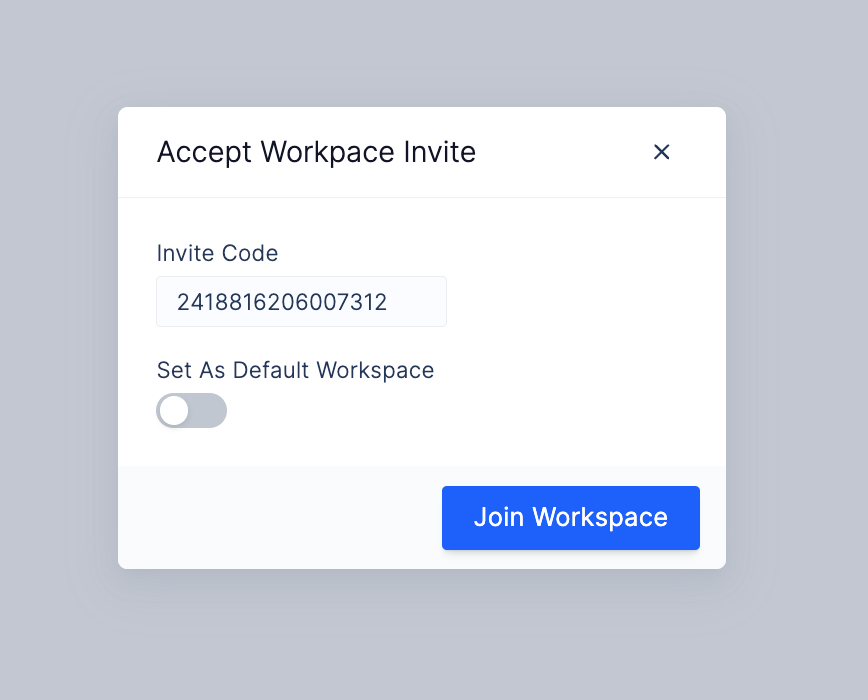
 3. Enter the invitation code and click **Join Workspace**.
 4. The workspace will be added to your workspace list and you will be redirected to the workspace you just joined.