> ## Documentation Index
> Fetch the complete documentation index at: https://wiki.latch.bio/llms.txt
> Use this file to discover all available pages before exploring further.
# White-label Your Customer Experience
> Customize the Latch platform to reflect your brand's unique look and feel.
Latch provides many ways for solution providers to deliver robust end-to-end analysis experience to their customers. For example, we previously wrote about how solution providers can [create managed workspaces under their Organization](/admin/orgs/overview) for customers for hands-on support, or send [Analysis Packages](/admin/orgs/analysis-packages) - a collection of customer data, bioinformatics pipelines, and visualization dashboards - for customers to unpack in their own workspaces.
No matter which approach a solution provider takes, Latch ensures that from the moment a customer purchases a kit, they enter a platform reflecting the provider's brand.
## Prerequisites
* Make sure you are a part of an Organization before proceeding. See how to access your Organization [here](/admin/orgs/about)
## White-labeling Options
Latch provides options for you to white-label:
**Branding**
* The signup & login page UI and domain
* Branded logos next to your Organization's published workflows
* Analysis Package redemption emails
* Workspace invitation emails
* Logos and colors of data folders originating from Analysis Packages
**Workspace Customization**
* Selective feature hiding (e.g., product tabs, Graph/Logs tabs for workflow execution) when customer workspaces are owned by the provider's Organization.
## Branding
To access your organization branding settings:
* Navigate to your Organization Settings
* Click on the **Branding** tab
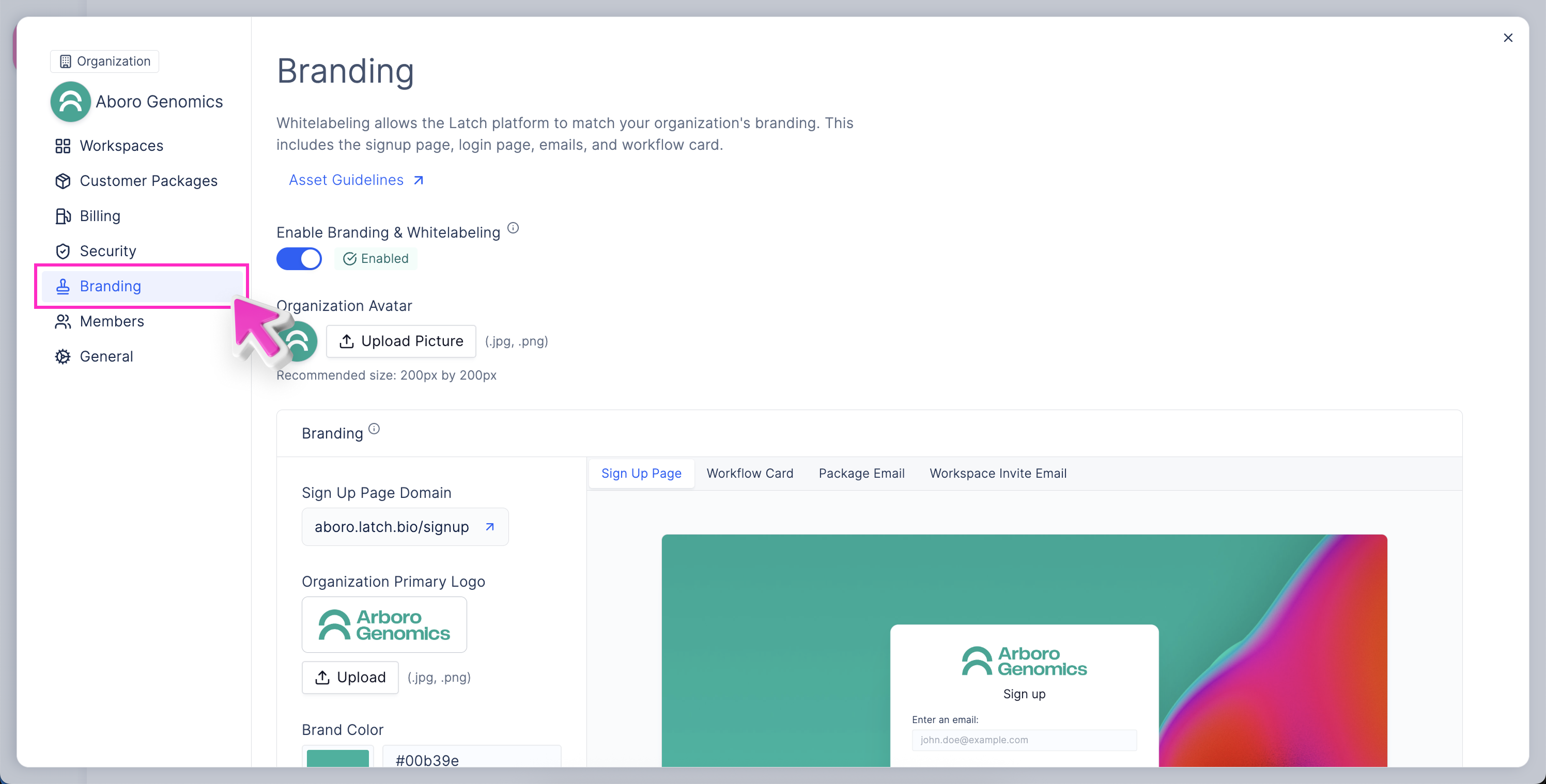 Here you can customize the branding of your Organization.
### Enabling White-labeling Branding
To enable white-labeling branding for your Organization, you need to:
* Click on the **Enable White-labeling Branding** toggle in the **Branding** tab.
Here you can customize the branding of your Organization.
### Enabling White-labeling Branding
To enable white-labeling branding for your Organization, you need to:
* Click on the **Enable White-labeling Branding** toggle in the **Branding** tab.
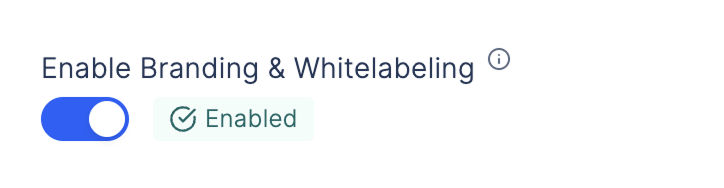 This will turn on the white-labeling branding features for your Organization (such as the workflow card, analysis package redemption email, and workspace invitation emails) otherwise they will use the default Latch branding.
Your Organization avatar will always appear under workspaces it owns and if you have a custom domain set up, the white-labeled login and signup page will be shown under that domain.
## Branding Options
There are several options for white-labeling your Organization on Latch. You are able to configure the white-labeling experience by providing the following brand assets:
* Organization Avatar
* Primary Logo
* Badge Logo
* Banner Background
* Brand Primary Color
For more information on the recommended image format and sizing for white-labeling, see our [guide on branding assets recommendations](/admin/orgs/white-labeling-image-recommendations).
### Login & Signup Page
Please reach out to your Latch customer success representative to have your
custom domain manually set up by our engineers. You can still upload the
branding assets to your Organization and will show up when the domain is set
up.
The login and signup page use the Organization's Primary Logo and Banner Background. To see an example of a white-labeled login and signup page, see [here](https://aboro.latch.bio/signup).
This will turn on the white-labeling branding features for your Organization (such as the workflow card, analysis package redemption email, and workspace invitation emails) otherwise they will use the default Latch branding.
Your Organization avatar will always appear under workspaces it owns and if you have a custom domain set up, the white-labeled login and signup page will be shown under that domain.
## Branding Options
There are several options for white-labeling your Organization on Latch. You are able to configure the white-labeling experience by providing the following brand assets:
* Organization Avatar
* Primary Logo
* Badge Logo
* Banner Background
* Brand Primary Color
For more information on the recommended image format and sizing for white-labeling, see our [guide on branding assets recommendations](/admin/orgs/white-labeling-image-recommendations).
### Login & Signup Page
Please reach out to your Latch customer success representative to have your
custom domain manually set up by our engineers. You can still upload the
branding assets to your Organization and will show up when the domain is set
up.
The login and signup page use the Organization's Primary Logo and Banner Background. To see an example of a white-labeled login and signup page, see [here](https://aboro.latch.bio/signup).
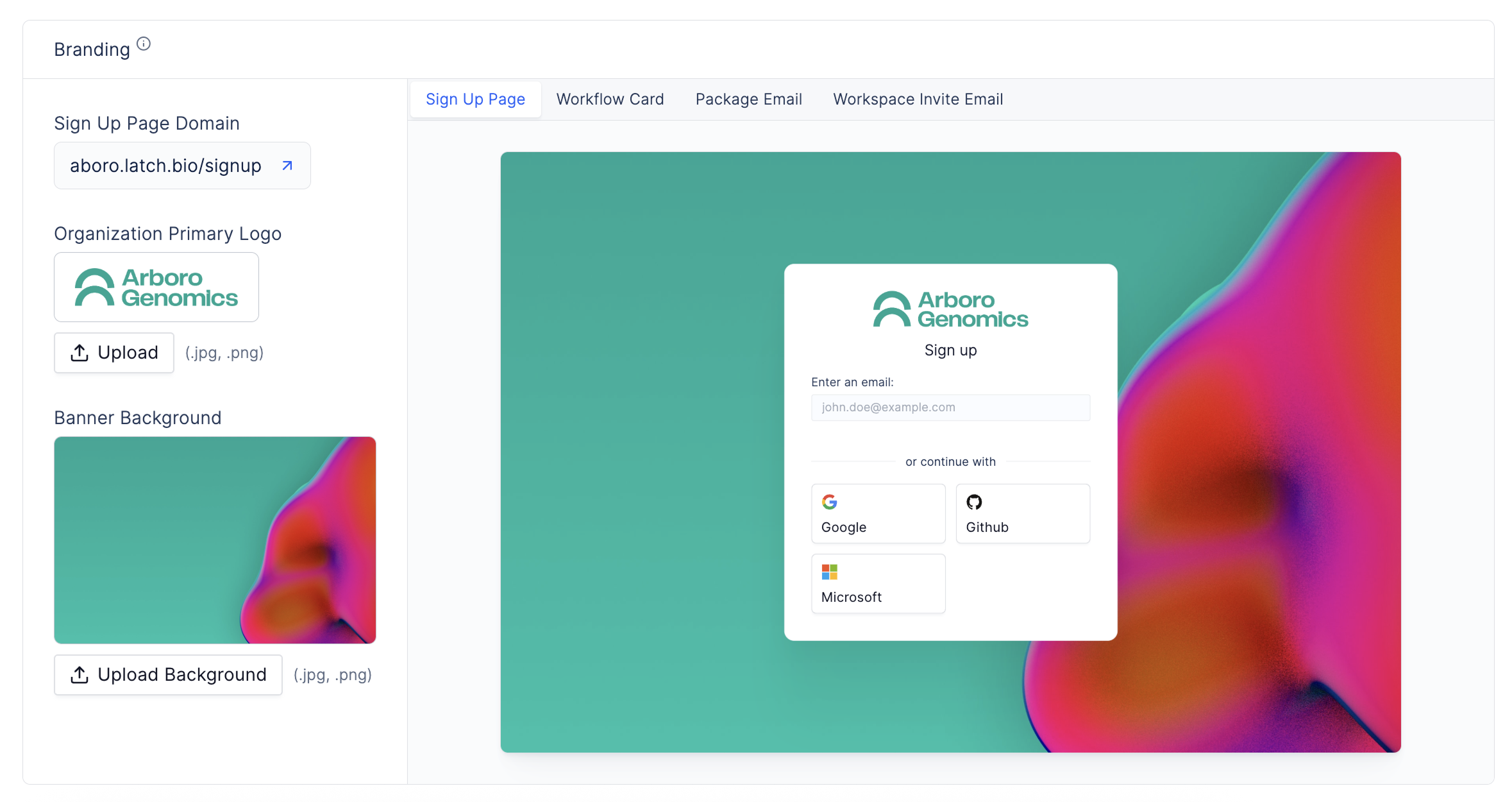 When the white-labeling branding is enabled, users who sign up from your Organization's custom domain will receive a white-labeled welcome & email verification email.
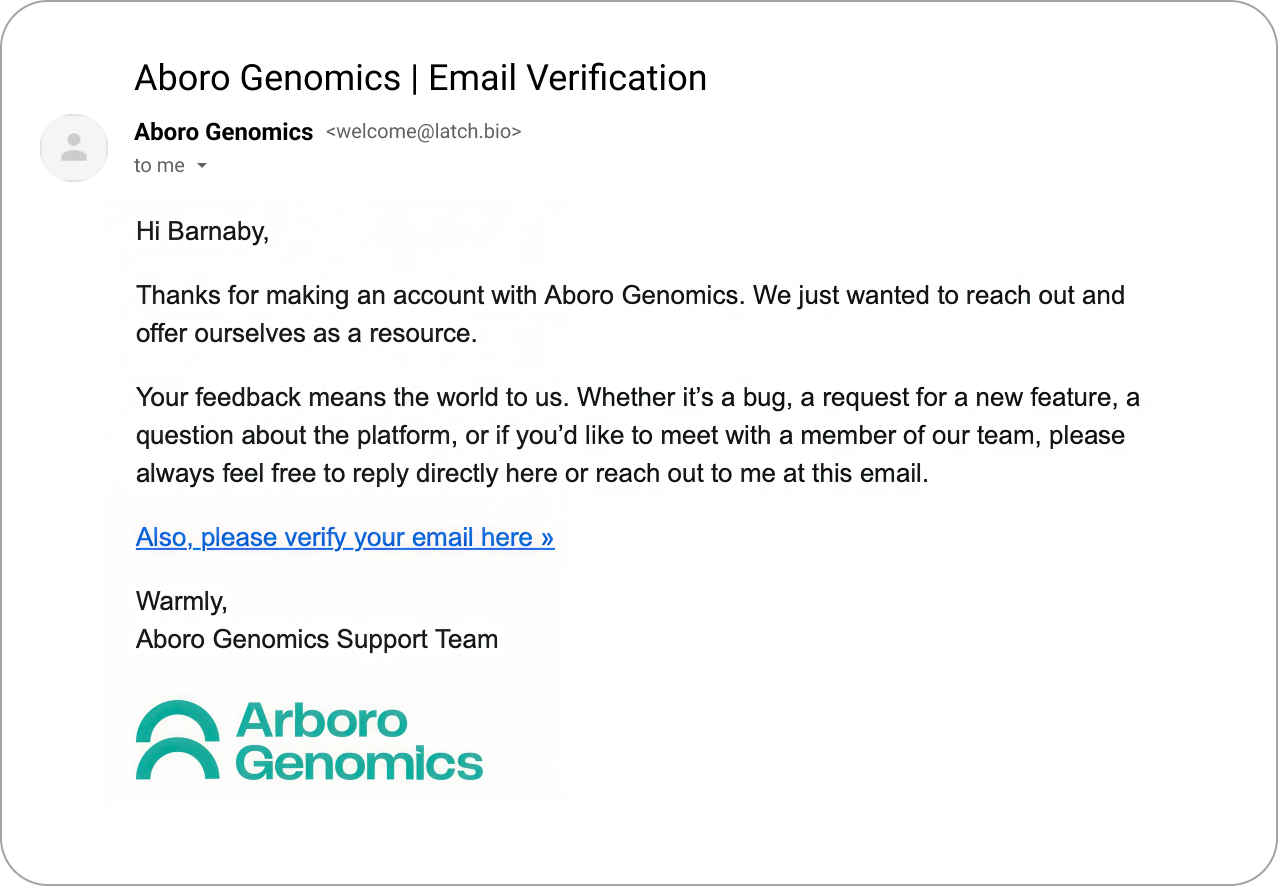 This email can be customized further with help from the Latch team.
### Workflow Card
The **Workflow Card** for published workflows owned by your Organization can be customized to show your Organization's brand. The badge will use your Brand Primary Color and your Organization's Badge Logo.
The author label will on the card use your Organization's Primary Logo and use your Organization's display name. The badge will show up on the card if it's owned by your Organization and the workflow has a version that is released.
This email can be customized further with help from the Latch team.
### Workflow Card
The **Workflow Card** for published workflows owned by your Organization can be customized to show your Organization's brand. The badge will use your Brand Primary Color and your Organization's Badge Logo.
The author label will on the card use your Organization's Primary Logo and use your Organization's display name. The badge will show up on the card if it's owned by your Organization and the workflow has a version that is released.
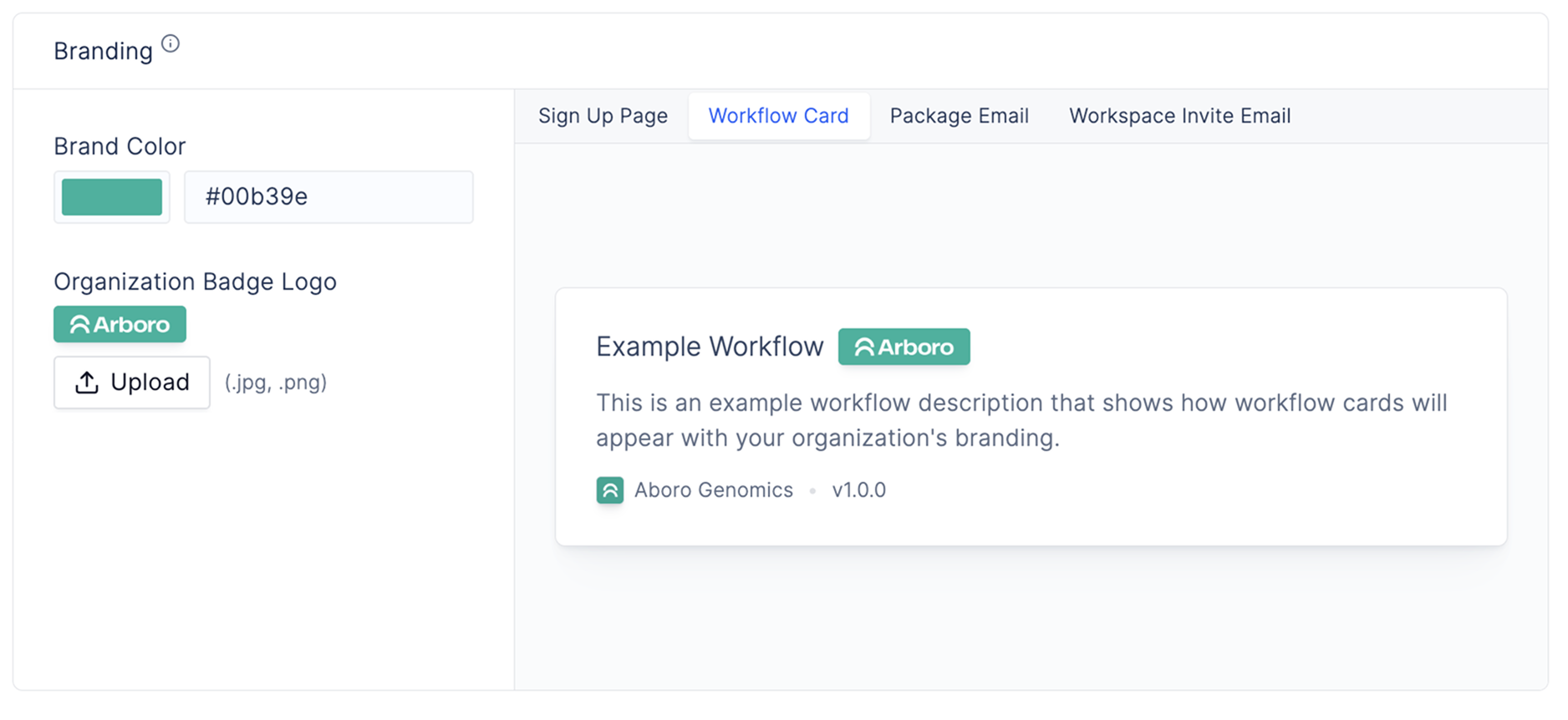 See recommended for the badge logo [here](/admin/orgs/white-labeling-image-recommendations#organization-badge-logo).
### Analysis Package Redemption Email
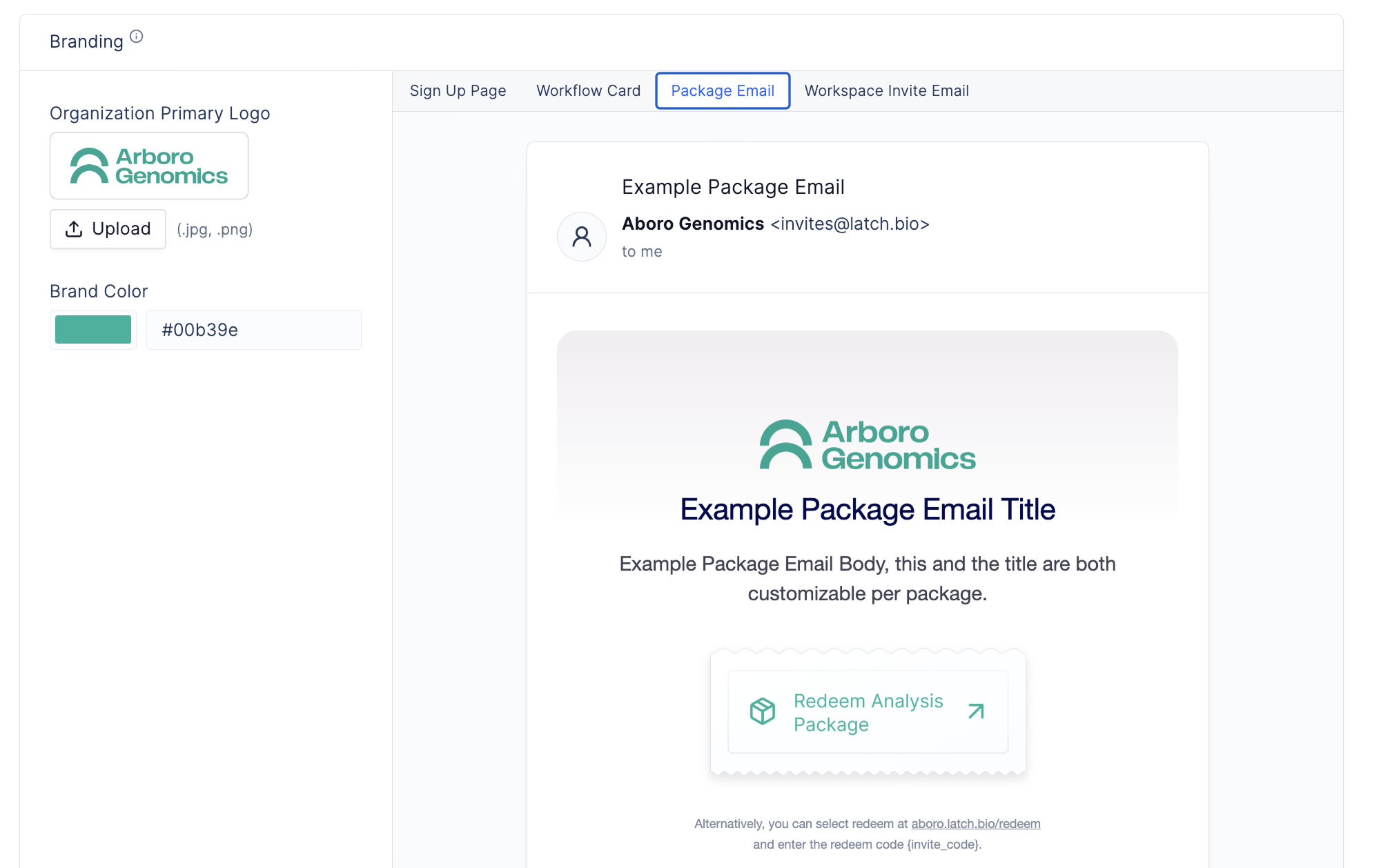
The Analysis Package redemption email can be customized to show your Organization's brand. The email will use your Organization's Primary Logo and Brand Primary Color. Make sure you use a brand color that is visible on a white background (or please contact the Latch team if your color has low contrast on white so we can customize the email to have a higher contrast).
See recommended for the badge logo [here](/admin/orgs/white-labeling-image-recommendations#organization-badge-logo).
### Analysis Package Redemption Email
The Analysis Package redemption email can be customized to show your Organization's brand. The email will use your Organization's Primary Logo and Brand Primary Color. Make sure you use a brand color that is visible on a white background (or please contact the Latch team if your color has low contrast on white so we can customize the email to have a higher contrast).
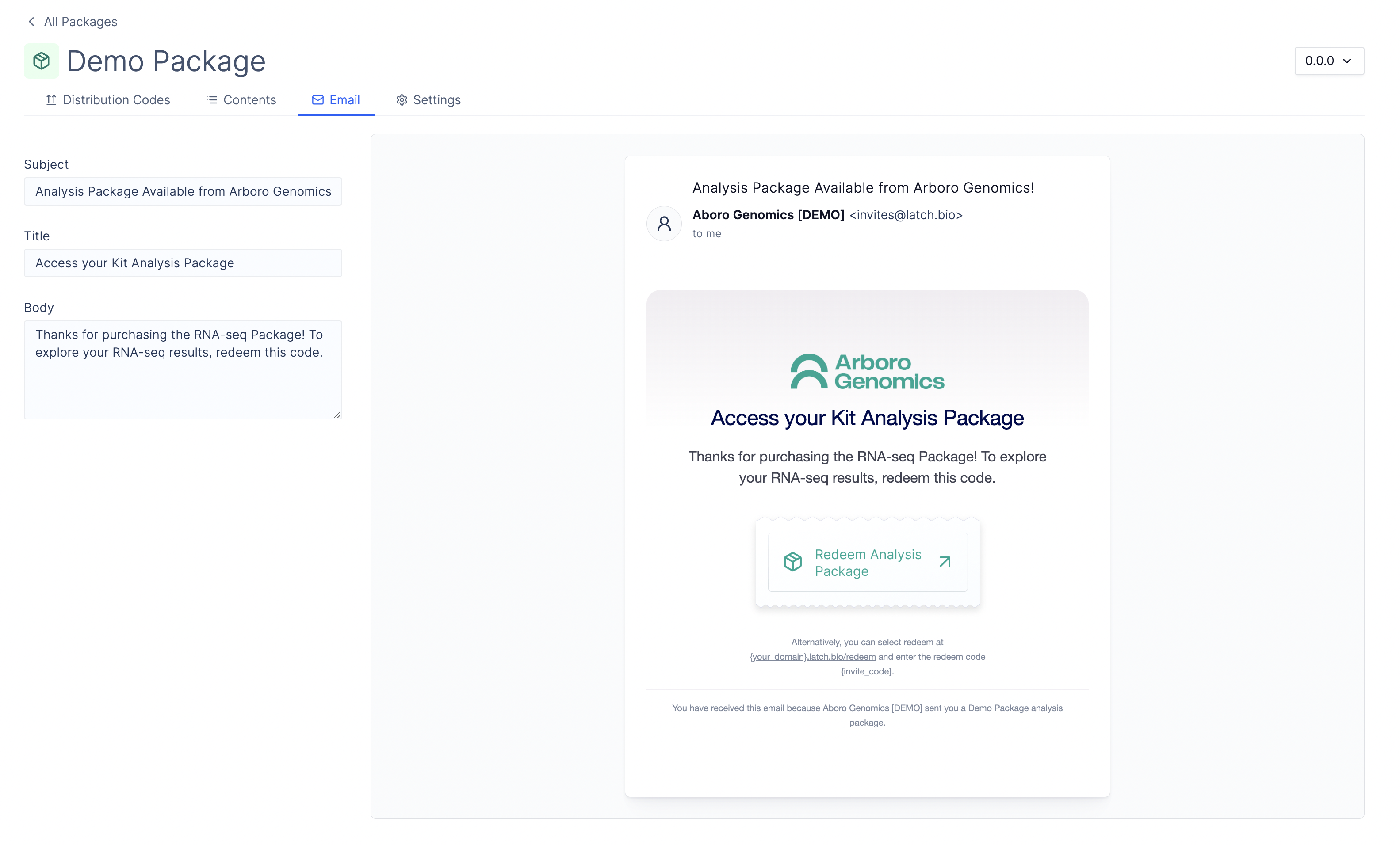
 When you create an Analysis Package, you can customize the email subject, title, and body that is sent to the customer when they redeem the package. *[Learn more about creating Analysis Packages here.](/admin/orgs/analysis-packages.mdx)*
In a analysis package settings, click on the **Email** tab to customize the email that is sent to the customer for that specific package.
When you create an Analysis Package, you can customize the email subject, title, and body that is sent to the customer when they redeem the package. *[Learn more about creating Analysis Packages here.](/admin/orgs/analysis-packages.mdx)*
In a analysis package settings, click on the **Email** tab to customize the email that is sent to the customer for that specific package.
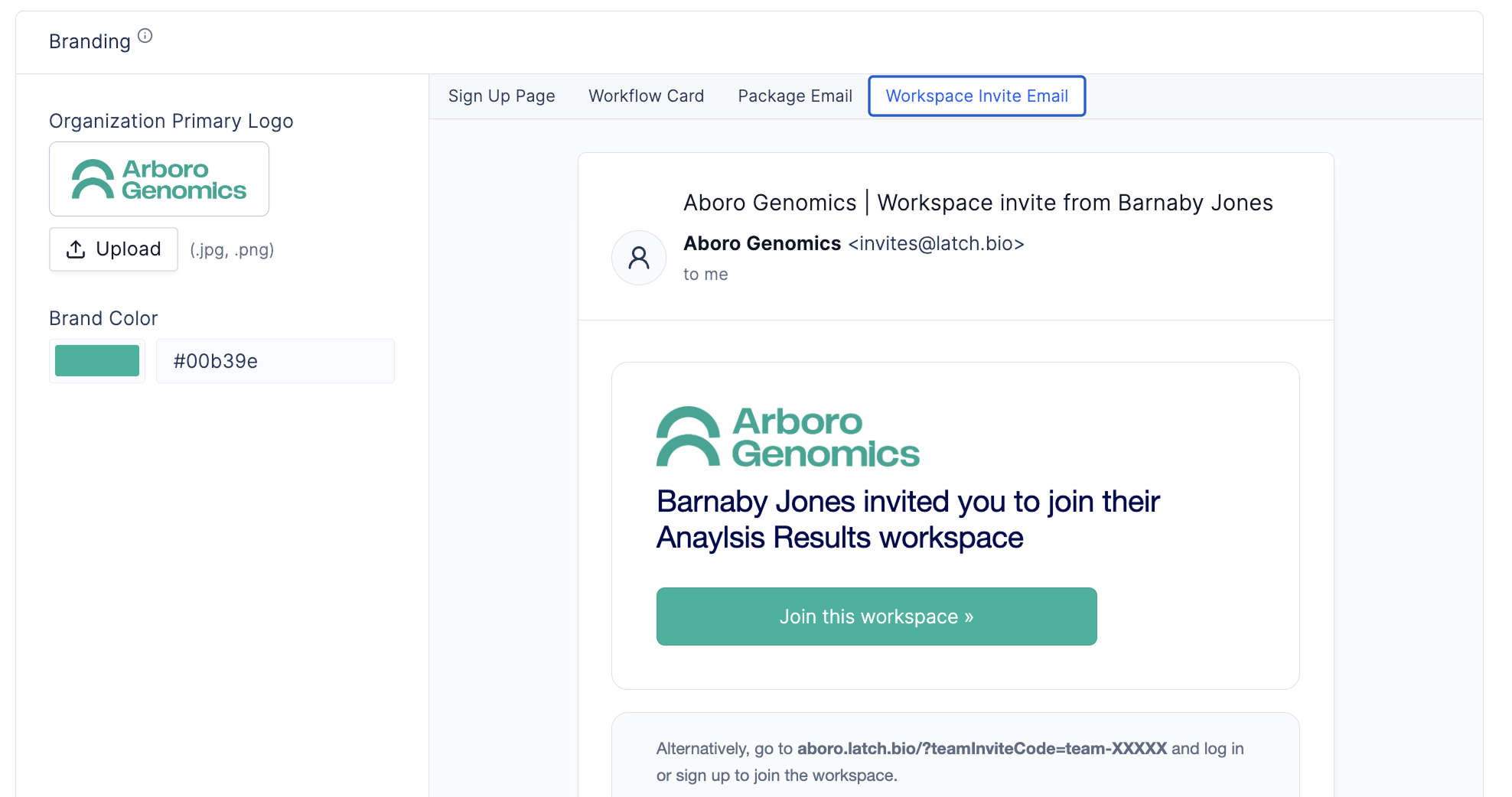
 ### Workspace & Organization Invitation Email
The workspace and organization invitation email can be customized to show your Organization's brand. The email will use your Organization's Primary Logo and Brand Primary Color.
### Workspace & Organization Invitation Email
The workspace and organization invitation email can be customized to show your Organization's brand. The email will use your Organization's Primary Logo and Brand Primary Color.
 ### Analysis Package Data Folders
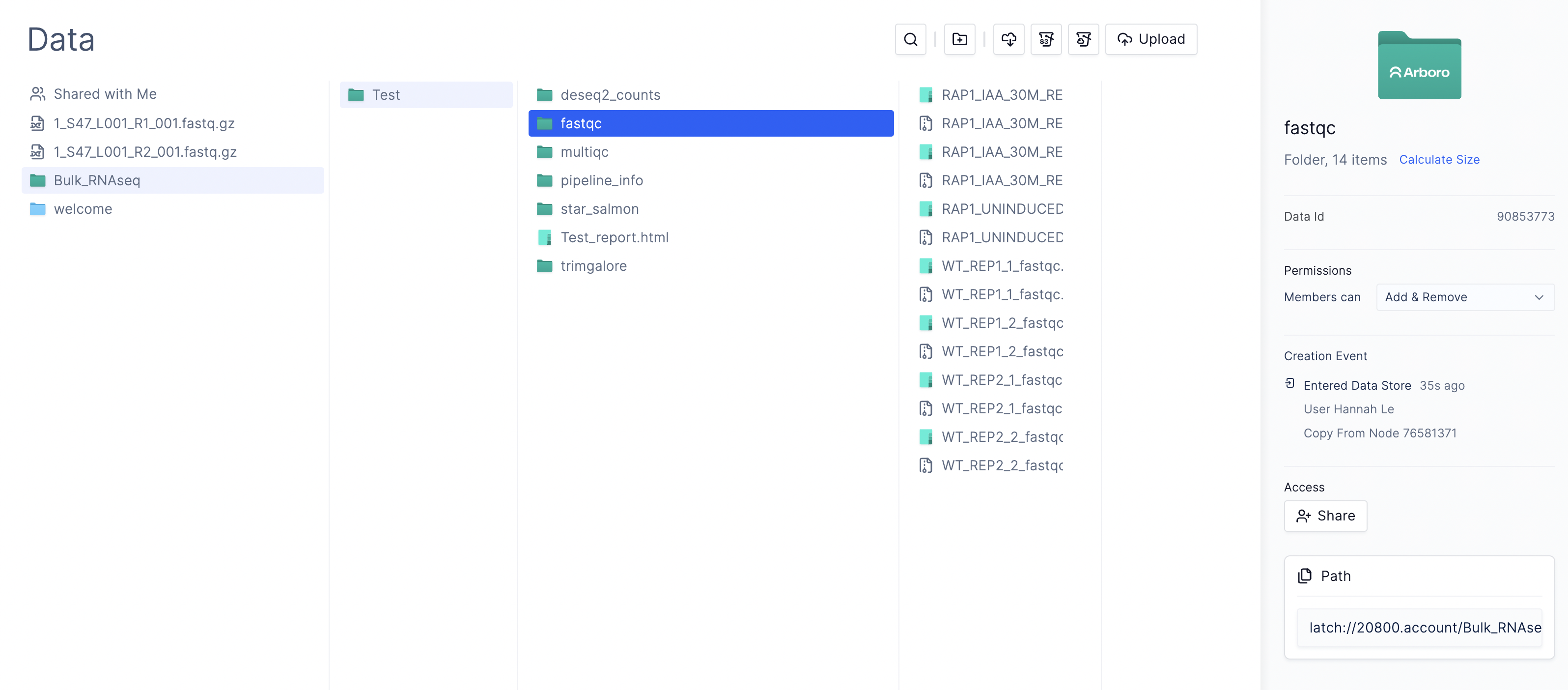
When a package is redeemed in the customer workspace, all data folders belonging to the package will have the Organization's brand color and brand logo on the right sidebar.
### Analysis Package Data Folders
When a package is redeemed in the customer workspace, all data folders belonging to the package will have the Organization's brand color and brand logo on the right sidebar.
 ## Workspace Customization
If you are the Admin of the customer workspace, you can hide certain tabs to simplify the interface for your customers.
Please note hidden tabs remain visible to other Admins within the same
workspace. Customers must have Member-level permissions or lower to be
affected by these settings. And this only affects the display of the tabs in
the navigation, but the tabs are still accessible through the URL.
* Go to [Workspace Settings > Access](https://console.latch.bio/settings/interface).
## Workspace Customization
If you are the Admin of the customer workspace, you can hide certain tabs to simplify the interface for your customers.
Please note hidden tabs remain visible to other Admins within the same
workspace. Customers must have Member-level permissions or lower to be
affected by these settings. And this only affects the display of the tabs in
the navigation, but the tabs are still accessible through the URL.
* Go to [Workspace Settings > Access](https://console.latch.bio/settings/interface).
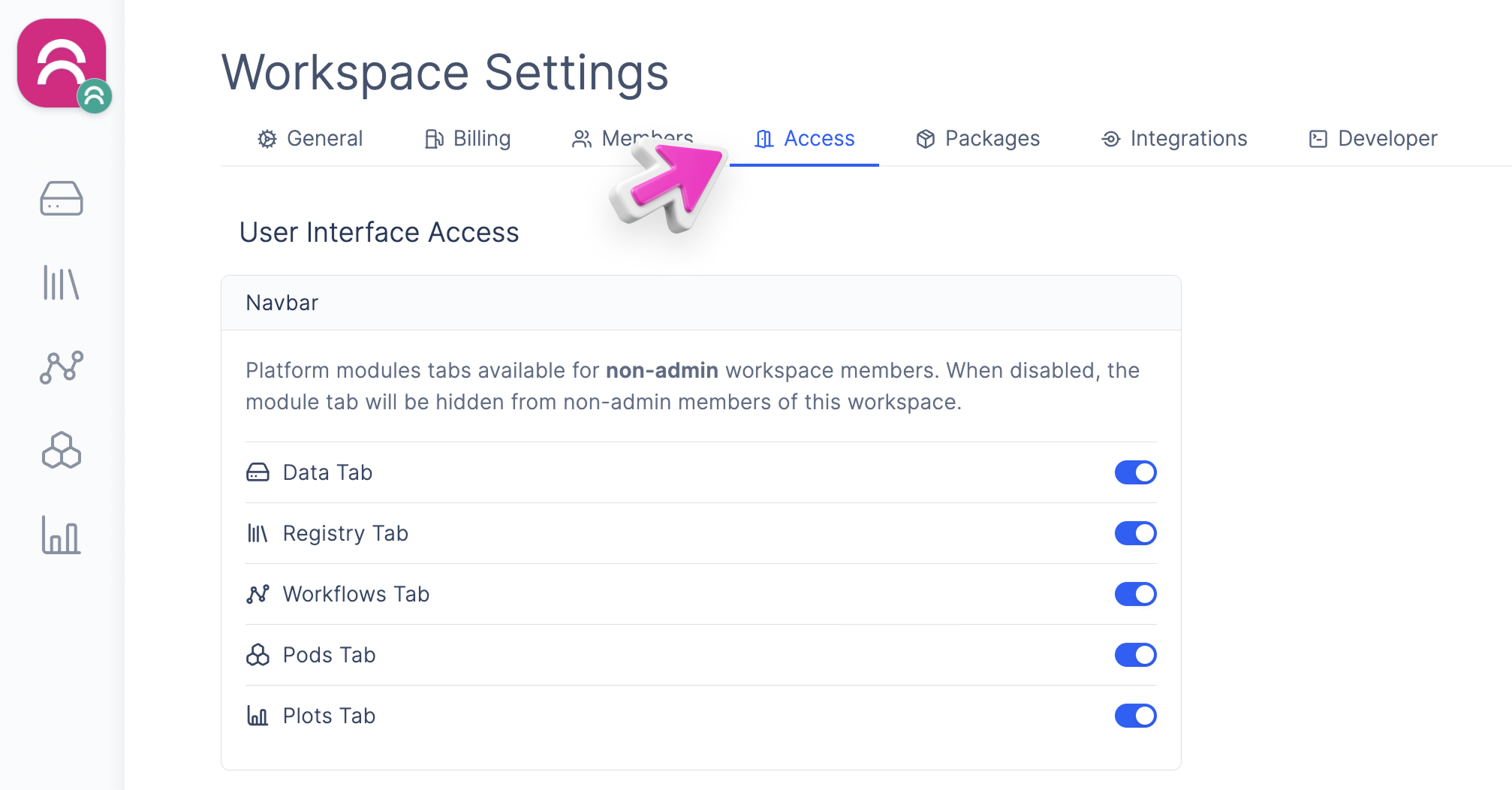 From there, you can toggle on or off each product tab in the left navigation bar. For example, if you only want your customers to use Latch Workflows and Latch Data, turn off Latch Registry, Pods, and Plots.
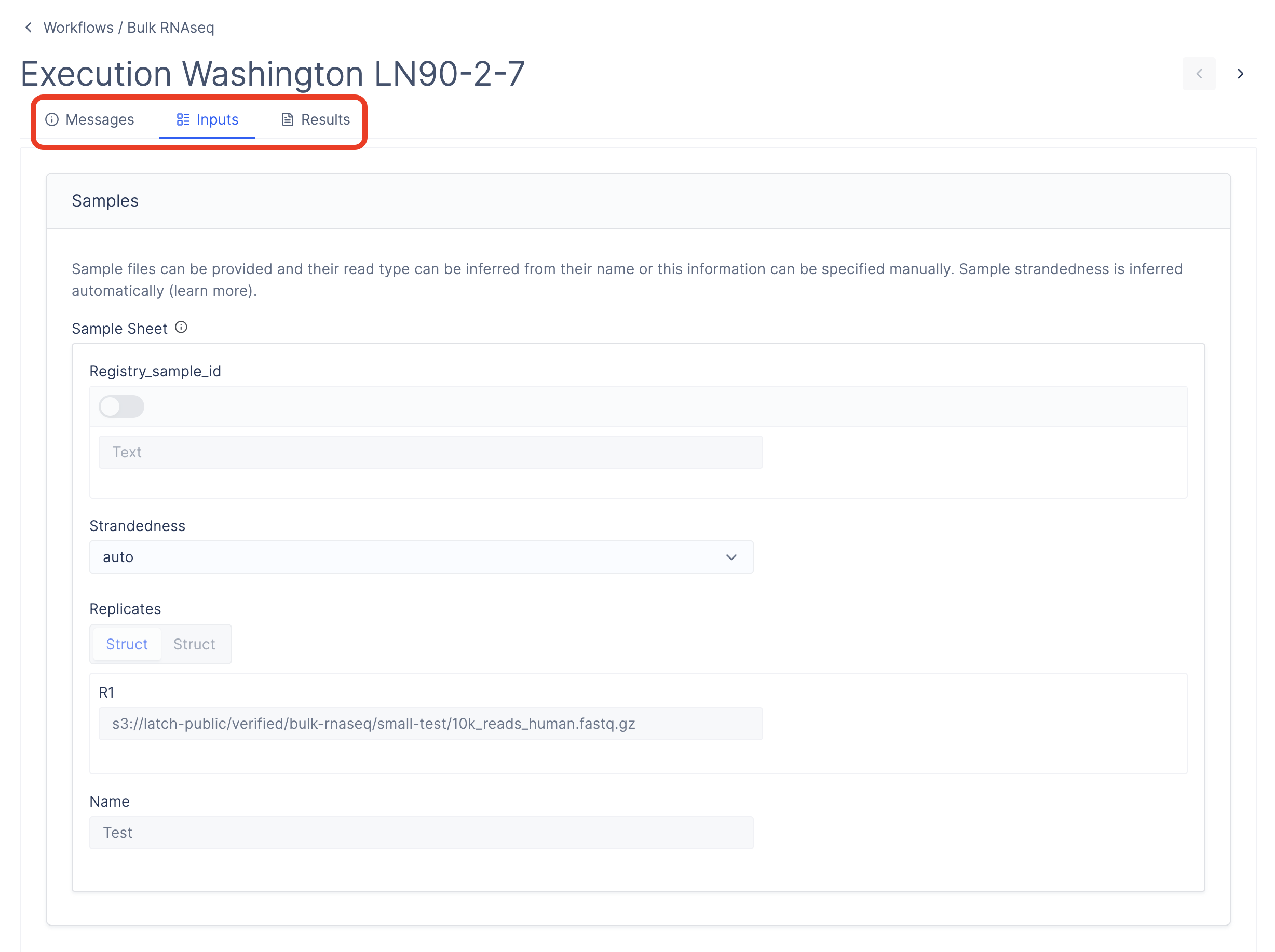
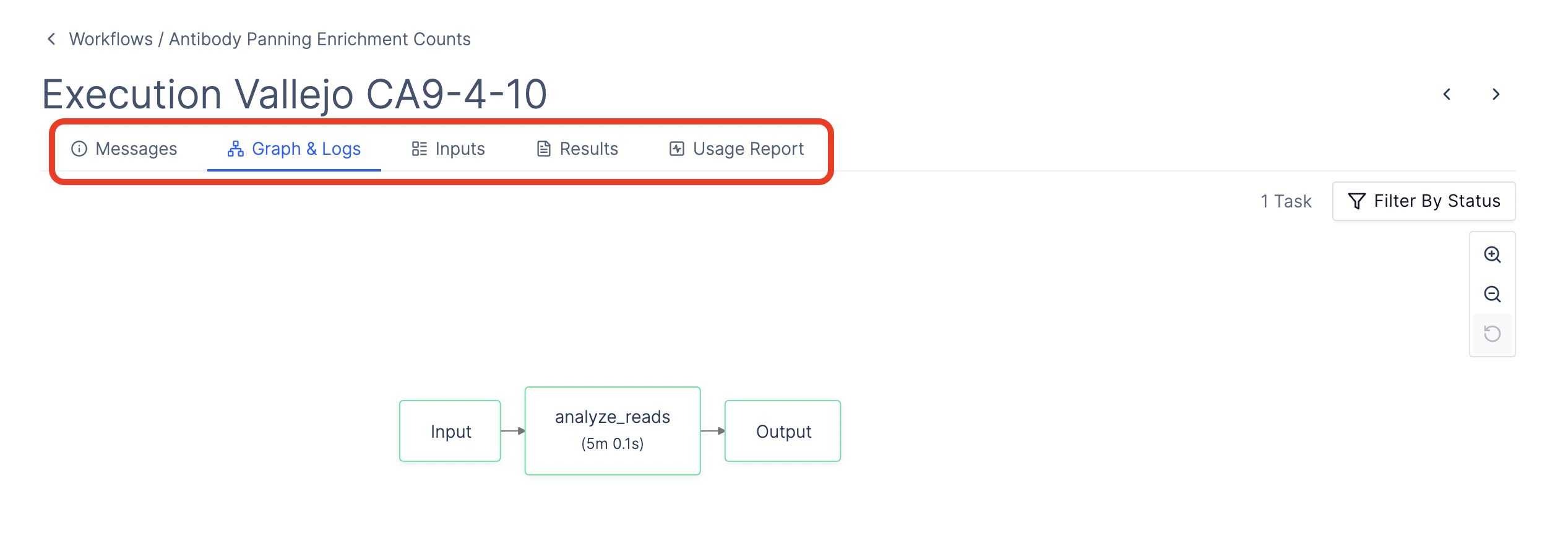
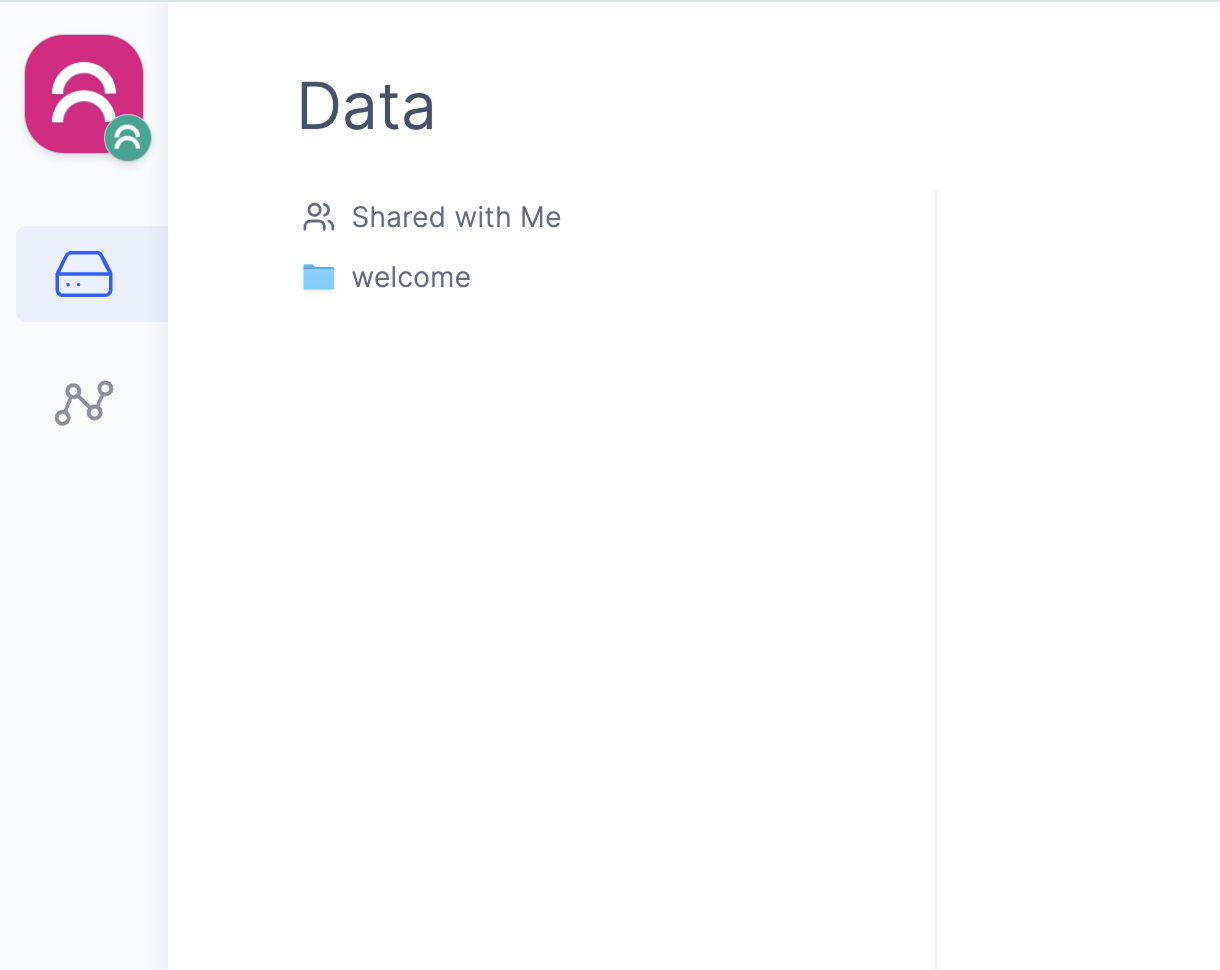 Each workflow execution typically includes additional tabs like Graph & Logs or Usage Report to help developers debug and optimize resources. If you prefer a simpler experience for scientists or non-developers, you can hide these tabs as well to prevent confusion.
From workspace Admin perspective (all workflow execution tabs are shown):
Each workflow execution typically includes additional tabs like Graph & Logs or Usage Report to help developers debug and optimize resources. If you prefer a simpler experience for scientists or non-developers, you can hide these tabs as well to prevent confusion.
From workspace Admin perspective (all workflow execution tabs are shown):
 From workspace Member perspective (the *Graph & Logs* and *Usage Report* tabs are not shown):