> ## Documentation Index
> Fetch the complete documentation index at: https://wiki.latch.bio/llms.txt
> Use this file to discover all available pages before exploring further.
# Inviting Members to an Organization
> Learn how to invite members to the organization and accept invitations
## Adding Users to the Organization
To add users to your organization and assign [organization roles](./roles):
1. Navigate to the **Organization Members** page
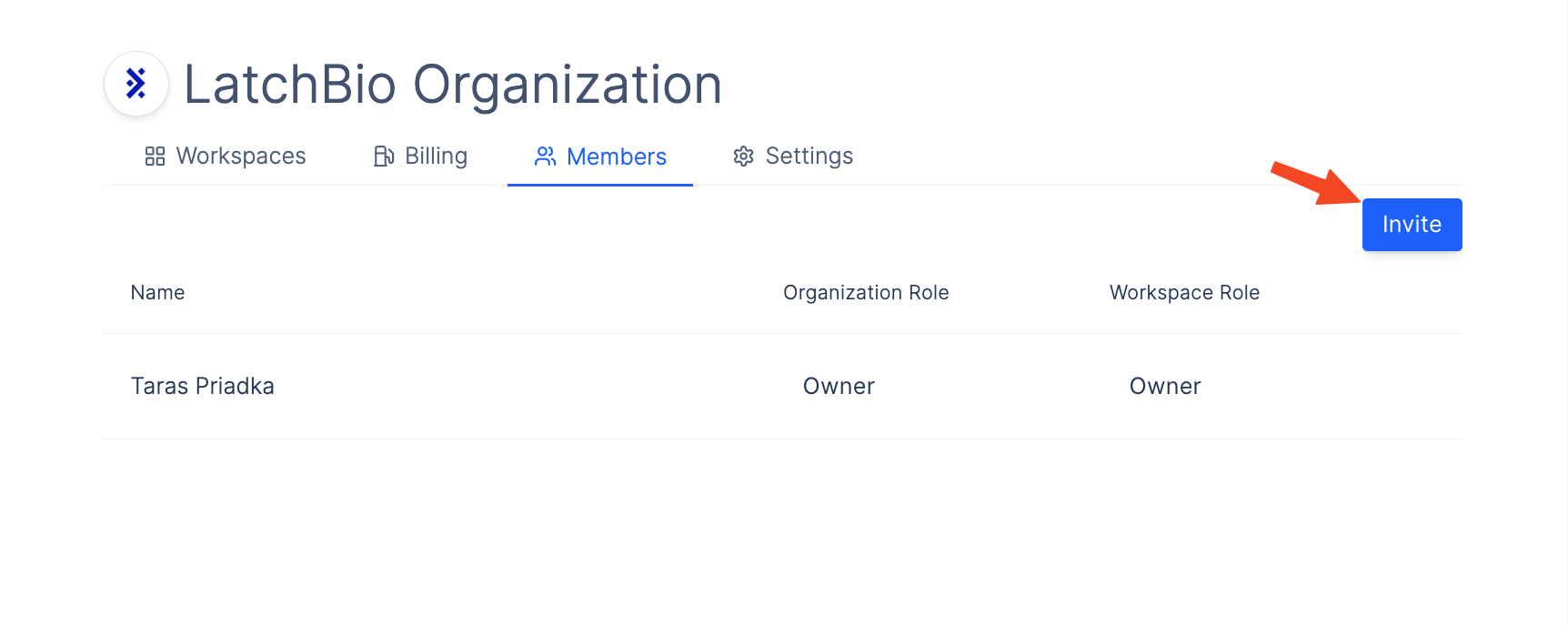 2. Click on **Invite** to open the organization invitation modal.
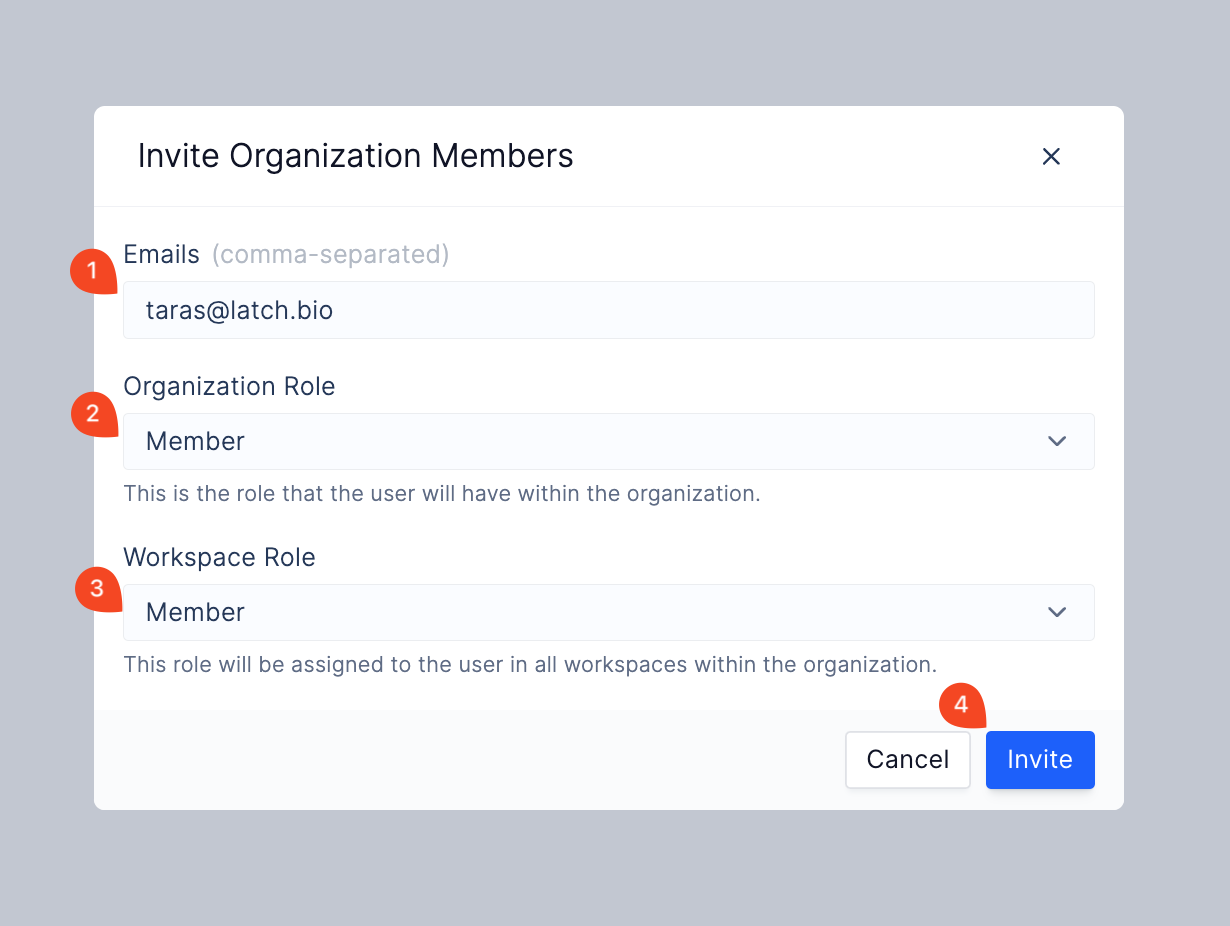 3. Fill out the email and the role you want to assign to the user.
4. Click **Invite** to send out an invitation email to the user.
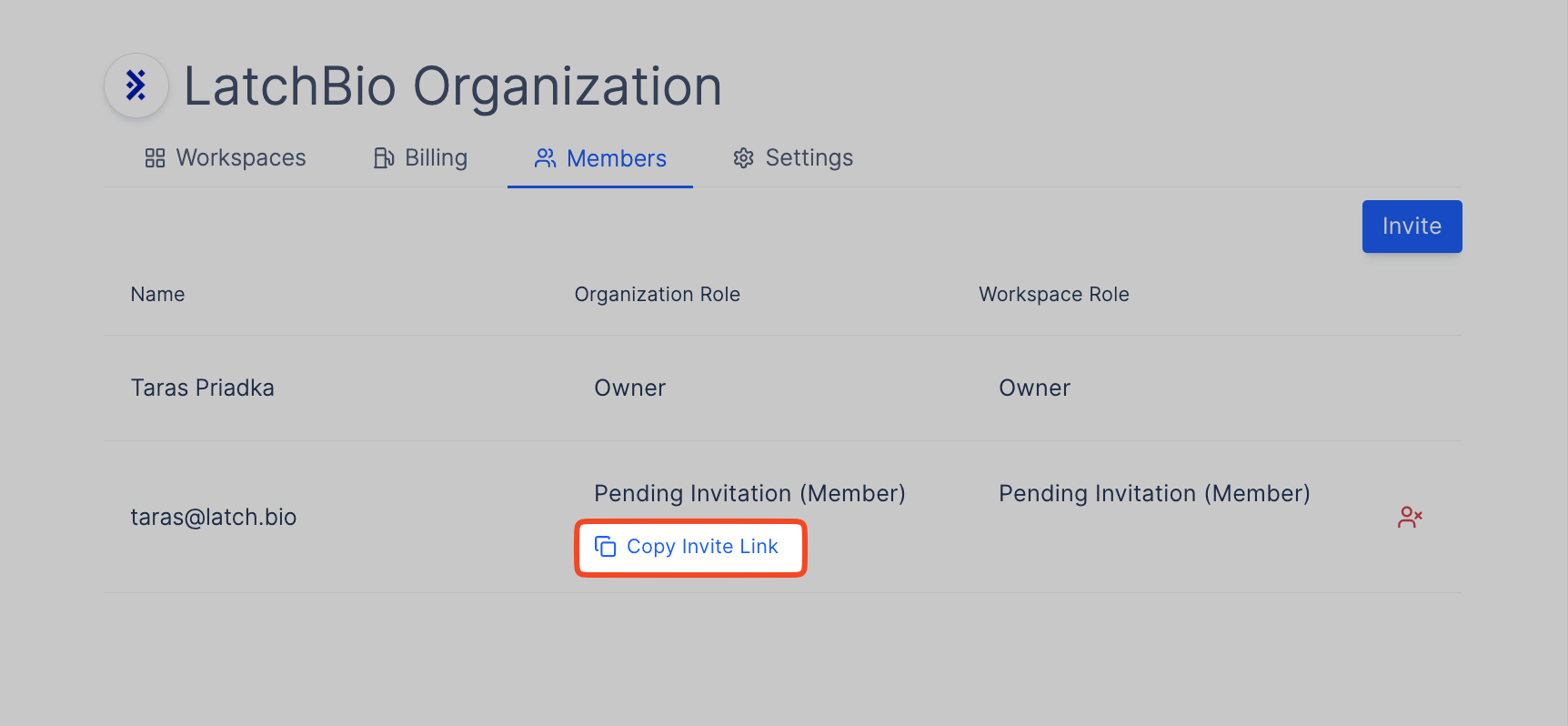
5. \[Optional] If you want to send an invitation link directly to the user, click on **Copy Invite Link** on the Members page to copy the invitation link.
6. Share the link with the user that you wish to add to the organization.
3. Fill out the email and the role you want to assign to the user.
4. Click **Invite** to send out an invitation email to the user.
5. \[Optional] If you want to send an invitation link directly to the user, click on **Copy Invite Link** on the Members page to copy the invitation link.
6. Share the link with the user that you wish to add to the organization.
 ## Accepting Organization Invitations
### If you have the invitation link
1. If you have the invitation link, paste it into your browser.
2. A modal will open with the filled-out invite code.
## Accepting Organization Invitations
### If you have the invitation link
1. If you have the invitation link, paste it into your browser.
2. A modal will open with the filled-out invite code.
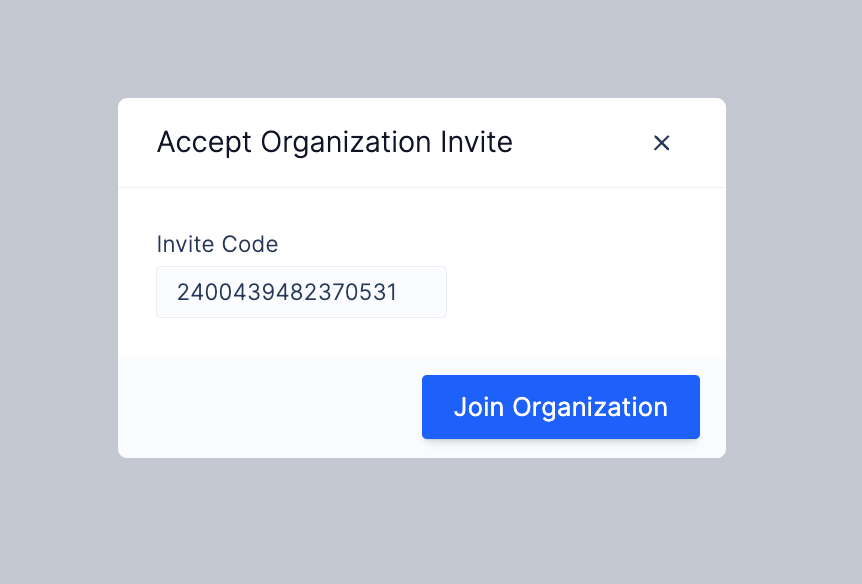 3. Click on **Join Organization**.
### If you have the invitation code
1. Click on the **Avatar** in the top left corner of the screen.
2. Go to the **Organizations** dropdown.
3. Click on **Join Organization**.
### If you have the invitation code
1. Click on the **Avatar** in the top left corner of the screen.
2. Go to the **Organizations** dropdown.
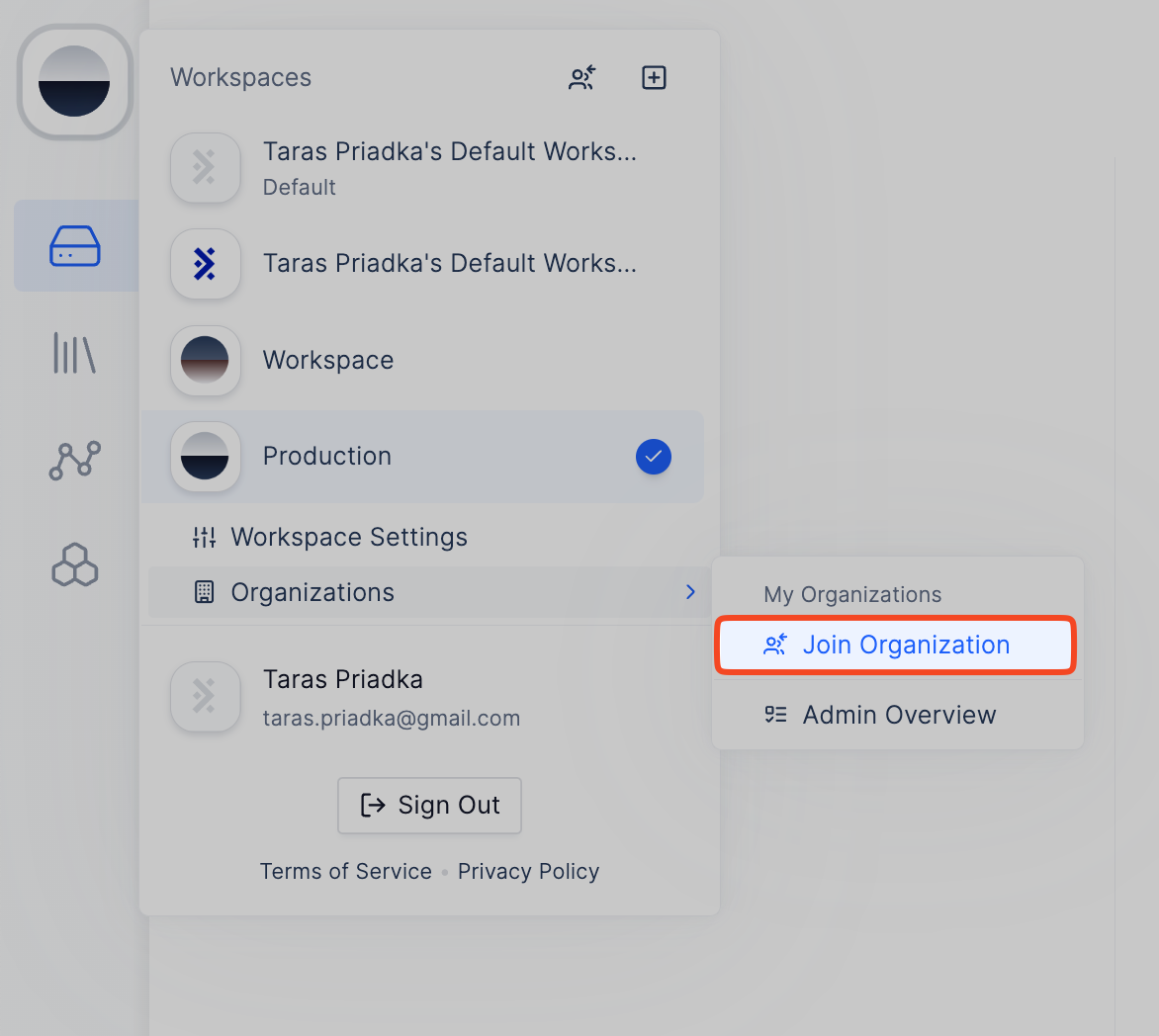 3. Click on **Join Organization**.
4. A modal will open where you can enter the invite code.
5. Click on **Join Organization**.
3. Click on **Join Organization**.
4. A modal will open where you can enter the invite code.
5. Click on **Join Organization**.