> ## Documentation Index
> Fetch the complete documentation index at: https://wiki.latch.bio/llms.txt
> Use this file to discover all available pages before exploring further.
# Organization Basics
Currently, we only release Latch Organization to select partners who have to
manage 5+ workspaces. To gain access to the "Organizations", please contact
our support team at `support@latch.bio`.
Latch Organizations allow administrators to **manage multiple workspaces under a single organization**. This provides a unified interface for viewing workspaces' billing overview, credit transfers between workspaces and provides organization members with owner-level access to all managed workspaces.
For help understanding the differences between Workspaces and Organizations check out our [guide here](/admin/overview).
## Accessing Organizations
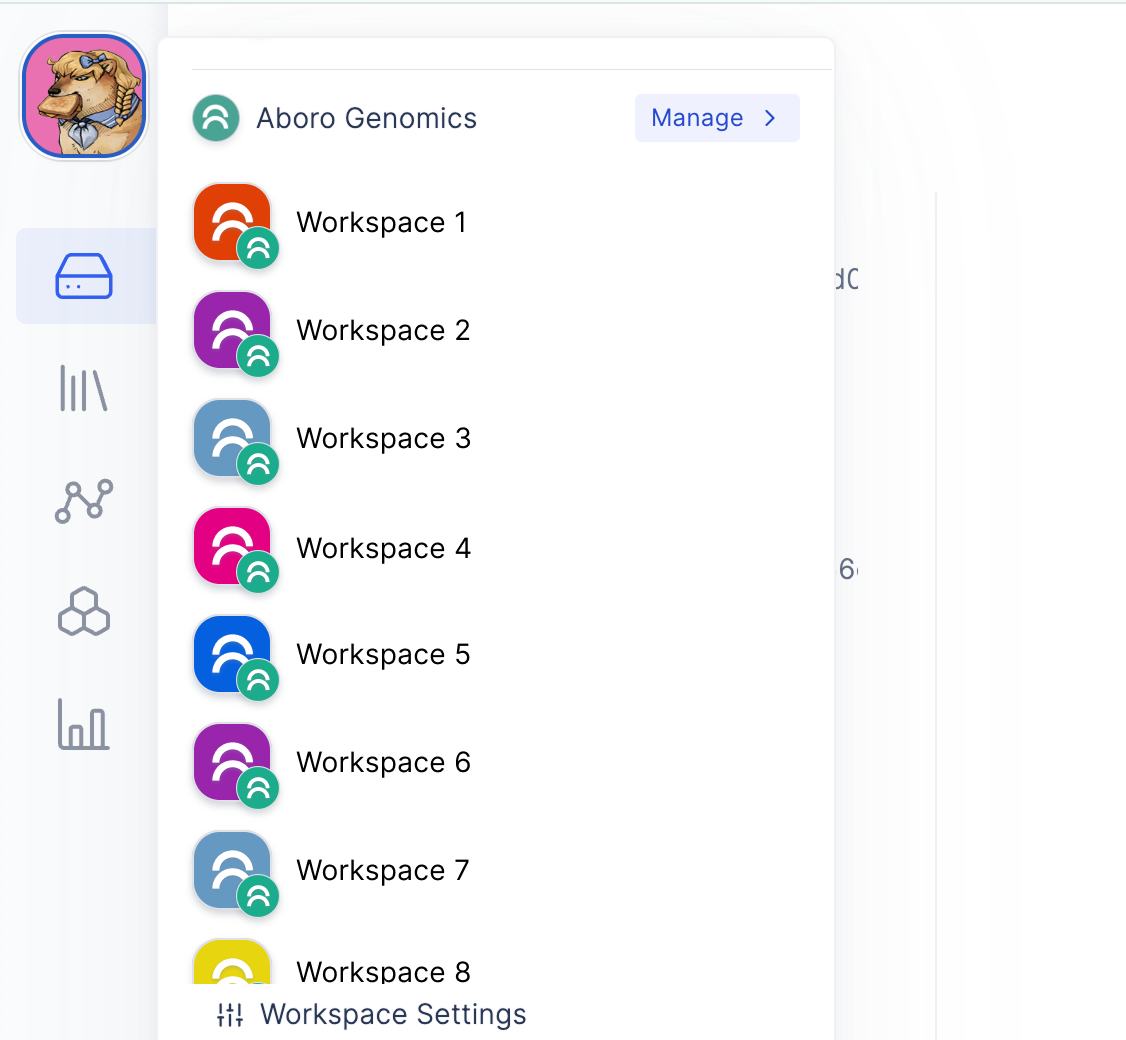
You can find the list of organizations by clicking on the Avatar in the top left corner of the screen and selecting "Organizations" in the sidebar.
 ## Features
Latch Organizations allow you to create a group of workspaces under a single organization. The main features include:
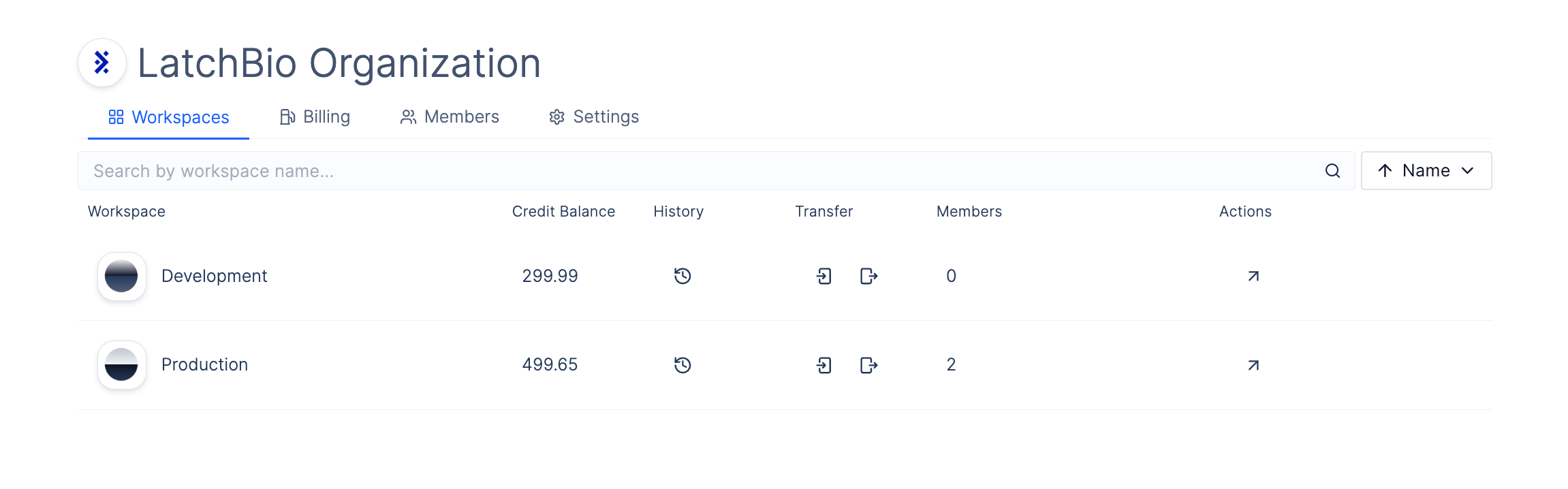
### Workspace Overview
* Access by clicking `Workspaces` on the navbar when on the organization page.
* View all workspaces managed by the organization.
* View workspace balances and transfer balances between workspaces.
* Access workspace settings and manage resources.
* See [Adding Workspaces to an Organization](./adding-workspaces) to learn how to transfer existing workspaces or add new workspaces to the organization.
## Features
Latch Organizations allow you to create a group of workspaces under a single organization. The main features include:
### Workspace Overview
* Access by clicking `Workspaces` on the navbar when on the organization page.
* View all workspaces managed by the organization.
* View workspace balances and transfer balances between workspaces.
* Access workspace settings and manage resources.
* See [Adding Workspaces to an Organization](./adding-workspaces) to learn how to transfer existing workspaces or add new workspaces to the organization.
 ### Billing Overview
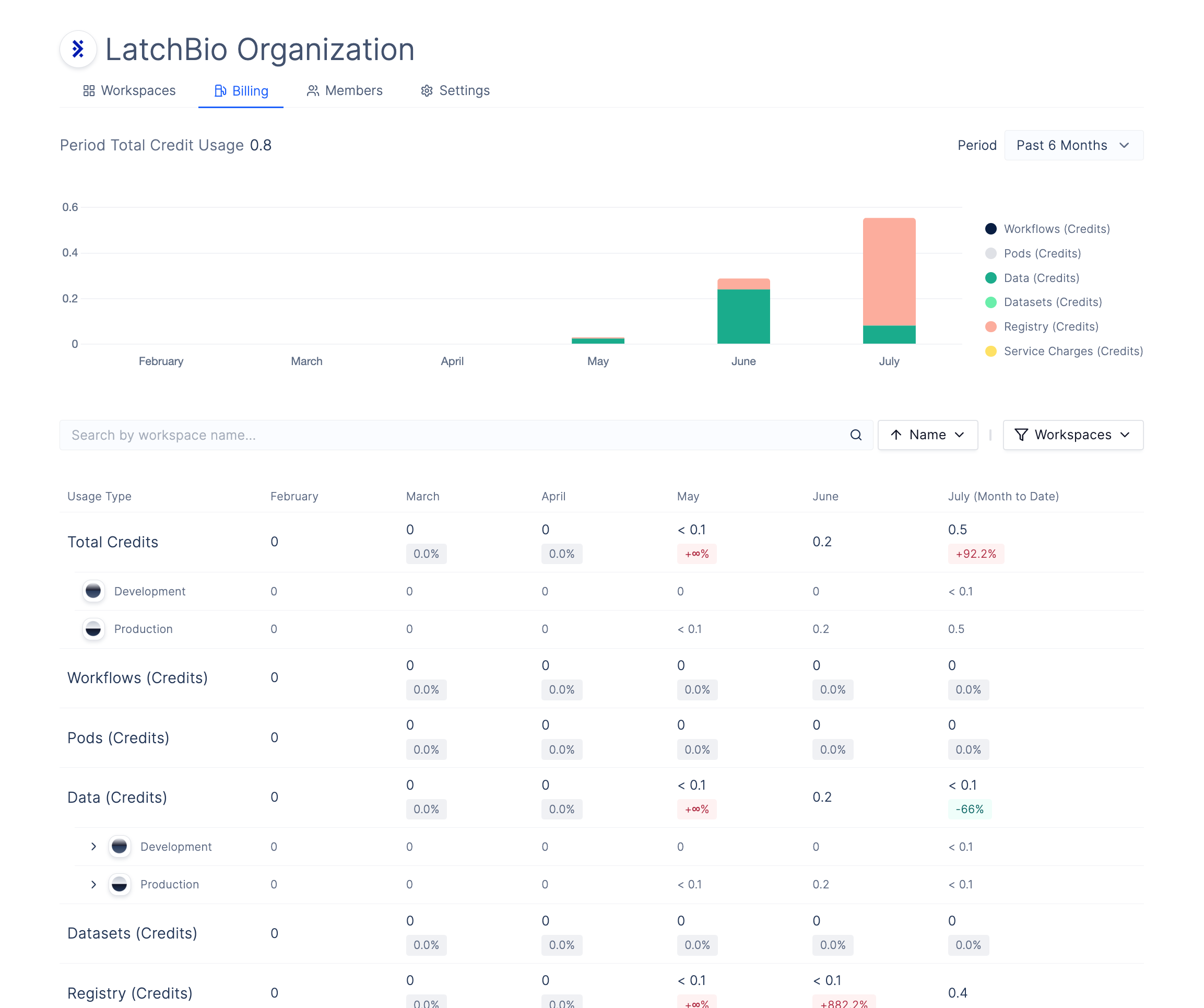
* Access by clicking `Billing` on the navbar when on the organization page.
* View aggregate billing view of all workspaces across the four Latch Products.
### Billing Overview
* Access by clicking `Billing` on the navbar when on the organization page.
* View aggregate billing view of all workspaces across the four Latch Products.
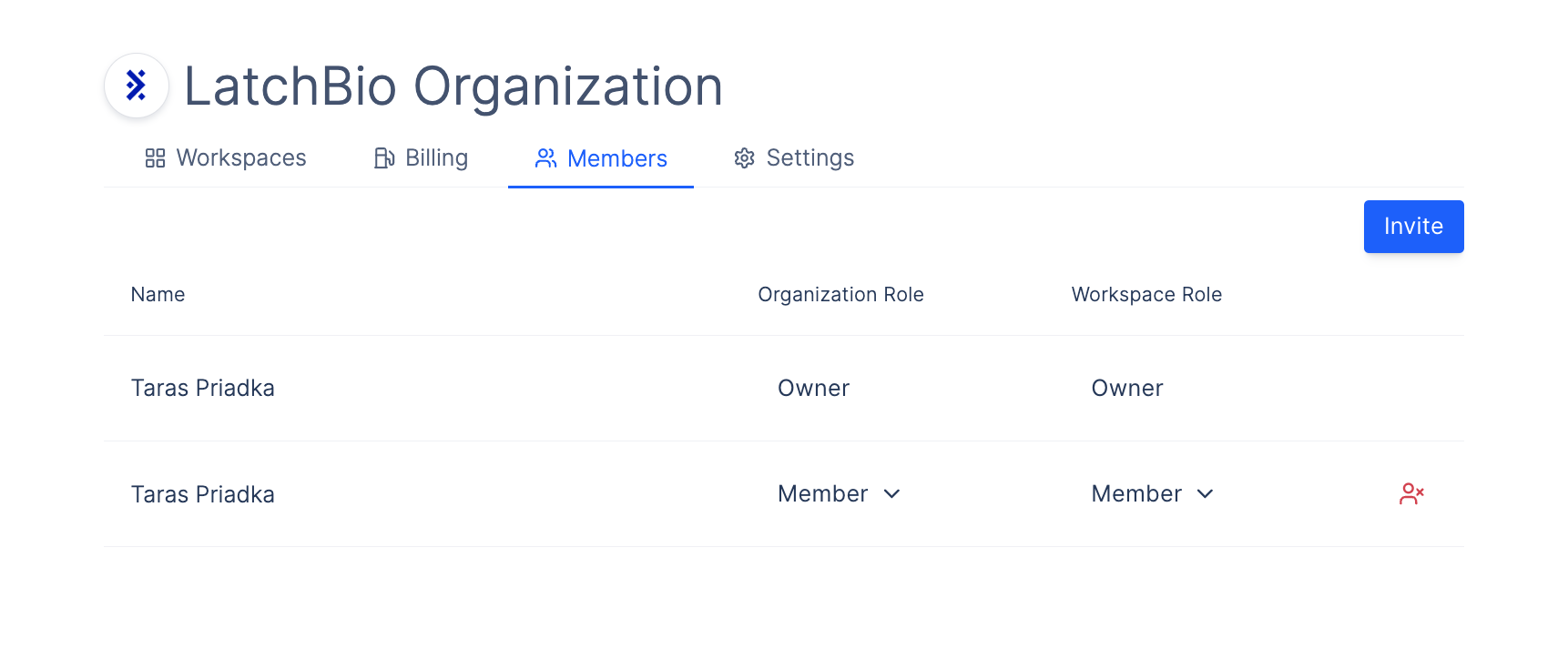
 ### Member Management
* Access by clicking `Members` on the navbar when on the organization page.
* Invite users to join the organization.
* Assign roles to users within the organization.
* Organization members have owner-level access to all managed workspaces by default.
* See [Inviting Members to an Organization](./managing-members) to learn how to invite and manage organization members.
### Member Management
* Access by clicking `Members` on the navbar when on the organization page.
* Invite users to join the organization.
* Assign roles to users within the organization.
* Organization members have owner-level access to all managed workspaces by default.
* See [Inviting Members to an Organization](./managing-members) to learn how to invite and manage organization members.
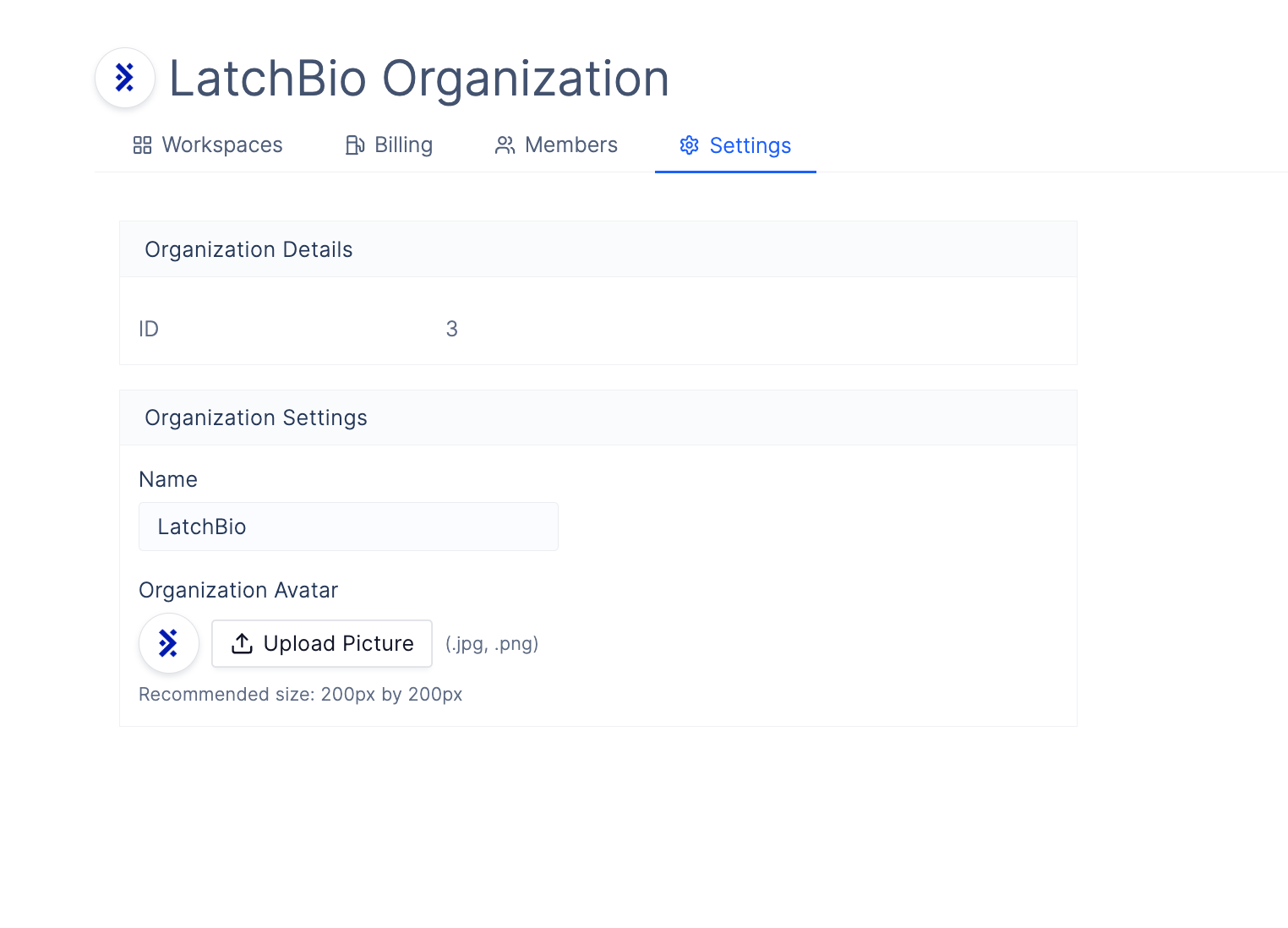
 ### Customizing Organization
* Access by clicking `Settings` on the navbar when on the organization page.
* Change the name of your organization.
* Change the icon of your organization.
### Customizing Organization
* Access by clicking `Settings` on the navbar when on the organization page.
* Change the name of your organization.
* Change the icon of your organization.